Roles
To access the module, there are 2 permissions available at the role level.

Administration of the post-it addon will allow access to the configuration of the module.
Using sticky notes will allow users to create sticky notes and access the Tracking screen.
Folder Permissions
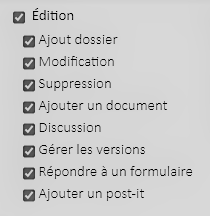
You can restrict the creation of sticky notes on documents in a folder. Indeed, an Add a post-it note permission in the Edit category allows the use of post-its.
Configuration
To access the configuration, please click on the Post-its menu in the left bar. Then, you can click on the Configuration tab.
Recipients
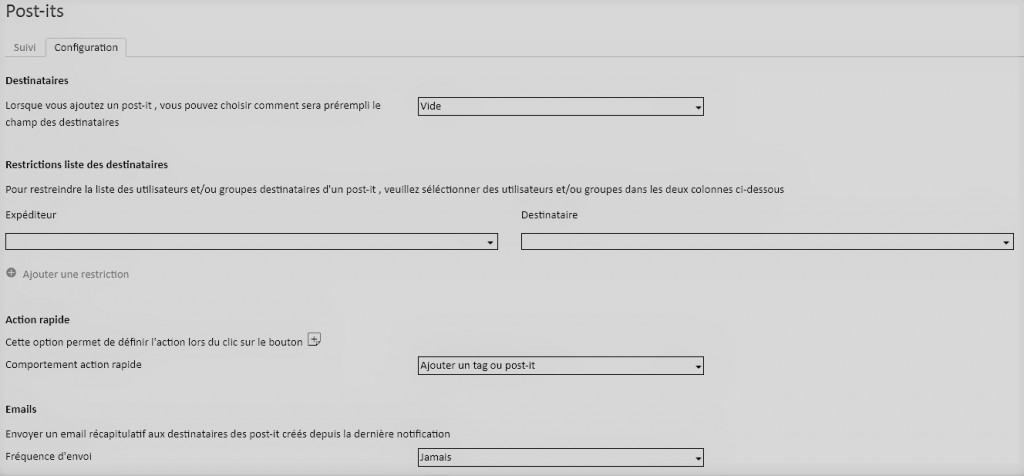
This option allows you to set the default behavior for the Recipients field of a post-it note.
Two values are available: Empty or Everyone.
With the default value of Blank, the list of recipients will be empty, so the user will be prompted to fill in this field before they can send a post-it. You can set the value to Everyone by default, so that all users of the EDM will receive the post-it.
Please note that the notion of Everyone uses the restrictions of the recipient lists if they are configured.
Recipient List Restriction
Use this part to set up a recipient list for a sender group.
Indeed, you may wish to limit the recipients of a post-it, for reasons of security, volume or other.
For example: the Commerce user group does not have to send sticky notes to the other groups in the EDM. In this case, you can set up a Sender: Commerce, Receiver: Commerce association. For example, users in the Commerce group will only see users in this group in the Recipient field of a post-it note.
Fast-acting
This option allows you to choose the default behavior of the quick action icon.
You can choose between Add a tag or post-it note and Add a tag.
Emails
An email summarizing the number of post-its received is sent to users. Here you can set the frequency of sending this email. Here are the available values:
- Never
- Every day
- Weekly
- Monthly
Please note that for privacy reasons, the content of post-it notes is not included in this email. The user will either need to visit the Tracking screen to see the messages, or go directly to the documents associated with the sticky notes.