- Definition of a post-it note
- Difference Between a Post-it Note and a Tag
- Adding a post-it note
- Adding a tag
- Editing a post-it note
- Deleting a post-it note
- Aftercare
Definition of a post-it note
A post-it note is a message that a user sends to one or more recipients. Recipients can be users or groups. A color is also associated with a post-it, by default the color yellow.
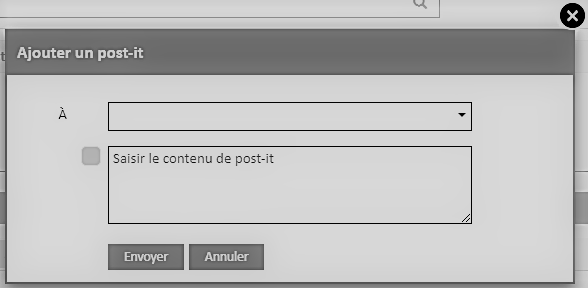
The post-it note is confidential between the sender and the recipients. An admin won’t be able to see the content of sticky notes sent by other users
If a sticky note is sent to a user group, the recipients are the people who make up the group at the time the sticky note is sent. This is because if a user joins the group, for example 1 week later, that user will not see the previous sticky notes sent to the group.
Please note that a document’s sticky notes are retained even if the document is deleted.
Difference Between a Post-it Note and a Tag
The difference between a post-it note and a tag is very simple. A tag is a post-it note with empty message content. It is a color associated with a document and the recipient is the sender is the same user.
You can also create a tag for several recipients, as we will see later.
Adding a post-it note
Adding a post-it note is an action that can only be performed on documents. You can’t add a post-it note to a folder.
To add a post-it, you can use 2 methods. First, you can use the actions menu on the document, an Add Post-it note entry is available.
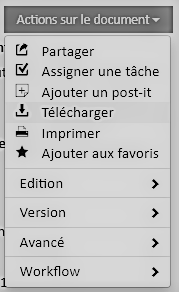
The other solution is to use the quick action: 
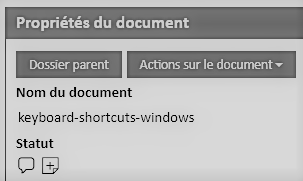
The prerequisite is to configure the behavior of the quick action on Add a tag or post-it, this is defined by an administrator in the configuration of the module.
The quick action icon is available when previewing a document, on the right side of the document properties.
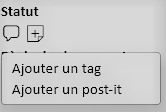
This quick action is also available from the folder tree.

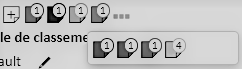
When a post-it note is created, an icon of the post-it’s color appears. There is also a counter that displays the number of post-it notes of that color.

If a document contains more than 4 sticky notes of different colors, you will see this icon that will allow you to see the other sticky notes.

Adding a tag
Adding a tag is done by the quick action icon, . Depending on how the quick action behavior is configured, you either have the direct choice of color or the menu to choose between adding a sticky note or adding a tag.
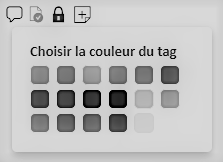
You can choose the color and thus create a tag that is visible only to yourself.
If you want to create a tag for multiple recipients, add a post-it note and leave the message content blank.
Editing a post-it note
Of course, you can change a post-it note if there is an error in the content of the message or if the list of recipients is not correct. To do this, first click on the icon of the post-it note you want to edit to display it.
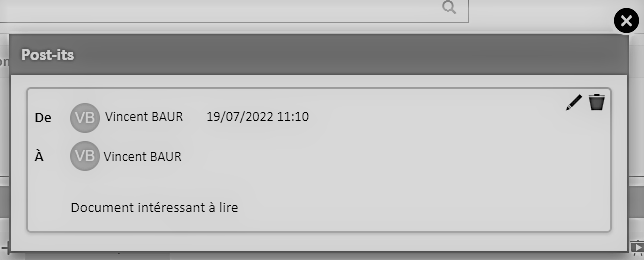
In the post-it window, you can click on the icon  to make the post-it note editable.
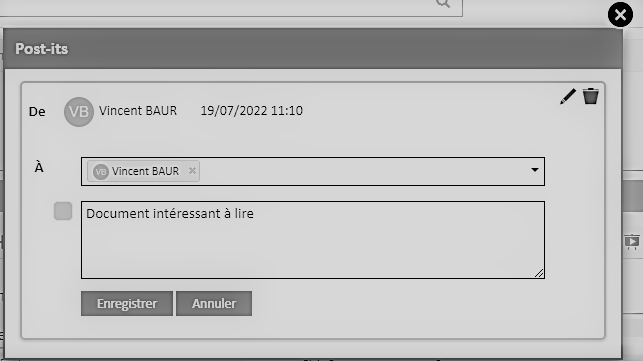
Then, make your changes, whether it’s for the recipients, the color, or the content of the message, and click Save.
Please note that you cannot edit a post-it note that is not sent to us.
Deleting a post-it note
If you’ve sent a post-it note by mistake, you can delete it. As for editing, we will first consult the post-it note by clicking on the color of the post-it. Then, click on the icon  to view a deletion confirmation.
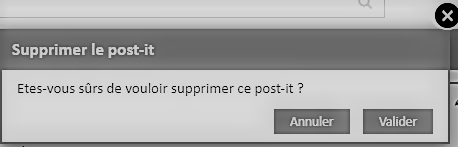
If you validate, the post-it note will be permanently deleted for all recipients and yourself.
Please note that only the sender of a post-it note can delete it.
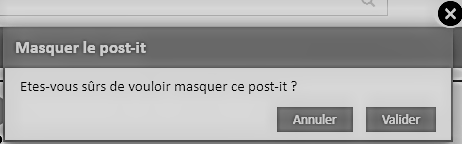
If a recipient wants to delete a post-it note that has been sent to them, they will have access to this icon  which will allow them to hide the post-it. This way, the user will no longer see the post-it, but it will still exist for the sender and other recipients. Confirmation is required before hiding the post-it, this action is irreversible.
Aftercare
The tracking screen is available from the global menu, Post-it section.
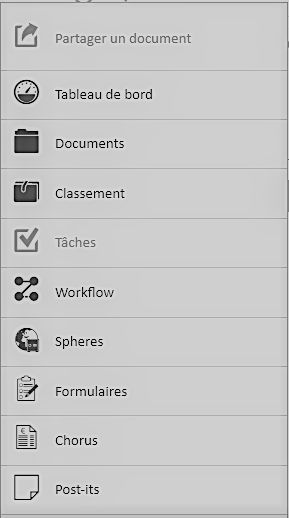
On this screen you will find all the post-its you have sent and received.

You can use the filters to choose a date period, filter by the name of the document, the sender, the recipients, but also the color, or search the content of the message on a post-it. Once the filter(s) have been configured, click on the button  to refresh the data.
There is also a checkbox to display the sticky notes of deleted documents.
The unit actions available for each row are if you are the sender, Edit and Delete. If you’re the recipient of the post-it note, Hide.