Fill out a form
In the menu on the left, if you have the necessary rights and if there is at least one form created, you can fill out a form.
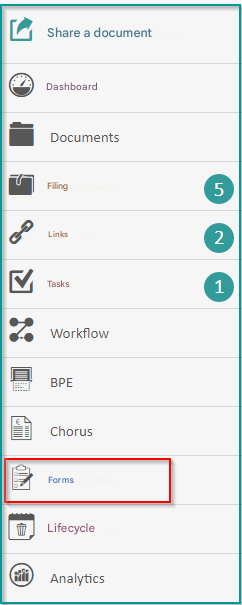
Click on “Form” to view the list of forms you can complete.
If you are an administrator of the Open Bee™ eForm module, you can complete a form by clicking on the “Actions” icon and then “Fill out a form“.
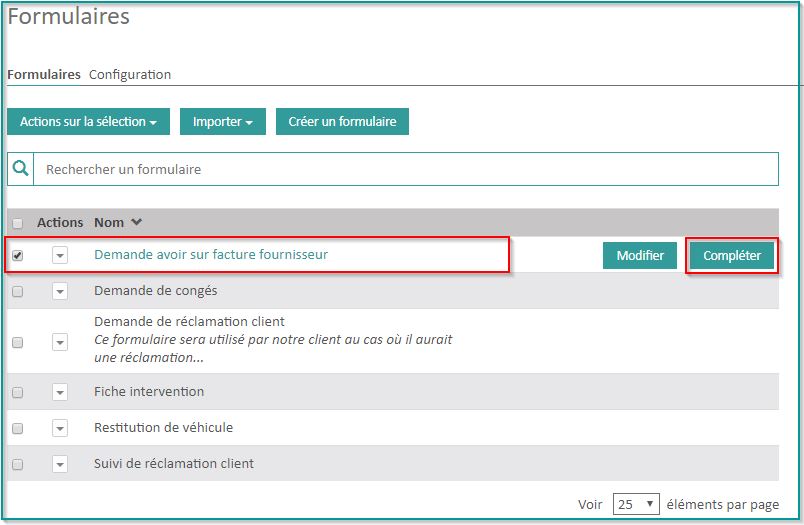
Select the form you want to complete and click “Complete“.
You can fill out the form, enter the different answers and click on “Submit” to save your answers.
You cannot validate a form if you have not completed all the mandatory elements.
You are redirected to the preview of the form response.
The generated document can be a DOCX file, a PDF file, or 2 versions of the response, DOCX, and PDF.
This setting is defined in the form’s setting, Collation Format.
Pre-fill from a document
When you complete a form, you can choose to pre-populate fields from an existing document. Icon
Please note that a dynamic link configuration must first exist.
Refer to the documentation: Dynamic Links in Open Bee™ Portal
Click on “Pre-fill from a document” in the top right-hand corner.
If one or more documents match, choose the one from which you want to pre-fill the form.
If no document is offered, check the configuration in “Administration“, “Dynamic Binding“.