Supported Sage OM versions
The supported versions of Sage Business Objects are listed on this page.
To use the accounting import or the export of accounting entries via Sage business objects, a special configuration must be carried out.
For information, the processing managed by Open Bee™ Gateway is executed by a Windows service.
When using business objects, you need to make sure that the account running the Windows service has the necessary rights.
This account must be entered in the “Windows Service Configuration” section of the “Preferences” tab (or directly at the Windows service level in case of an error).
The account set up to run the Windows service must meet the following prerequisites:
- They must have connection rights as a service and be an administrator of the machine where Open Bee™ Gateway is installed
- It must have rights to the Sage SQL Server database
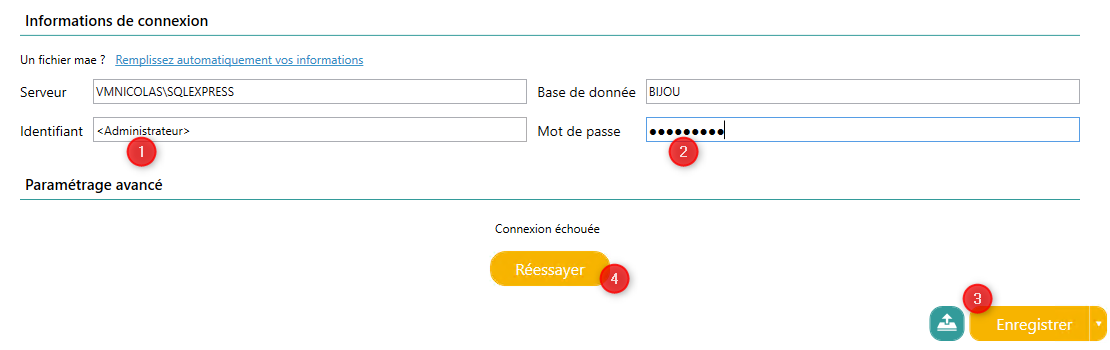
If the user does not have the rights, this error will appear in Open Bee™ Gateway
Here is the procedure for granting rights to the Sage database:
- First, retrieve the Sage database connection information in the Open Bee™ Scan Capture configuration or in the .mae file

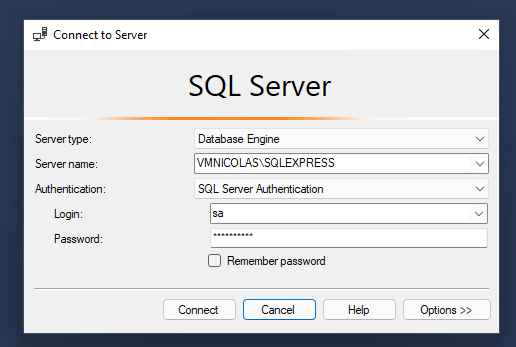
2. Log in as an administrator to the Sage database server
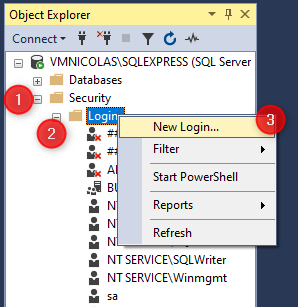
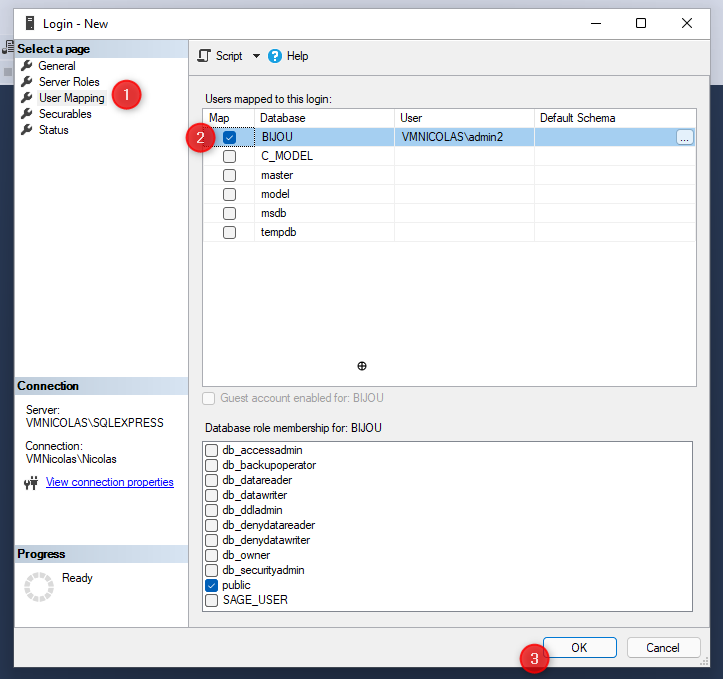
3. If it does not exist, add the Windows user configured to run the service in SQL Server by right-clicking on Security/Login and then New Login…
4. Select the Windows user by clicking on Search
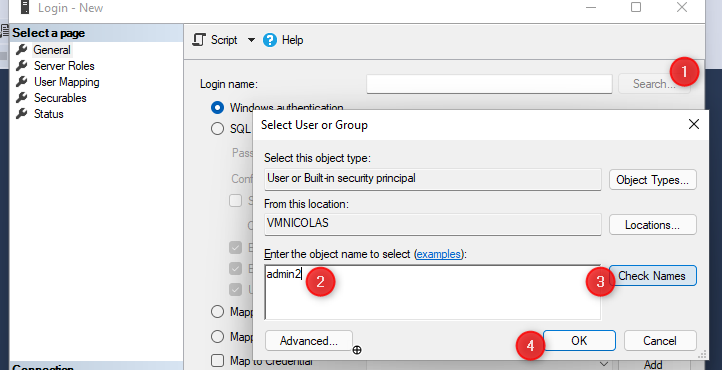
5. And finally, in the User Mapping tab, select the Sage database and validate by clicking OK
Execution of an order via business objects
The configuration is almost finalized to execute an import or export via Sage business objects.
Before executing an order, you must:
- Enter the Sage username and password. This is not the Windows account but the Sage credentials that are entered when the Sage Accounting program is opened. Administrator login is default
(steps 1 and 2) - Save the configuration (step 3). /! Be careful, each time you change the configuration (Server, database, username or password) you must be sure to click on the save button before executing a command.
- And finally execute a command by clicking on the “Retry” button, for example