Configuration
Set up a business rule for expired documents
The following interface allows you to add, modify, or delete lifecycle management rules
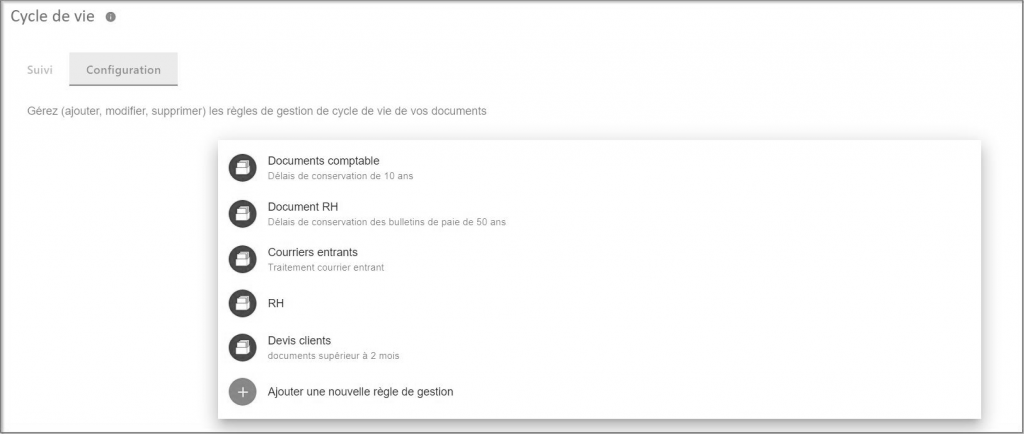
Add a new business rule
Step 1: General information
Click on the button:

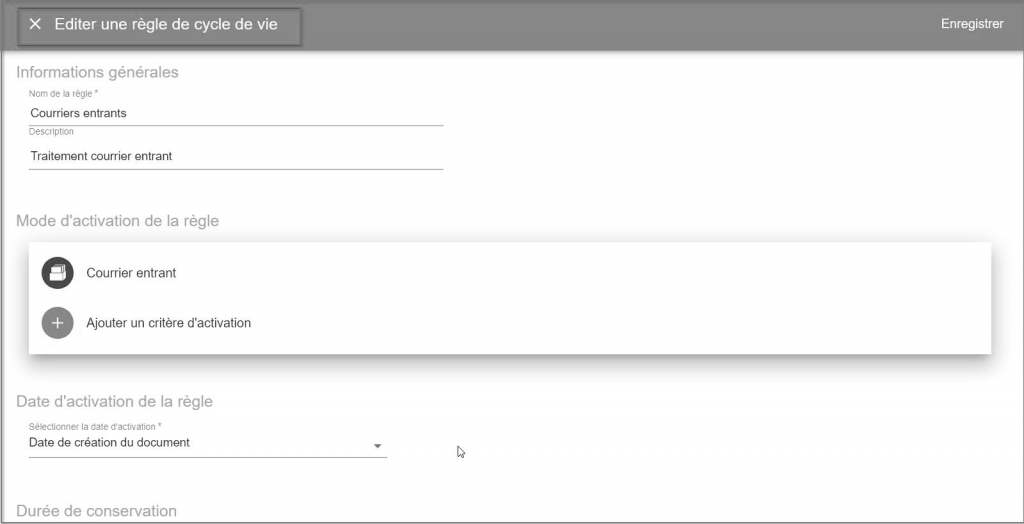
The setup screen for a life cycle rule appears:
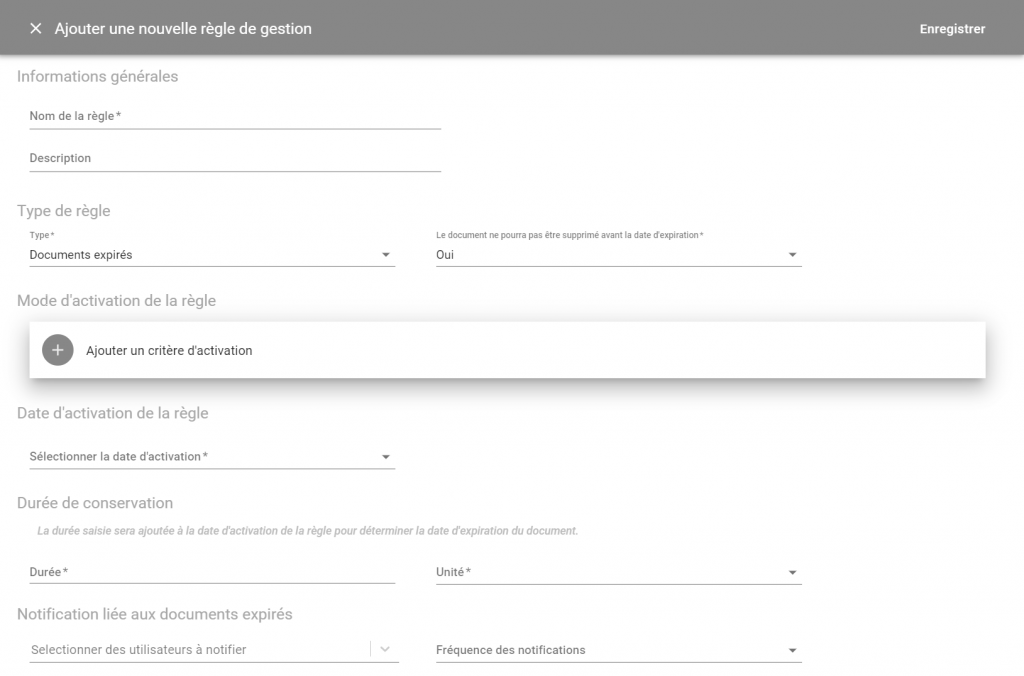
Enter the Name of the rule , e.g. “Inbound Mail”. If you wish, you can add a Description.
Choose the Expired Documents Rule Type .
By default, the rules for handling expiring documents prohibit expiring documents from being deleted before the expiration date. This check is carried out both when the trash is put in the trash and when it is purged. However, it is possible to change the default configuration to allow the deletion of a document that is subject to an expiration rule at any time.
Step 2: How the rule is enabled
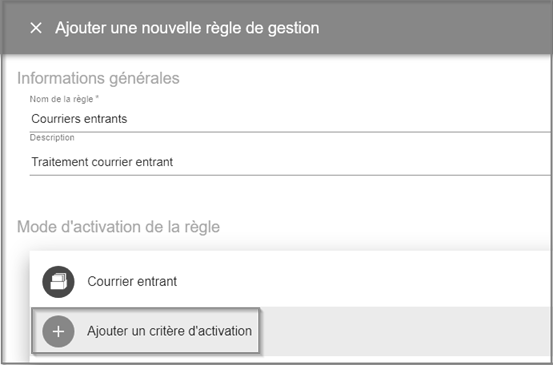
The activation mode is the criteria for defining whether a document will be subject to the rule being created. These criteria are based on the folders, filing rules and metadata associated with the documents.
Click Add Activation Criteria
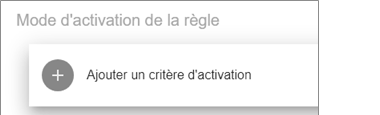
The following configuration screen appears:
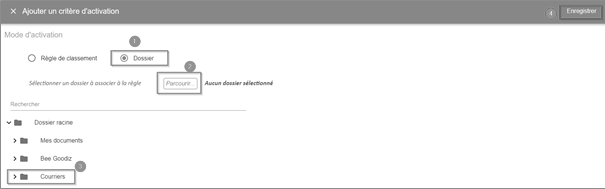
From this interface, you can choose your activation mode by:
- Ranking Rule
- Folder
How to activate with a ranking rule:
- Select the Ranking Rule checkbox
- Choose a rule from the drop-down list
- Click Advanced Options to see more options
- Select metadata (e.g., mail date)
- Select a carrier
- Select a Value (date)
- Click Save
NB: You can add multiple metadata by clicking

To delete metadata, click the 
You can also add multiple activation criteria in the same business rule by clicking “Add Activation Criteria”
Warning : If several activation criteria are added, it will no longer be possible to use metadata as the activation date of the rule. Metadata can only be used if only one ranking rule has been selected as the activation criterion.
Step 3: Date the rule was activated
The date the rule is activated represents the reference date (or retention start date) that will be taken into account to calculate the retention period for each document.
A retention period will be added to this reference date to calculate the expiry date of the document. The retention period is the length of time that it is considered that the document should not be deleted.
There are 3 types of activation date:
Option 1: Document Creation Date
This is the date the document was added to the Open Bee™ Portal.
Choice 2: Last modified date
The activation date can also be the date of the last modification made to the document.
In this case, if a change is made to the document, the retention start date is changed and Open Bee™ Portal will automatically recalculate a new expiration date for the document.
Choice 3: Metadata Date
The activation date can also be found on the document and may have been entered when the document was classified in a metadata.
In this case, Open Bee™ Portal allows you to select a date metadata associated with the document.
Step 4: Shelf life
The retention period will be added to the reference date to determine the expiry or end date of the document’s retention.

This section allows you to select the users who will be notified by email about the number of expired documents so that they can process them from the expired document tracking screen.
You can choose the frequency of these notifications:
- Once a day
- Once a week
- Once a month

Step 6: Saving the configuration
When creating an expiration rule, it is possible to choose two modes of operation.
The choices offered are as follows:
– Future documents: Expiration dates will only be calculated for documents with an activation date greater than or equal to the date the rule was created.
– All: The calculation of expiration dates is started on all documents that are already present and meet the criteria of the rule.
Edit the Life Cycle Rule
At any time, the administrator can edit the lifecycle management rule.

In the event that the parameters: activation date, activation duration or activation mode of the rule have been changed, this will impact the method of calculation of the rule.
The user will then have the choice to:
- Override rule: All expiration dates are recalculated, as is the case when a correction, error, or change of mind occurs.
- Add a new version: A new version can be added to the rule when the retention start date changes.
This feature is useful in the event of a change in the legislation on the retention of a type of document.
.
For example: if the law changes and requires that HR documents be kept for a period of 5 years and not 2 years, then the user will be able to create a new version of the “HR document management” rule, by choosing to set the retention period at 5 years instead of 2 years.
When he is going to edit the rule, Open Bee™ Portal will suggest that he add a version and will then recalculate the expiration dates for HR documents whose activation date or reference is greater than the date of creation of this new version of the rule.
NB: The recalculation is not retroactive and will only take into account the changes on the new documents from the date of modification of the rule.
An example:
- Rule: HR Document Management
- Date of application of the rule: Between 01/01/2018 and 31/12/2018
- Retention period: 2 years from the date of creation of the documentLegislative change requiring the retention of documents 5 years which comes into force on 01 January 2019
- Rule Change “HR Document Management” on January 01, 2019
- Retention period : 5 years from the date of creation of the document
- Only documents added after January 1, 2019 will be impacted by the change in this duration, the expiration dates of the documents calculated previously remain unchanged (2 years).It will not be possible to restore an earlier version of the rule.
View the rule version history
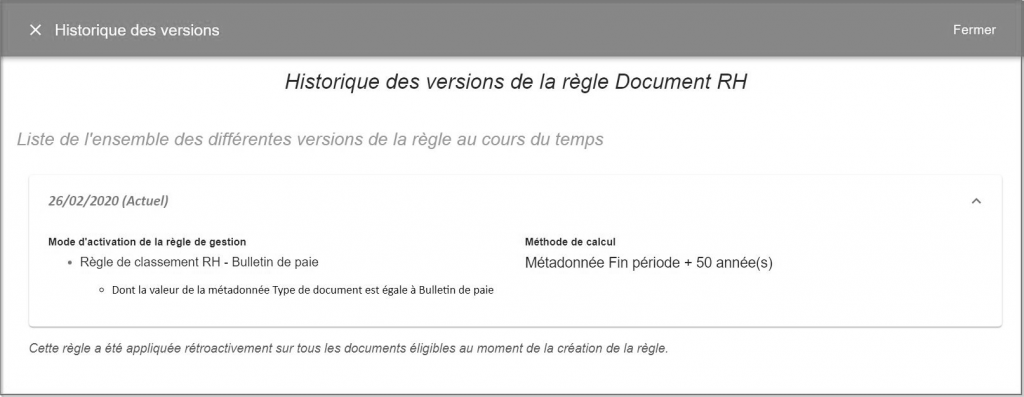
A lifecycle management rule can have multiple versions, and the user will be able to view the history of the different versions of the rule and how it has changed over time.
For example, there can be two versions of “accounting records management” rules
- From 01/01/2018 to 31/12/2018 => Retention period for documents set at 2 years
- From 01/01/2019 to Present => Retention period of documents set at 5 years
The following interface displays a list of all the different versions of the rule over time.
It also displays all the information related to:
- How to enable the business rule
- Calculation method
Deleting a Lifecycle Rule
You can also delete the lifecycle rule at any time:
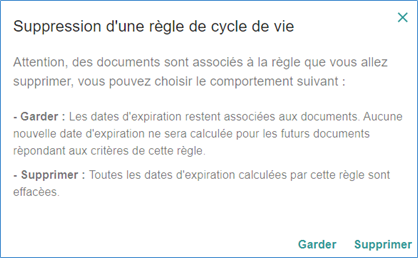
You can choose one of these two behaviors:
- Keep: Expiration dates remain associated with the documents. No new expiration dates will be calculated for future documents that meet the criteria of this rule.
- Delete: All expiration dates calculated by this rule are cleared.