Configuration
Set up a business rule for automatic reminders
The following interface allows you to add, modify, or delete lifecycle management rules
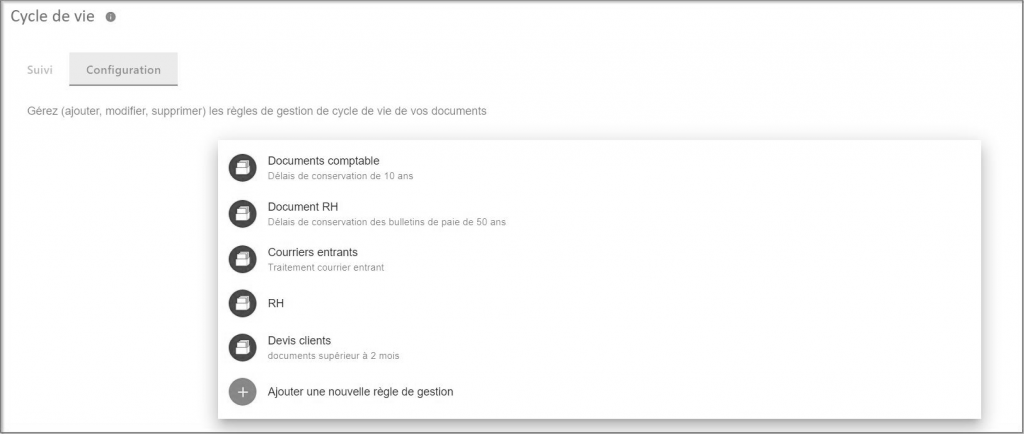
Add a new business rule
Step 1: General information
Click on the button:

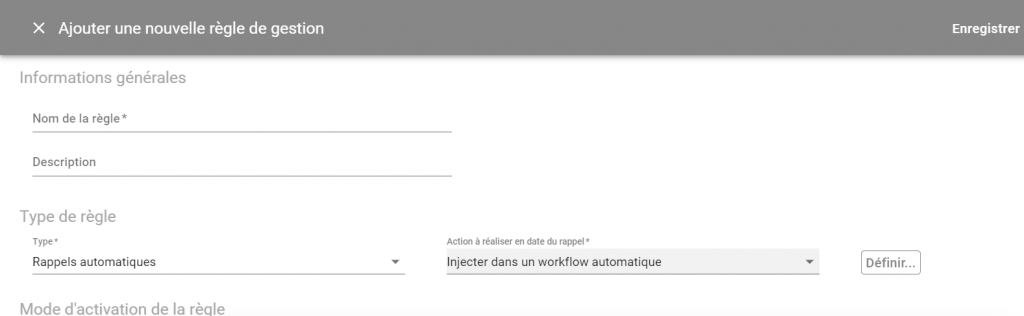
The setup screen for a life cycle rule appears:
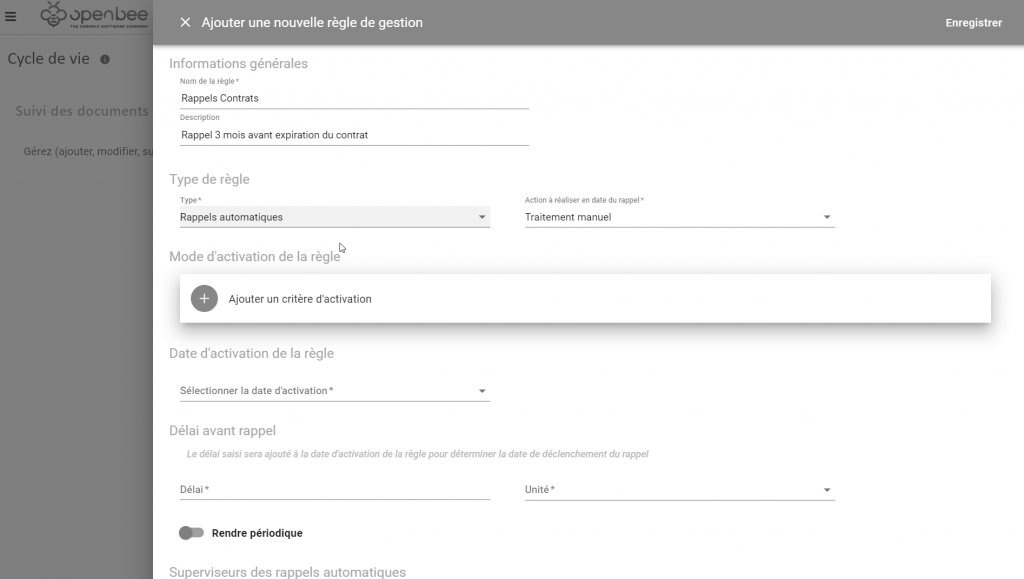
Enter the Rule Name, e.g. “Contract Management”. If you wish, you can add a Description.
Choose the “Automatic reminders” rule type .
You can then set up how expired reminders will be handled.
There are 3 possibilities:
- Manual processing: When reminders are triggered, they are added to the list of reminders to be dealt with accessible from the reminder tracking tab and will have to be processed manually by the authorized users: the reminder supervisors.
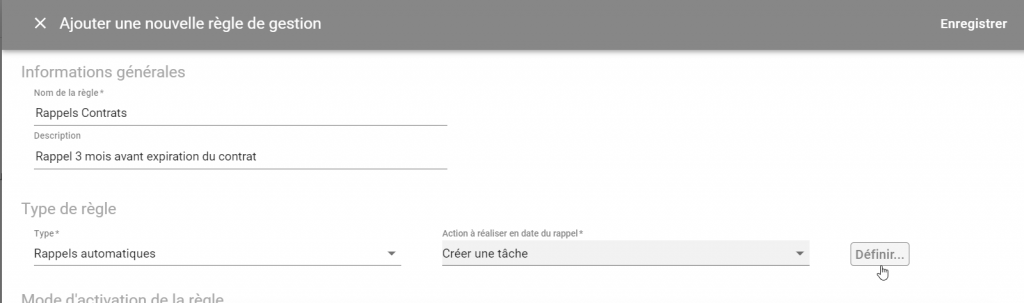
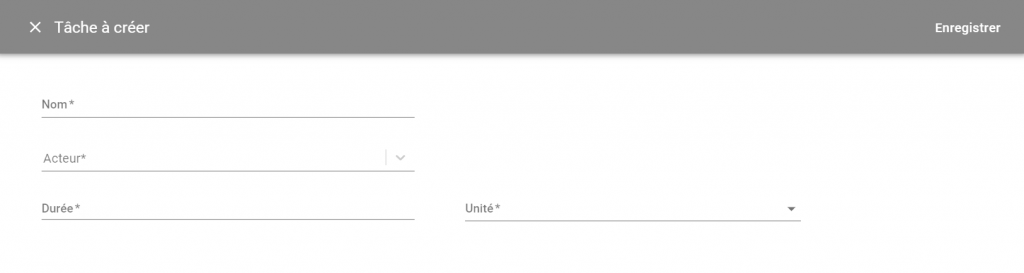
- Create a task: When reminders are triggered, they are automatically processed by the Open Bee portal and trigger the creation of a task. The parameters of the tasks that will be created are configurable
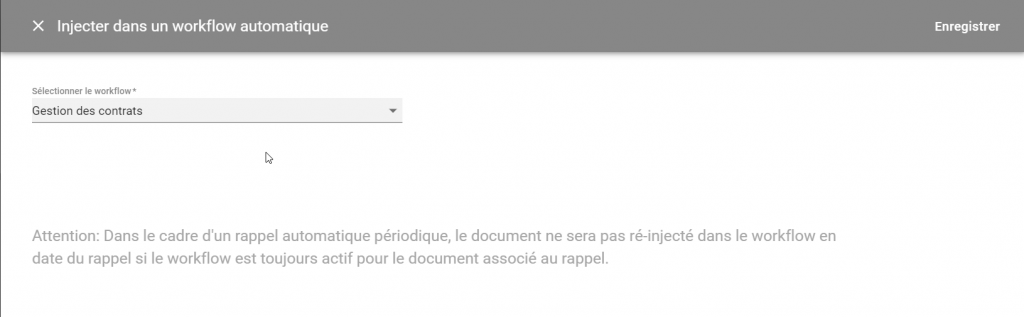
- Create a workflow: When reminders are triggered, they are automatically processed by the Open Bee portal and injected the document into a workflow.
Step 2: How to activate the rule
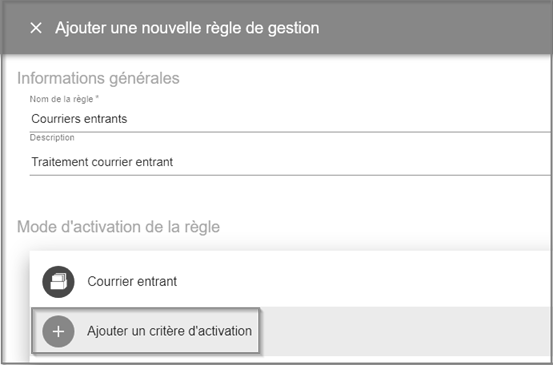
The activation mode is the criteria for defining whether a document will be subject to the rule being created. These criteria are based on the folders, filing rules and metadata associated with the documents.
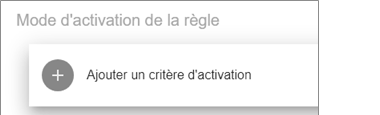
Click Add Activation Criteria
The following configuration screen appears:
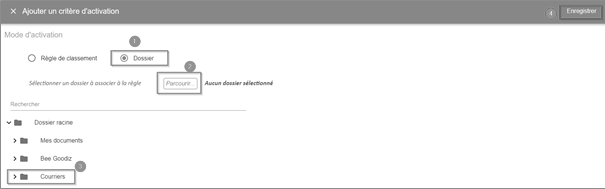
From this interface, you can choose your activation mode by:
- Ranking Rule
- Folder
How to activate with a ranking rule:
- Select the Ranking Rule checkbox
- Choose a rule from the drop-down list
- Click Advanced Options to see more options
- Select metadata (e.g., mail date)
- Select a carrier
- Select a Value (date)
- Click Save
NB: You can add multiple metadata by clicking

To delete metadata, click the 
You can also add multiple activation criteria in the same business rule by clicking “Add Activation Criteria”
Warning : If several activation criteria are added, it will no longer be possible to use metadata as the activation date of the rule. Metadata can only be used if only one ranking rule has been selected as the activation criterion.
Step 3: Date the rule was activated
The rule activation date represents the reference date on which each document is based to calculate the date on which the reminder is triggered.
A duration will be added to this reference date to calculate the date.

There are 3 types of activation date:
Option 1: Document Creation Date
This is the date the document was added to the Open Bee™ Portal.
Choice 2: Last modified date
The activation date can also be the date of the last modification made to the document.
In this case, if a change is made to the document, the retention start date is changed and Open Bee™ Portal will automatically recalculate a new expiration date for the document.
Choice 3: Metadata Date
The activation date can also be found on the document and may have been entered when the document was classified in a metadata.
In this case, Open Bee™ Portal allows you to select a date metadata associated with the document.
Step 4: Delay before recall
This corresponds to the duration that will be added to the reference date to determine the date of triggering the recall. This duration can be positive or negative.

Step 5: Periodicity
By default, a callback runs only once, however, it is possible to make it periodic. A booster can thus be triggered several times at a given fixed interval.

The number of periodic reminders on a document is limited to 99
Step 7: Recall Supervisors
Unlike expired documents, not all reminders created are visible to users with the “Document Lifecycle: Reminder Tracking” permission, and the user must also be considered a Reminder Supervisor. It is possible to put as many users as desired as supervisors of an automatic callback rule.

This makes it possible to create different rules and assign them to different groups of people. Thus, users with access to the automatic reminder tracking screen will only see the reminders dedicated to them.
Reminder Supervisors are automatically notified each night by email of the number of reminders they have to deal with as well as the number of reminders that have been handled automatically in the event of an automatic workflow or task creation.
Step 8: Saving the configuration
When an automatic reminder rule is created, a reminder will be calculated for all documents already classified that meet the criteria for activating the rule.
Edit an automatic reminder rule
At any time, the administrator can edit the lifecycle management rule.
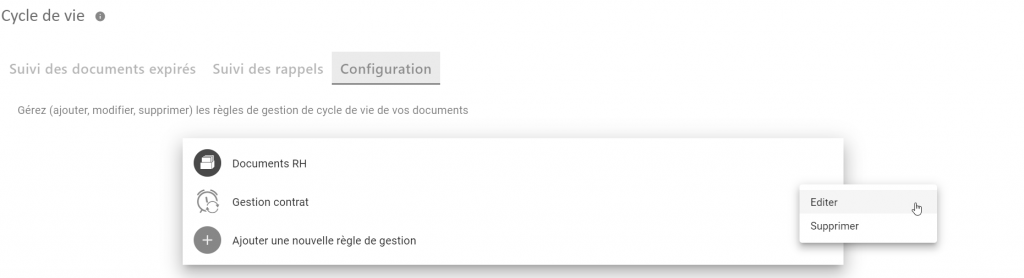
In the event that the parameters: activation date, the delay before callback, the periodicity or the mode of activation of the rule have been modified, this will impact the method of calculation of the rule.
If the calculation method is changed, the date of all outstanding recalls is recalculated to reflect the new configuration. This processing is carried out in the background.
Unlike document retention rules, there is no management of multiple versions of the same automatic reminder rule. Modifying an automatic reminder rule is the same as overwriting the old setting for that rule.
Delete an automatic reminder rule
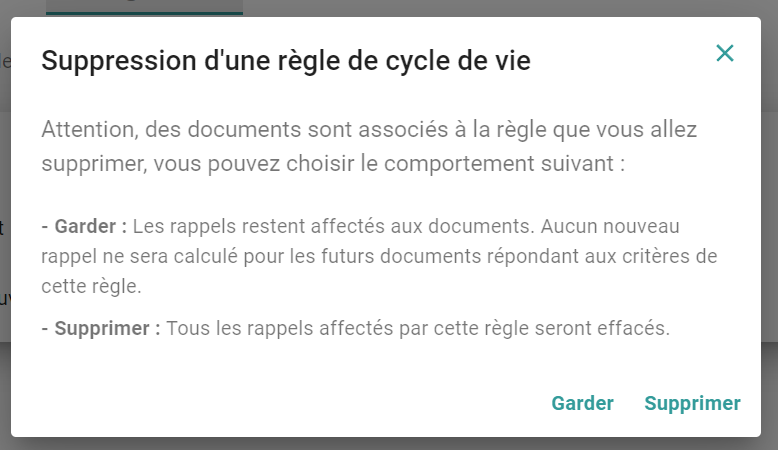
You can also delete the lifecycle rule at any time:
You can choose one of these two behaviors:
- Keep: Reminders that have already been created will not be deleted. No new reminders will be calculated for future documents that meet the criteria of this rule.
- Delete: All reminders calculated by this rule are deleted.
More details on how automatic reminder calculation works here