Manually enter an expiration date on a document
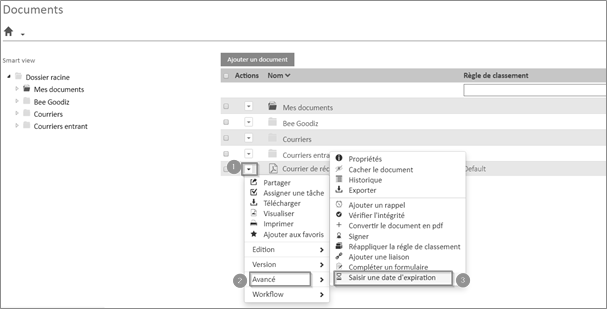
You can manually enter an expiration date on a document from the advanced options.
From the Documents interface:
- Choose the desired document
- Click the arrow and then click Advanced
- Click enter an expiration date
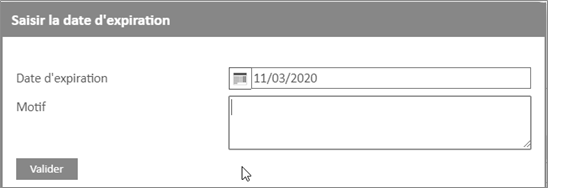
The following window appears:
- Set an expiration date
- Click Validate
Hovering over this icon  will see a message informing you of the document expiration date

Manually enter an expiration date when a document is already subject to a lifecycle management rule
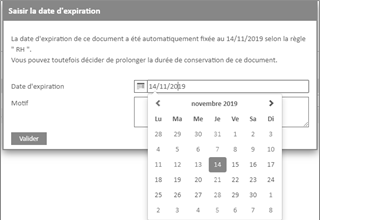
If a document is already subject to a lifecycle management rule, its expiration date is defined by the rule.
However, from the advanced options, you have the option to extend the retention period of this document.
- Choose a document
- Click the arrow and then click Advanced
- Click enter an expiration date
The following window appears:
- Set a date
- Click Validate
Please note that manual entry is subject to permission on the file. Thus, a user or a group of users may have permission to enter dates in some folders but not in other folders according to the configuration that will have been made by the administrator of the Open Bee™ Portal solution