In order to make the Open Bee™ Editique My Sending Box module work, several steps are necessary:
First of all, you need to create an account on the My Sending Box portal using this url:
https://www.mysendingbox.fr/signup?branded_for=openbee
Then, in the Administration menu, then Desktop Publishing, you will find several tabs to fill in.
Configuration

API key
This field is used to enter the Live API key for your My Sending Box account.
You will find this information when you are logged in to My Sending Box, in the Account menu then Keys and Webhook API.
In order to avoid an input error, prefer a copy and paste of the Live key directly in the API Key field of the Open Bee™ Editique My Sending Box module.
Test API Key You can use the Test API key to perform test submissions. Documents sent with this key will not actually be sent and will keep a status of Created.
Default Supervisor
Matches the default user if no match was found during an automatic send.
Transmitter
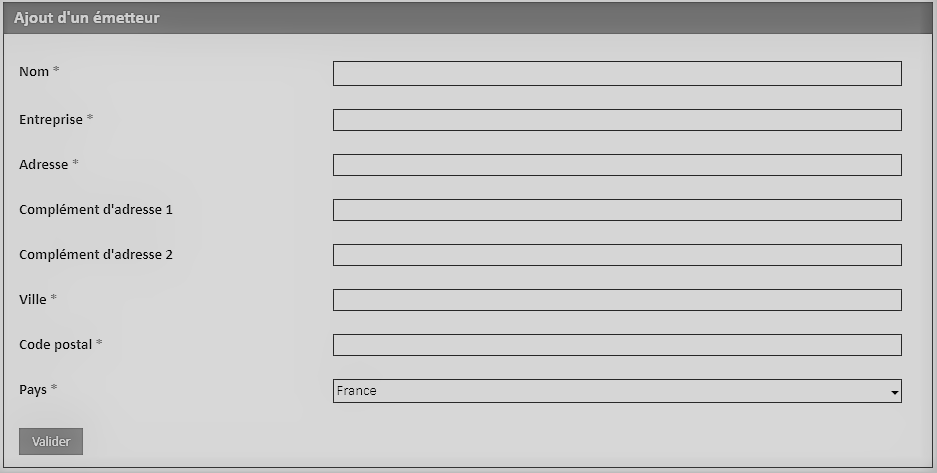
Here you can set the sending address when you send mail with an acknowledgment of receipt.
You can create multiple issuers, for example, for a company that has subsidiaries.
Here are the different fields to fill in:
Name
Enterprise
Address
Address complement 1
Address complement 2
Town
Zip code
Country
Sending Profiles
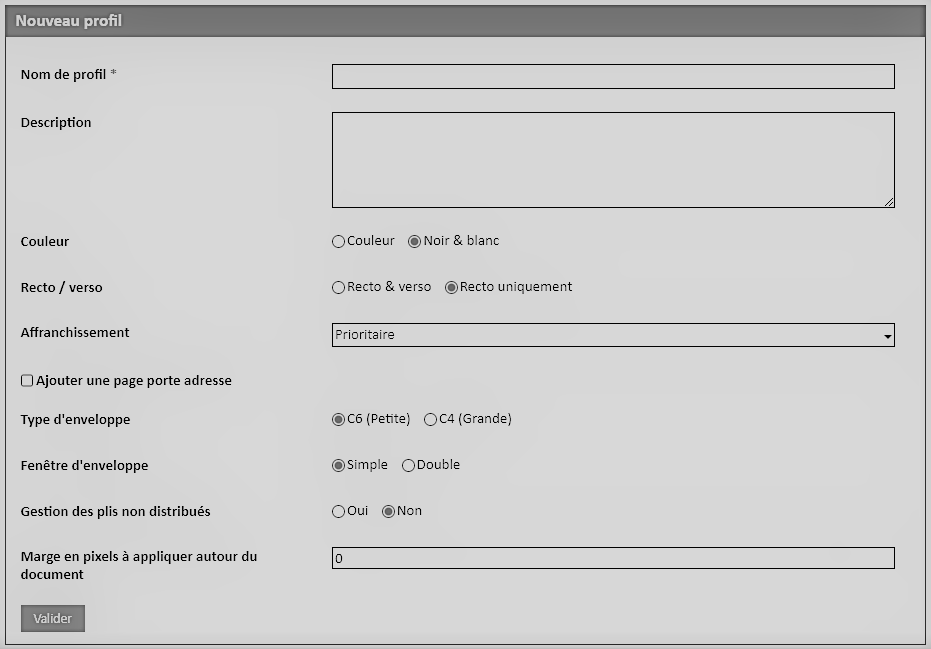
Sending profiles are the print settings for a document sent to My Sending Box.
Here is the different information you can configure:
Profile Name : The name of the sending profile to distinguish it when you have created more than one.
Description : An optional description of the sending profile.
Color : Color or Black & White
Front/Side : Double-sided or Single-sided only.
Postage : Ecopli, Priority, Registered Letter or Registered Letter with acknowledgement of receipt.
Add address page : Check box. Allows you to add a blank sheet of paper that will contain the recipient’s address before the document to be printed.
Envelope Type : C6 (Small) or C4 (Large). Choice of envelope size, a C6 (Small) envelope will contain A4 sheets folded in 3.
Envelope window : Single or Double. The envelopes used by My Sending Box contain at least one window (transparent area) to display the recipient’s address. If you use a double envelope window, it displays the address of the sender as well as the recipient.
Management of undelivered items : Used if the postage is Registered Letter or Registered Letter with Acknowledgement of Receipt. Allows you to receive the acknowledgement of receipt by post.
Pixel margin to apply around document : To set a pixel margin around the document you want to print.
Automatic Dispatch
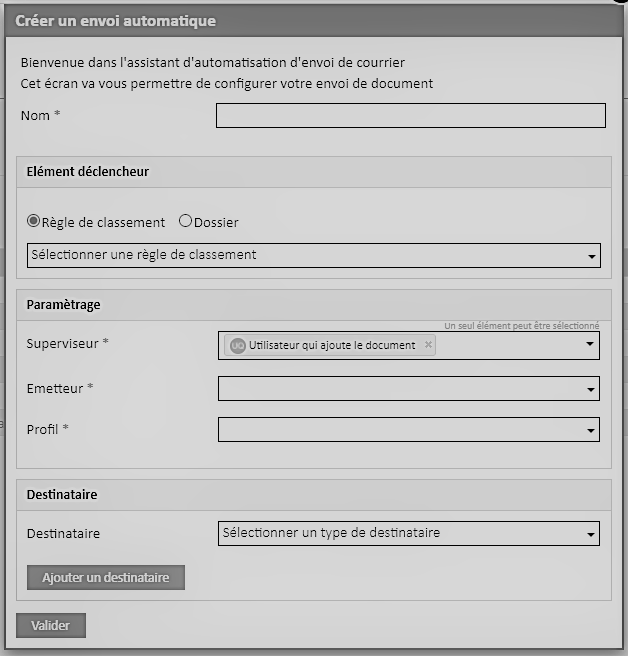
Use this tab to create auto-send rules. Icon
Please note that if you create multiple versions of a file, each version will be sent to My Sending Box.
For example, if you create 3 versions of the same file, the automatic send will send 3 times to My Sending Box.
You can choose a trigger, i.e. a Ranking Rule (with a possible filter on a metadata value) or a specific folder.
First, please enter a name to identify your auto-send rule.
Trigger
In this section, you can choose the trigger that will allow mail to be sent seamlessly: a Filing Rule or a Folder.
The documents corresponding to the defined criterion will therefore be sent approximately every 10 minutes automatically.
Ranking rule : You can choose to add a filter on a metadata of the ranking rule.
For example, Filing Rule: Invoice.
Metadata is equal to ABC.
Folder : Corresponds to the choice of a folder in the file tree.
Parameterization
Supervisor : Corresponds to the user who will be used to make the send.
Issuer : Corresponds to the person or entity defined in the Issuer tab.
Profile : Corresponds to the sending profile defined in the Sending Profiles tab, i.e. the mail printing settings.
Addressee
You can choose the type of recipient, here are the different possible choices:
Open Bee™ Portal user: Mails will be sent to this Open Bee™ Portal user.
Address information can be filled in from the user profile once they are logged in.
You can choose a dynamic user with metadata or a fixed user.
Dynamic address : The recipient’s address will be dynamically populated by matching the different address fields with metadata from the ordering rule that triggers the automatic sending.
Make sure that your Filing Rule has the following 6 metadata to make automatic submissions:
Name
Enterprise
Address
Town
Zip code
Country
Fixed address : You can enter the different fields corresponding to the recipient’s address.
Please note that you can add multiple recipients, of the same or different types.