Manual Sending
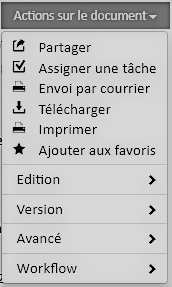
Manually sending a document is possible via an action on the document.
This action is available from the document tree or from the document preview.
First, you need to choose the sending profile (the mail print settings) and the sender of the mail.
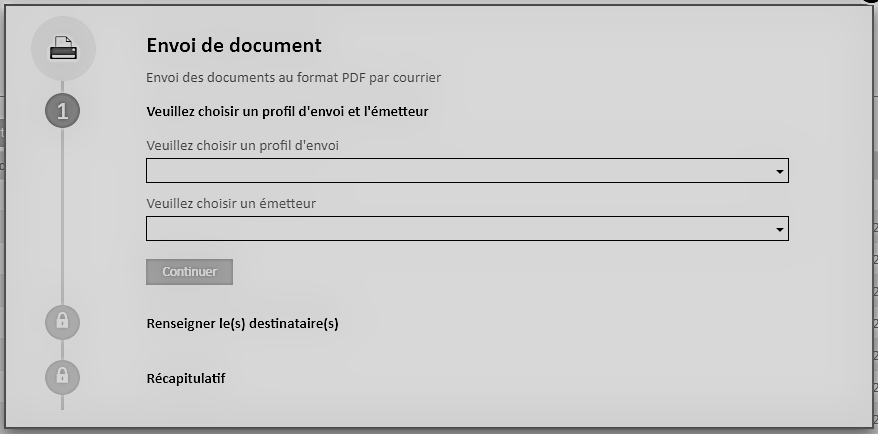
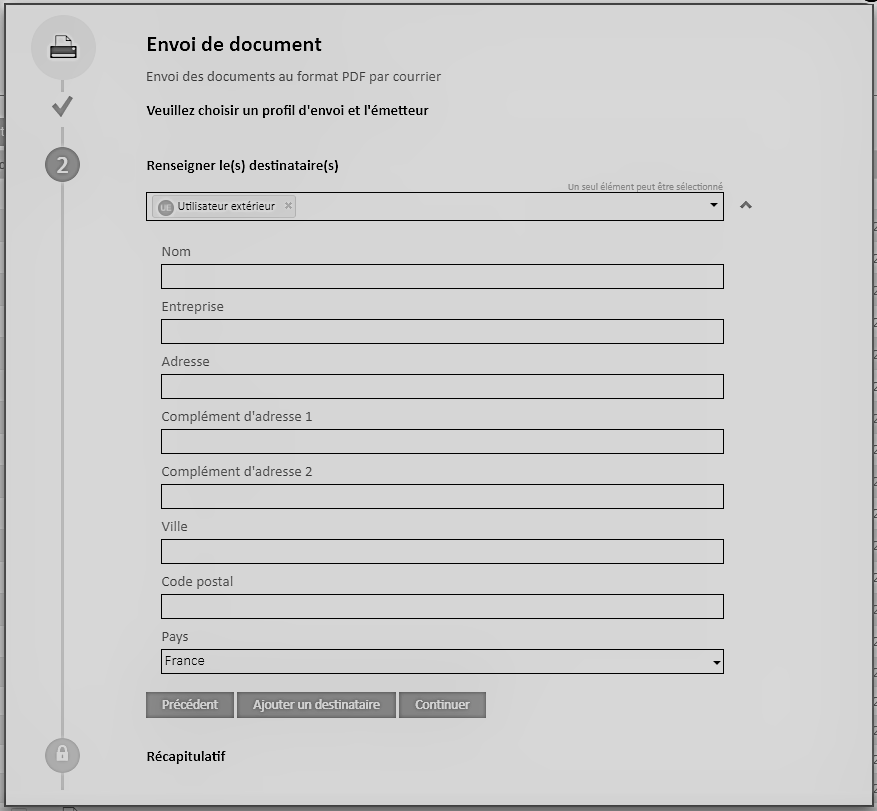
Then, you have to fill in the recipient(s), the possible choices are as follows:
External user, it is a person or entity that does not exist in the solution
Open Bee™ Portal user, a user who already exists in the solution.
Please note that this user must have entered their address information in their profile.
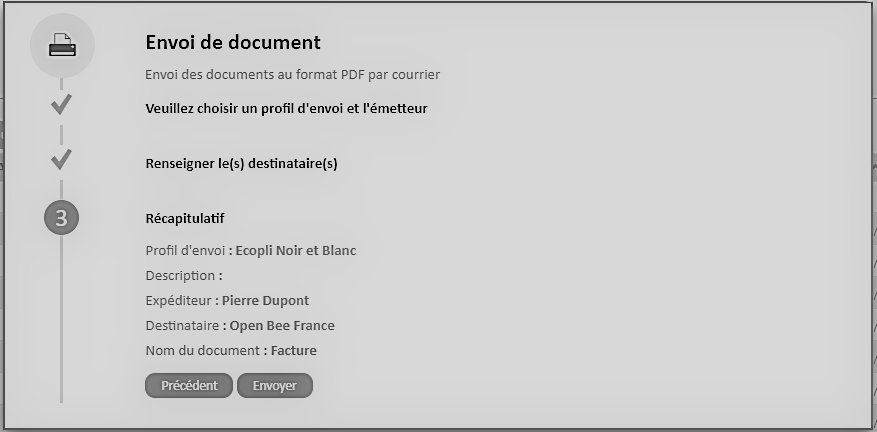
Finally, the summary allows you to check the information before sending.
Automatic Dispatch
These shipments are made transparent to the user.
If the auto-send criteria match, documents are sent automatically every 10 minutes or so.
That is to say, when a document is filed with a classification rule or in a folder that corresponds to a criterion for triggering an automatic sending.
See the configuration of automatic sends.
In order to check that the shipments are working properly, a history screen is available.
Historical
The sending history is available from the global menu, Desktop Publishing section.
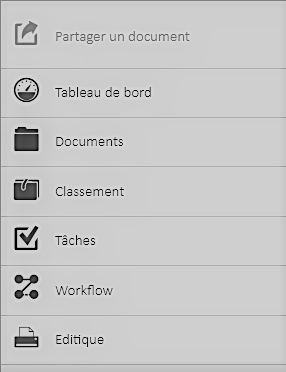
On this screen you will find the different shipments made with your account.

Please note that this screen is not refreshed in real time but every night during automatic processing.
A link is available from the interface to access the history of the My Sending Box portal and have a real-time follow-up.
A single or batch action is proposed, which allows you to Unsend a mail. Please note that you only have 60 minutes to cancel a shipment.
