After creating a tether, administrators of the remote Open Bee™ Portal receive an email to let them know that a tethering request has been made.
The validation or refusal of the sharing request is done by clicking directly on the link in the email or by going to the administration section of the Open Bee™ Multi Sites module.
Requests are visible from the “Share requests” tab.
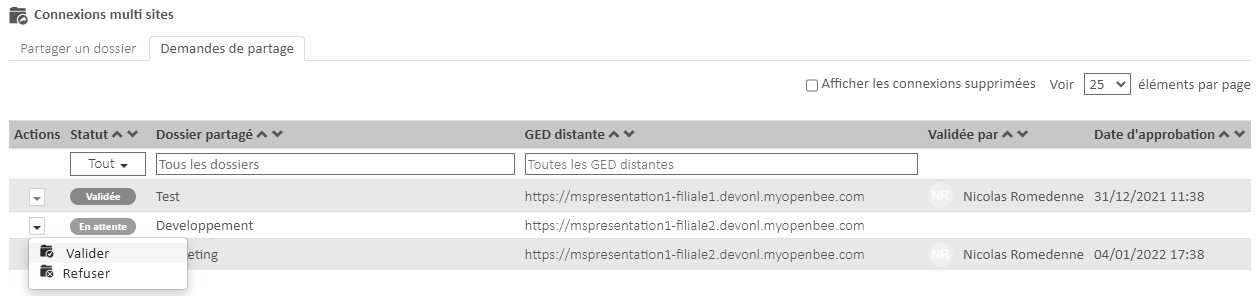
By clicking on the “Actions” button of a request awaiting validation, two options are available: Validate or Refuse.
Validate the request
Validating the connection opens a new window.
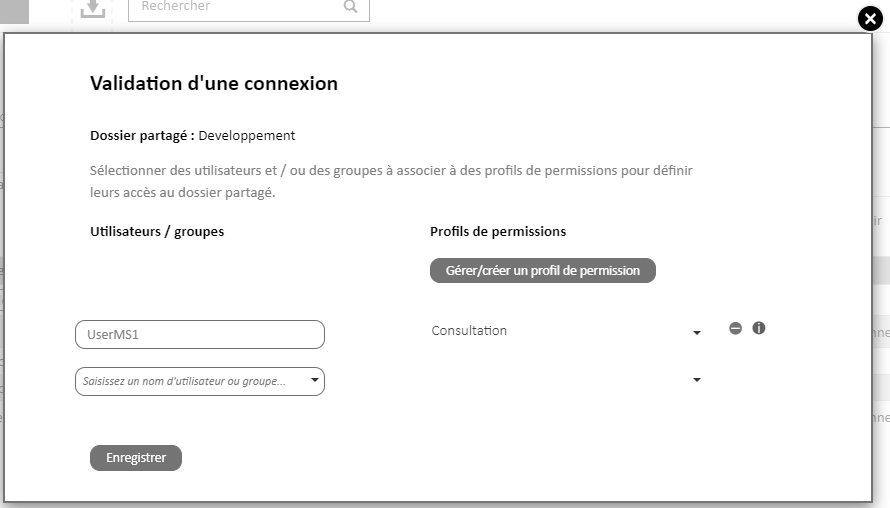
This is where the administrator selects the users and/or groups who will have access to the shared folder.
In addition to the user’s choice, a permission profile must be selected.
This permission profile will contain all the rights that the user will have on the shared folder.
Unauthorized permissions
As a reminder, in the previous step (creating the request), the administrator chose permissions. If during the validation of the connection, additional permissions are selected via the permission profile, the following message will be displayed:
Example: Open Bee™ Portal instance subsidiary1 shares the “Development” folder with the holding instance by selecting only Read, Print , and Download permissions.
If during the validation of the share the administrator of the Open Bee™ Portal holding instance selects a permissions profile with the Delete permission, it will be ignored.

Shared permission profile
Only permission profiles shared with all users can be selected.

User restriction
It is not possible to select a user who already exists with the same username and/or email address in the remote Open Bee™ Portal instance.
Deny the request
By clicking on the “Refuse” button, the request will change to the “Denied” state and the administrators of the remote Open Bee™ Portal instance will be notified.
The process is now complete.
Edit / Delete a request
Once the request has been validated, two actions are available: Edit and Delete.
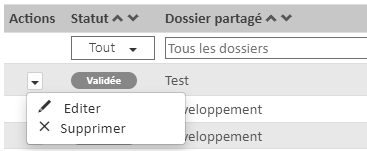
Editing allows users to be added or removed, while deleting will remove the connection and remote users will no longer have access to this shared folder.