There are two ways to access remote folders:
- From the Remote Folders menu entry
- Or by connecting directly to the remote Open Bee™ Portal instance
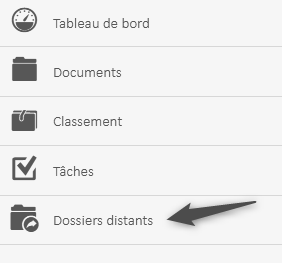
After activating the Open Bee™ Multi Sites module, a new entry in the menu is available: Remote Folders
This page displays all of the shared folders (during the share validation step) for the signed-in user.
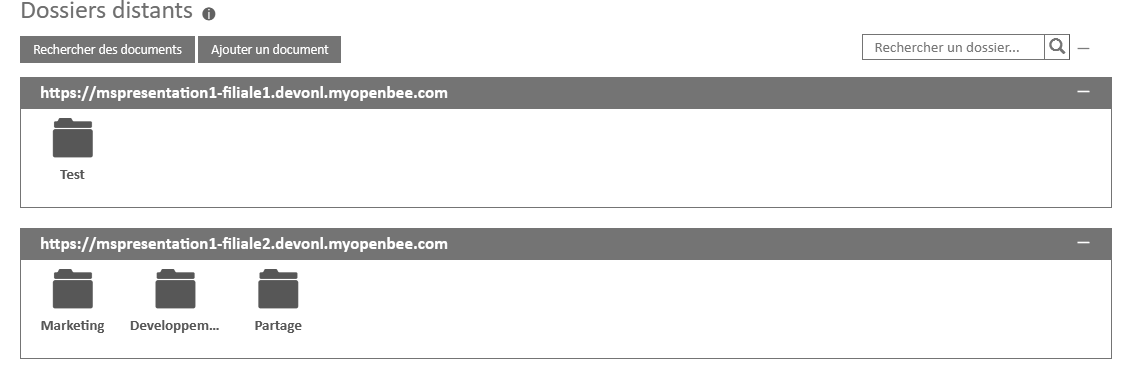
In this example, the user has access to one folder on Open Bee™ Portal Subsidiary 1 and three folders on Subsidiary 2.
- Clicking on a folder opens it in a new tab
- Note: Care must be taken to ensure that pop-up windows are allowed to open in the browser
- A search box in the top right allows you to filter on the folder names as well as the addresses (URLs) of remote Open Bee™ Portal instances
- The “Search for Documents” button opens a new page to search for the various remote Open Bee™ Portal instances. More information on this page.
- The “Add Document” button allows you to send a document to multiple folders. More information on this page.
Connecting from the remote Open Bee™ Portal
It is also possible to access a remote folder by connecting directly to the address of that instance, either by clicking on a link in an email or by typing the address of the remote Open Bee™ Portal instance into your browser.
If the user is not already logged in, they will be redirected to the authentication page.
They will then only have to enter their username and password that they usually use to log in.