The configuration of the Open Bee™ Multi Sites module starts with the creation of a new connection.
Use case
Let’s take an example to illustrate this first configuration phase:
A parent company (holding company) has several subsidiaries.
For reasons of confidentiality and compartmentalization of information, the choice was made that the parent company and the subsidiaries each have a separate Open Bee™ Portal instance.
On the other hand, even if there is no link between the different Open Bee™ Portal instances, subsidiaries would like to have users from the parent company validate their workflow tasks.
To avoid duplicating users from the parent company to all instances of the subsidiaries, we will use the Open Bee™ Multi Sites module to address this use case.
The first step is to initiate tethering from an Open Bee™ Portal instance in a branch office.
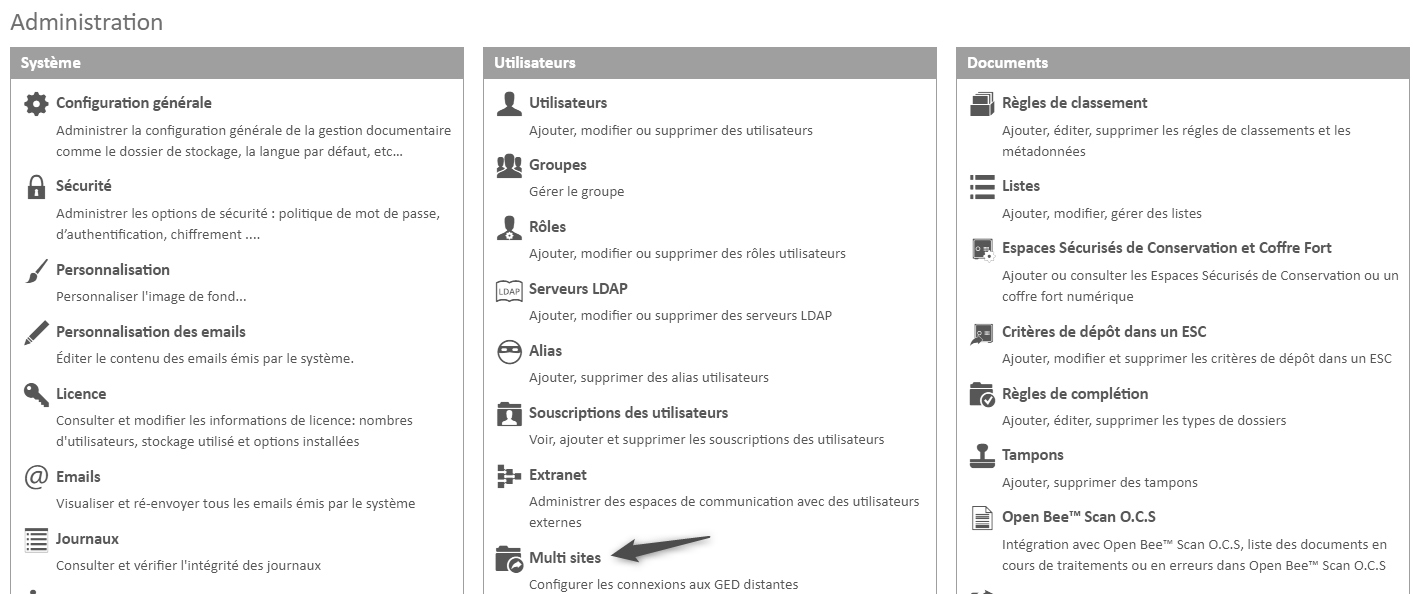
This action is to be performed from the administration page:
After clicking on the “Add connection” button, a window will open:
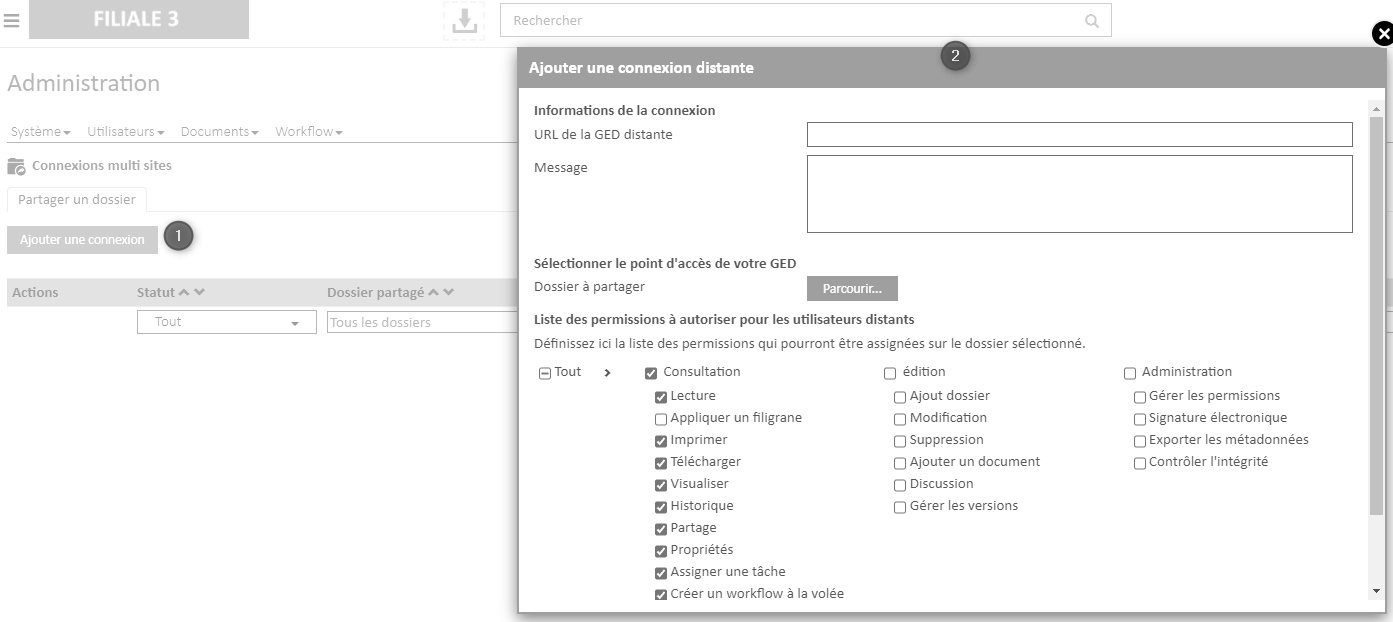
The following information must be provided:
- URL of the remote DMS : this is the address of the Open Bee™ Portal instance with which we want to share information (In our example, this will be the parent company).
- Note: The remote Open Bee™ Portal ™ Multi Sites module (more details on this page)
- Example: https://holding-beegoodiz.openbeecloud.com
- Message : The administrators of the remote DMS will receive an email once the connection has been created. This field is optional and allows you to customize the message sent.
- Folder to share : Folder to which remote DMS users will have access.
- Permissions : The users who will have access to the previously selected folder will be chosen by the administrator of the remote Open Bee™ Portal instance (in our example the parent company).
On the other hand, the EDM administrator who carries out the sharing has the possibility to limit the permissions that can be applied.
If the administrator of the subsidiary performs the configuration as shown in the screenshot above, when selecting users, the administrator of the parent company will not be able to assign deletion rights on this folder.
After creating the connection, the administrators of the remote DMS will receive an email inviting them to validate the sharing request to select the users who will have access to this folder.
This is the second step of the configuration.
List of connection requests
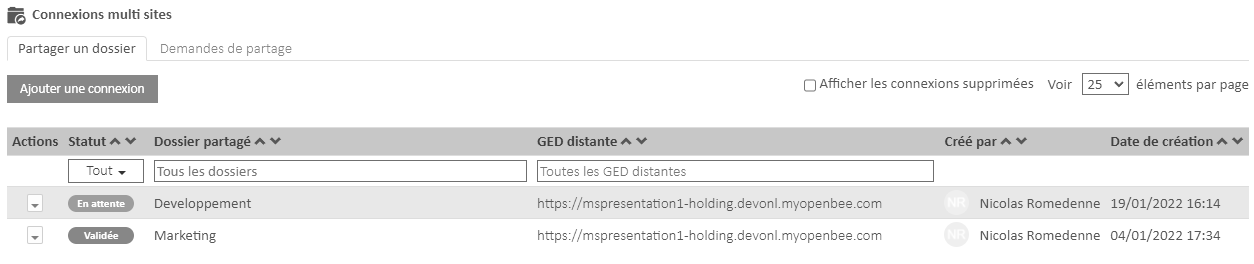
All sharing requests are visible from the administration section of the Open Bee™ Multi Sites module in the “Share a folder” tab.