To scan a document to a specific folder, the following steps must be followed:
- Click the “Scan to Folder” button from the home screen.
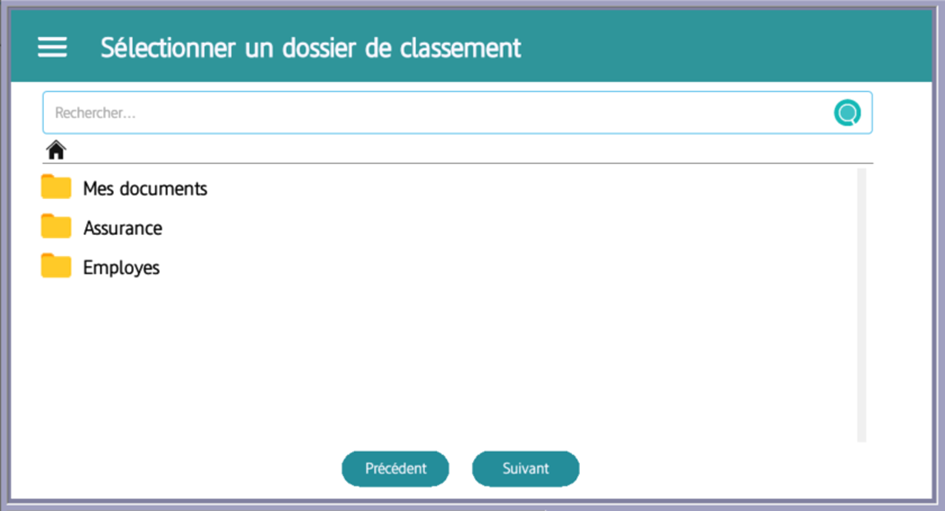
- Select the destination folder from the Open Bee™ Portal folder tree.
- Explore subfolders if necessary and use the search function to quickly locate a specific folder.
- Click Next
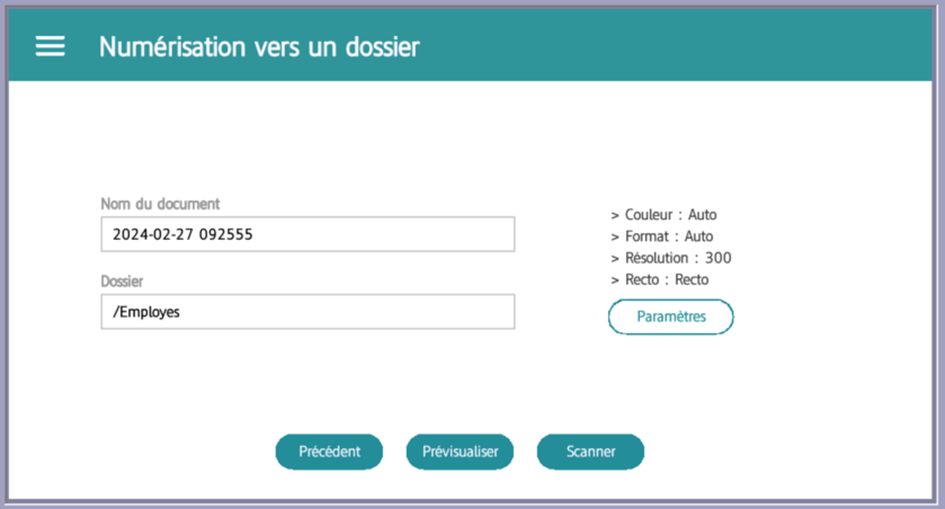
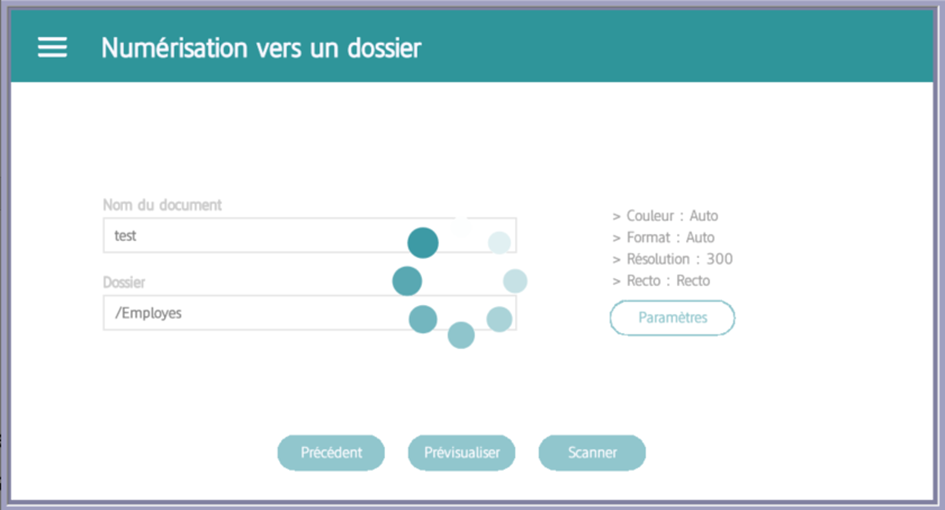
- Once the folder is selected, a new page will be displayed where you can :
- View the name of the automatically generated document and modify it if necessary
- Preview the document to be scanned by clicking on “Preview”
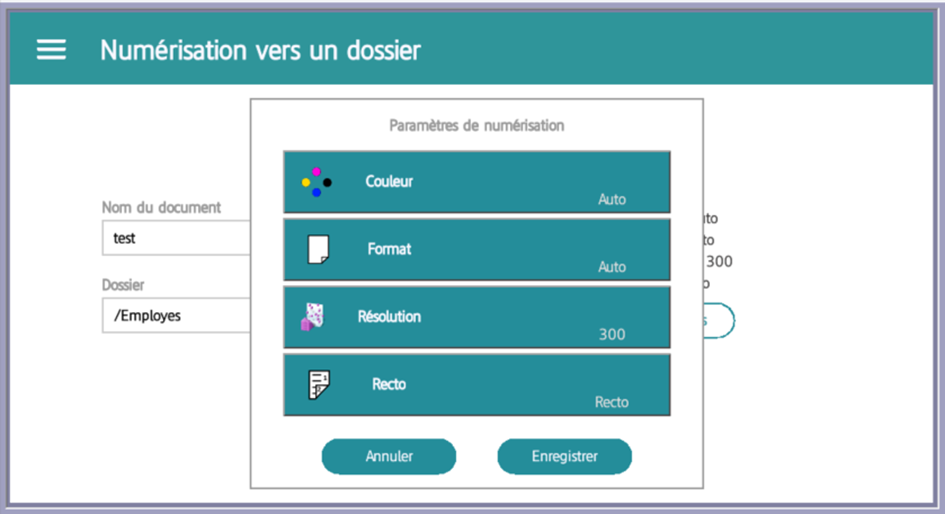
- Configure the scanning settings by clicking the “Settings” button and adjusting the options to your preference. Make sure to click “Save” once the settings are set
- After saving the settings, click “Scan” to start scanning the document. During this process, a loading indicator will be displayed to let you know about the progress.
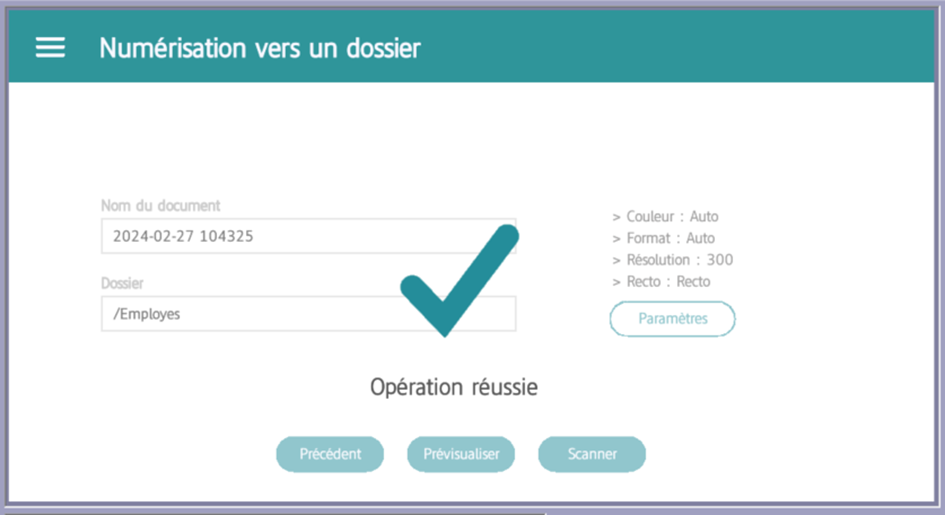
- Once the scan is complete, a “Successful operation” message will be displayed indicating that the document has been successfully scanned.