Signing profiles allow you to define predefined signature templates based on the documents you need to sign in your organization.
This feature allows you to create a profile name with an associated description and pre-define the signing mode and security level required.
Access the signature profile
To access the Signing Profile Creation page:
From the ” Administration ” section, click on the ” Electronic signature ” tab.
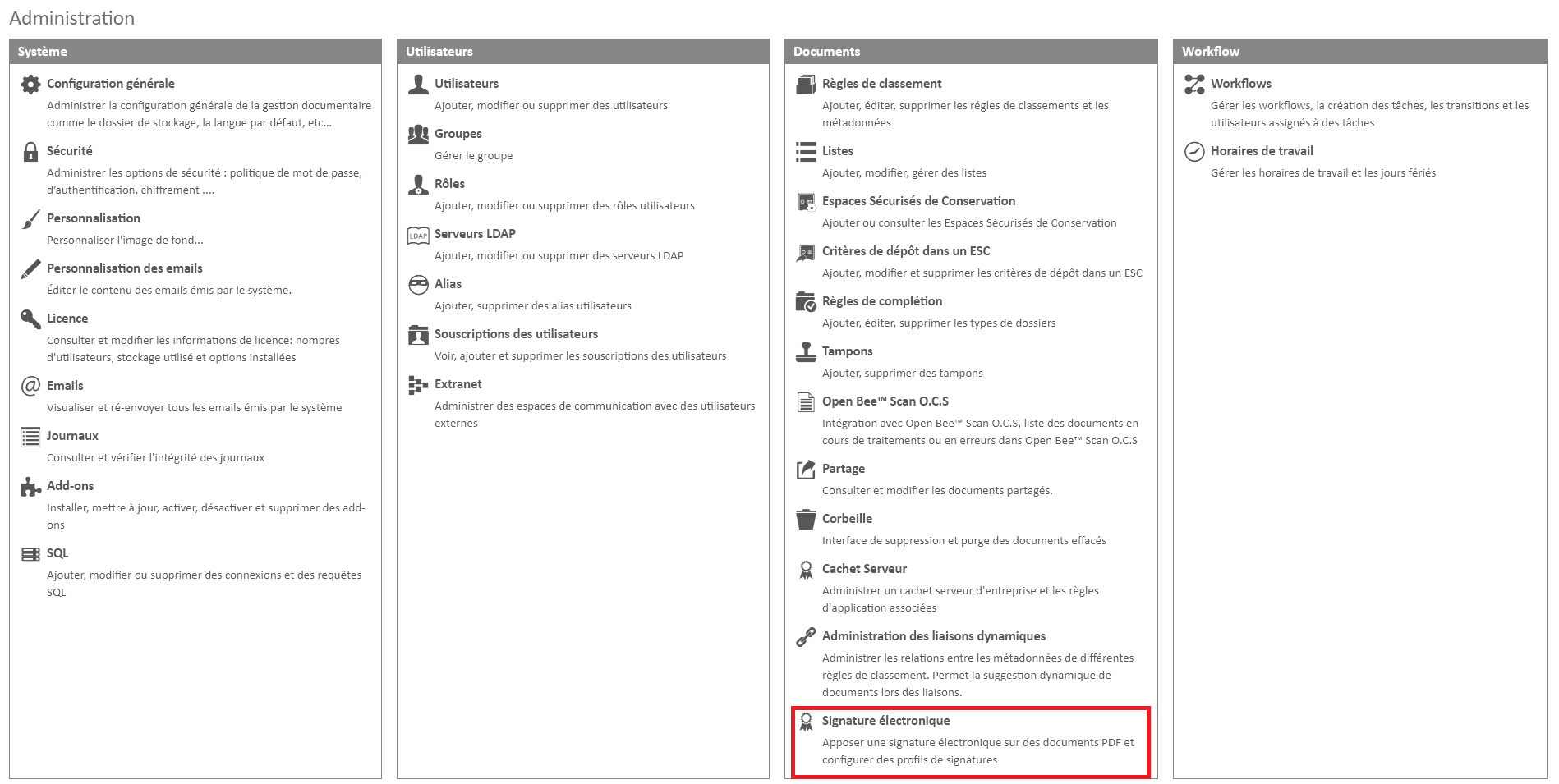
Add a Signature Profile
To add a profile,
- Click on the “Add Profile” button
- The “Create Signature Profile” window appears.
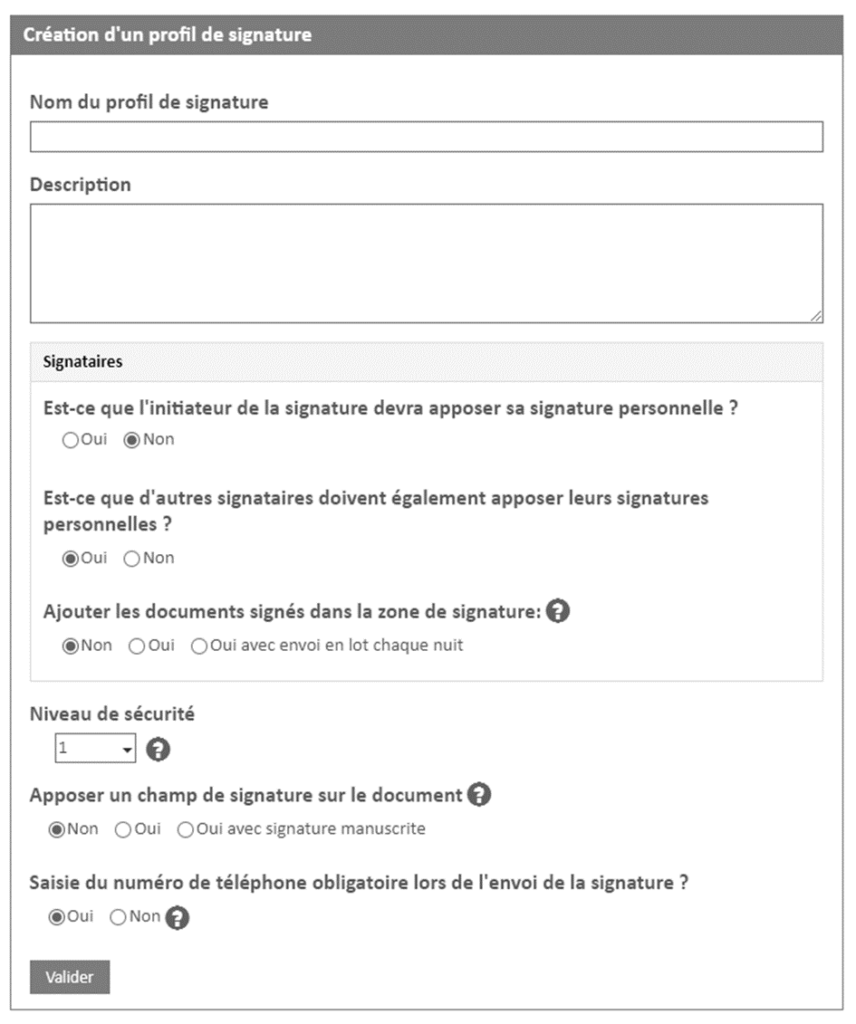
- Enter the Name
- You can add a description if you want
Creating a profile requires a name. This name cannot be used on multiple different profiles.
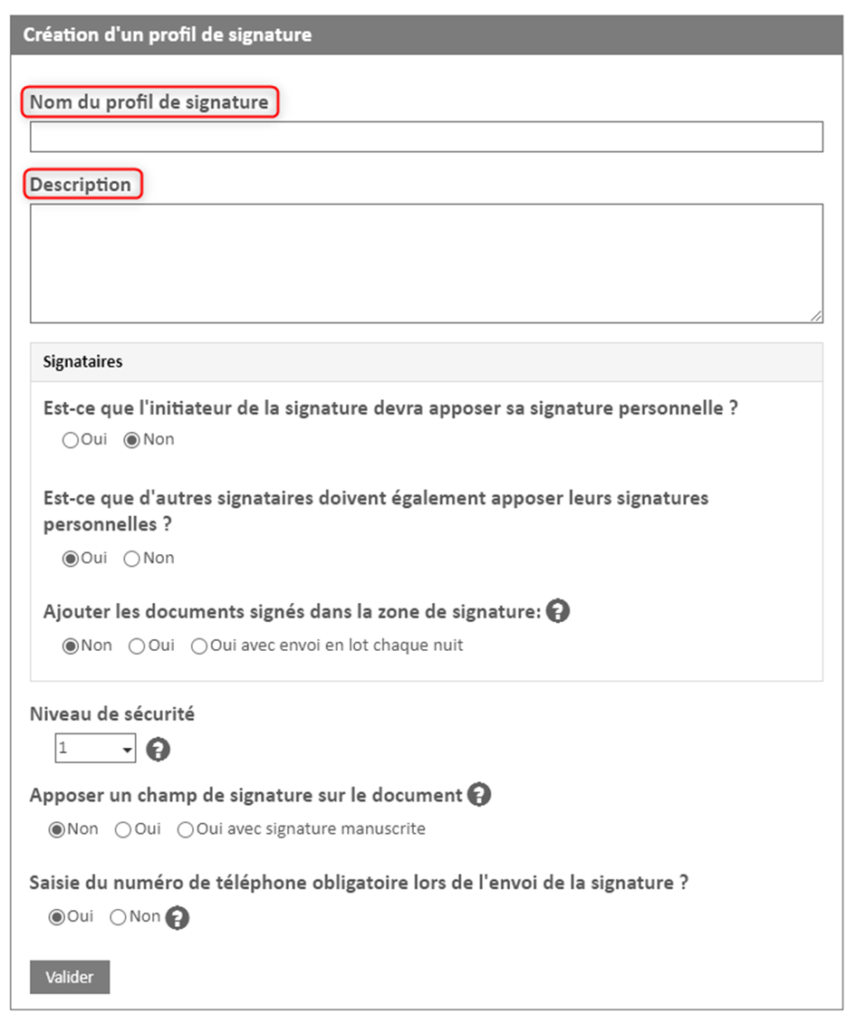
You can choose whether the Open Bee™ Portal user who creates the signature request must also sign the document.
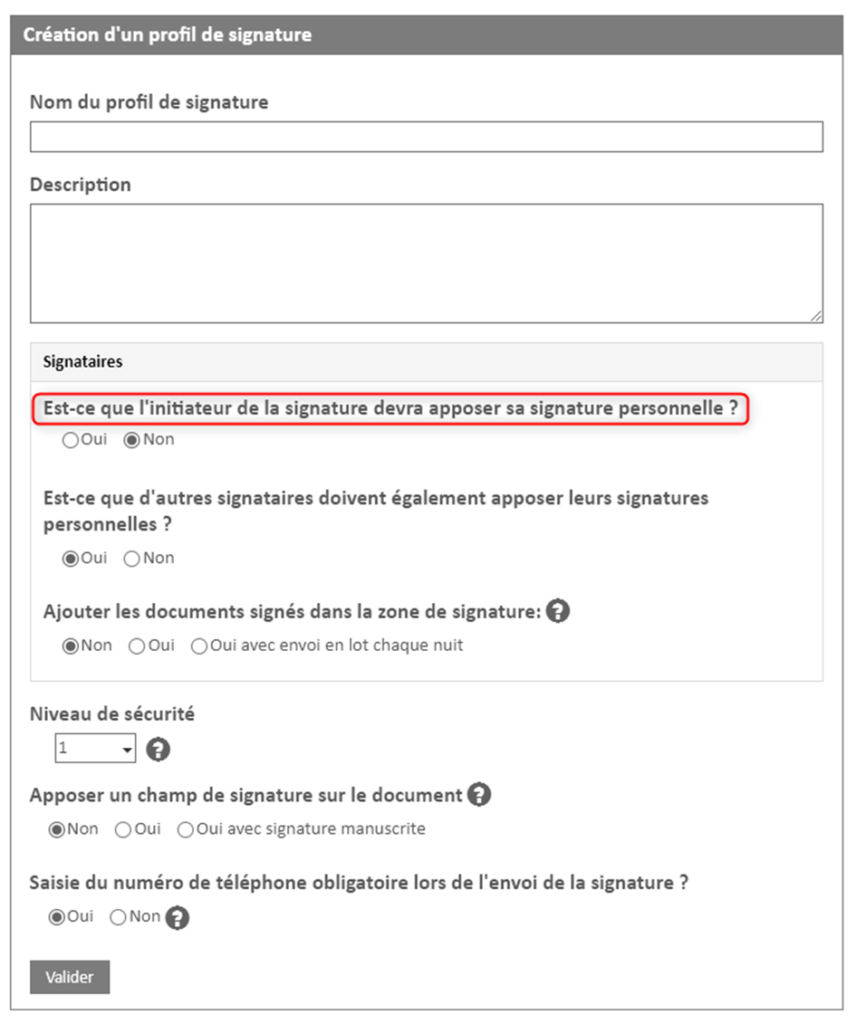
You can define whether people other than the person who creates the signature request should sign the document.
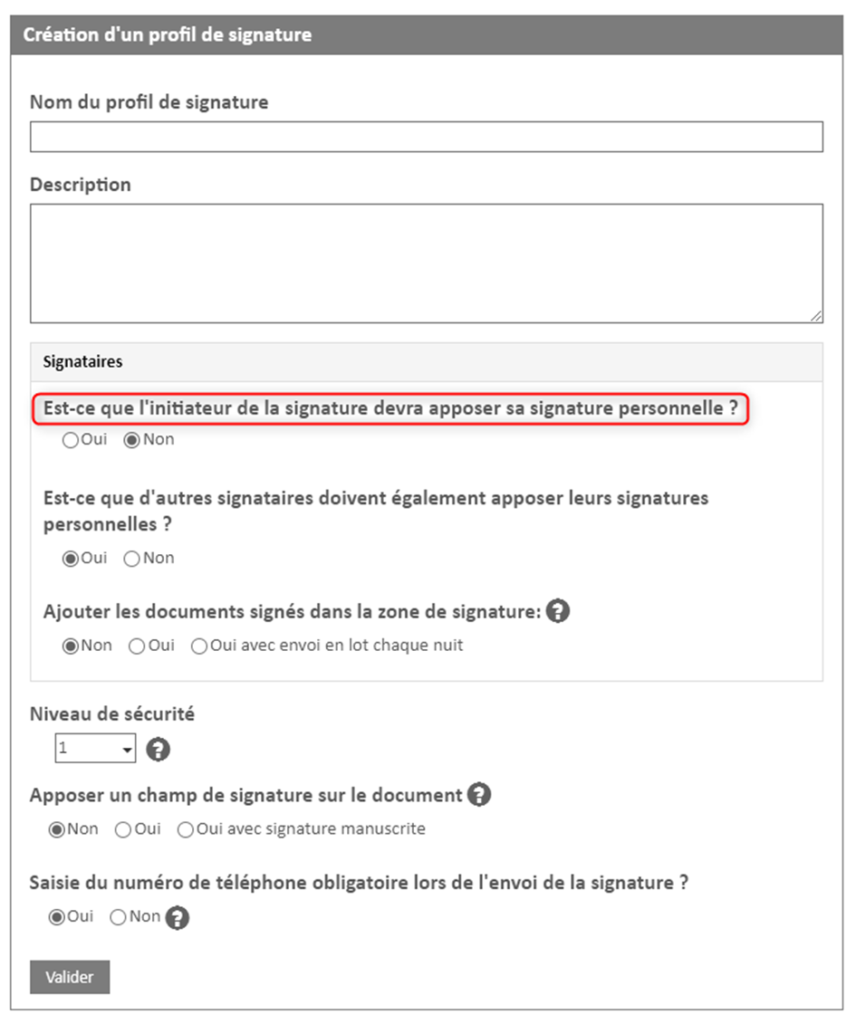
Select the security level (more details at the bottom of the page):
- Level 1
- Level 2
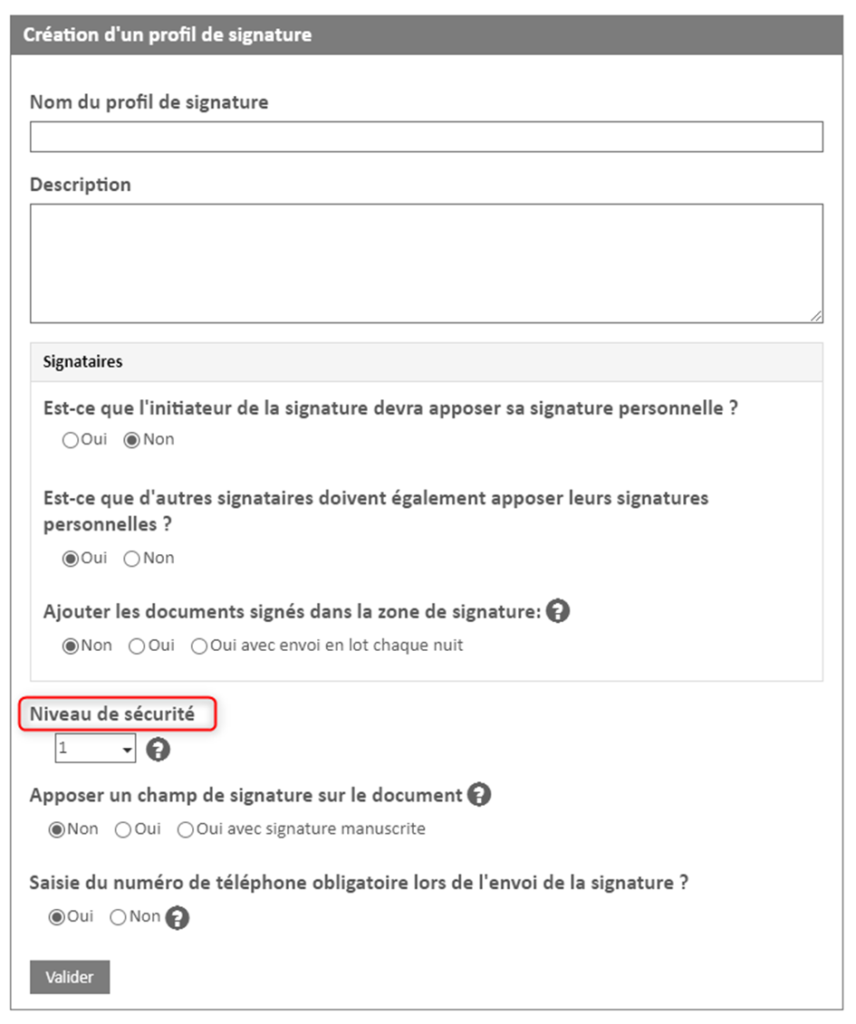
Signature Zone
The signature zone option is to be used if you want to sign documents in batch, i.e. sign several documents at once, entering only one confirmation SMS code.
The person who will sign in batch is to be chosen at the level of the signature profile. This user will sign the document last (after all other signatories).
If the “Yes” option is checked, the documents will be deposited in its signature area. This user will need to manually select the documents to be signed in bulk from their signature area.
If the “Yes with Batch Send Nightly” option is selected, all documents in the chosen user’s signature area will be automatically sent for signature.
The “Send signed document to all signatories” checkbox allows you to send an email with the signed document as an attachment to all signatories. If it is not checked, this email will not be sent.
Universign
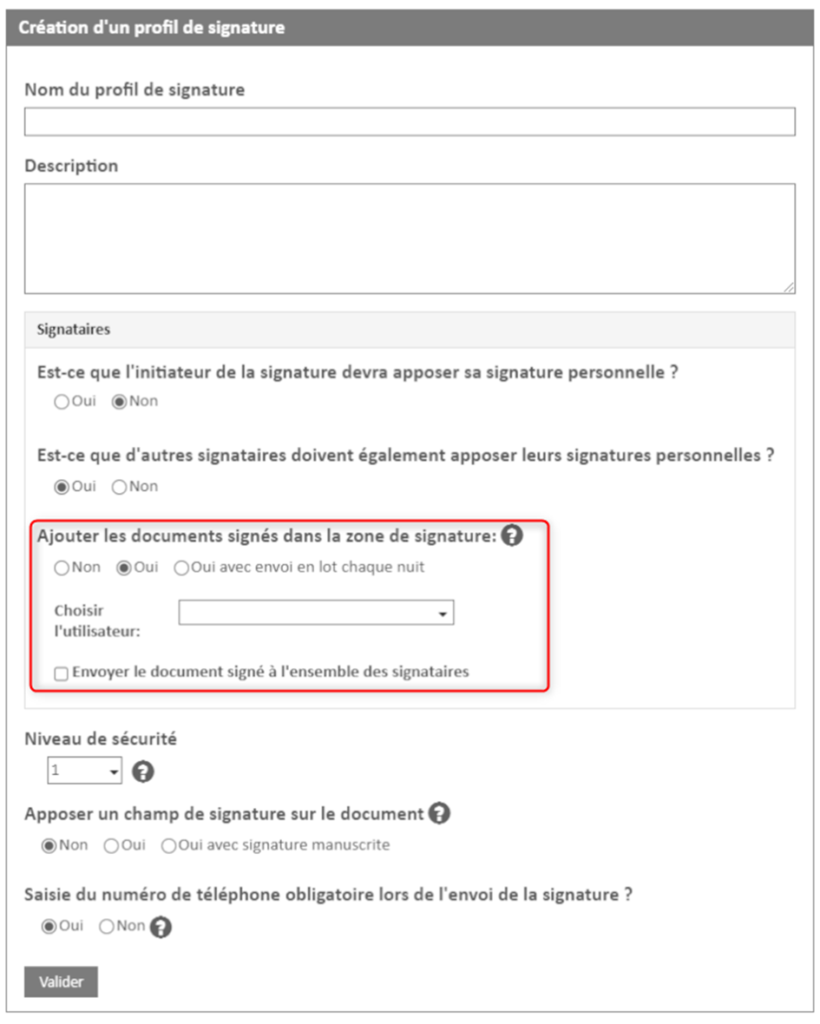
With Universign you can choose whether this profile requires the application of a signature field.
The signature field allows you to add a visual signature to the document.
Activating this option will require an additional step when creating a manual signature send, you will need to position the location of the signature fields on the document.
Please note that this option requires user action and cannot be used for automatic submissions.
DocuSign
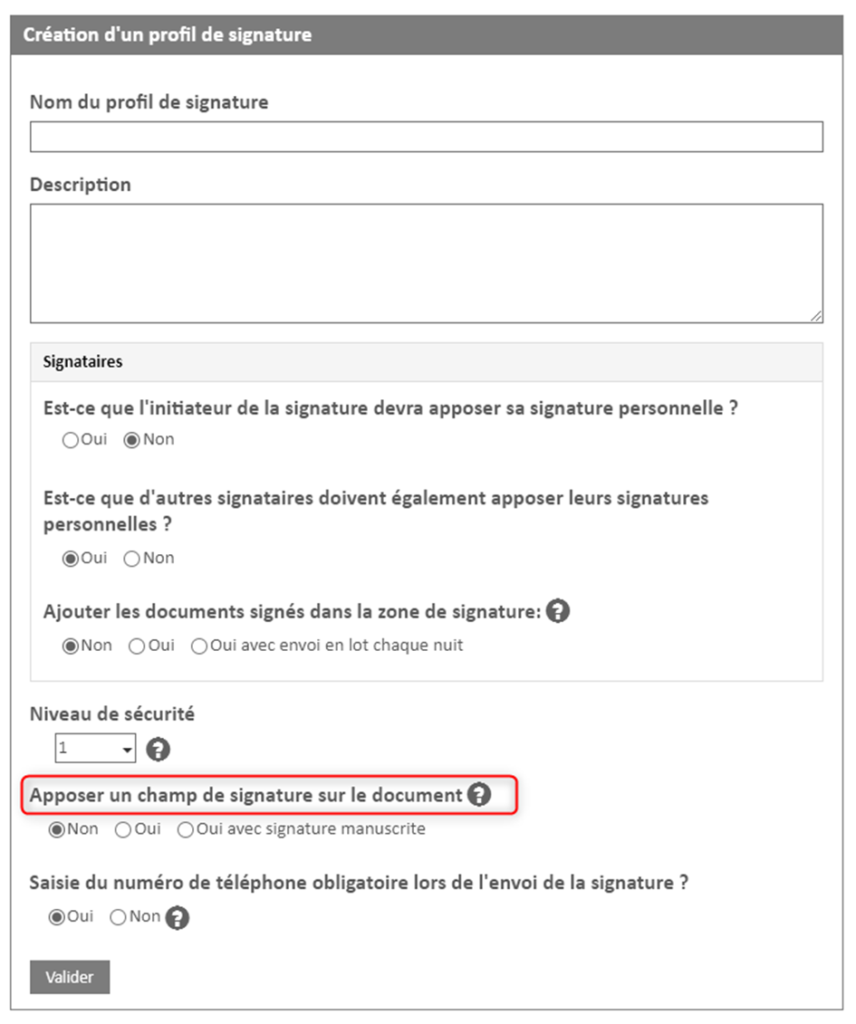
With DocuSign, the application of the signature field will always be offered. On the other hand, it is the signatory of the document who will choose the location where he wants to apply his signature field.
DocuSign does not require the signer to be required for credentials in the case of a signature level, but it is possible to make it mandatory at the signing profile level.
Learn more about how to set up your DocuSign account here.
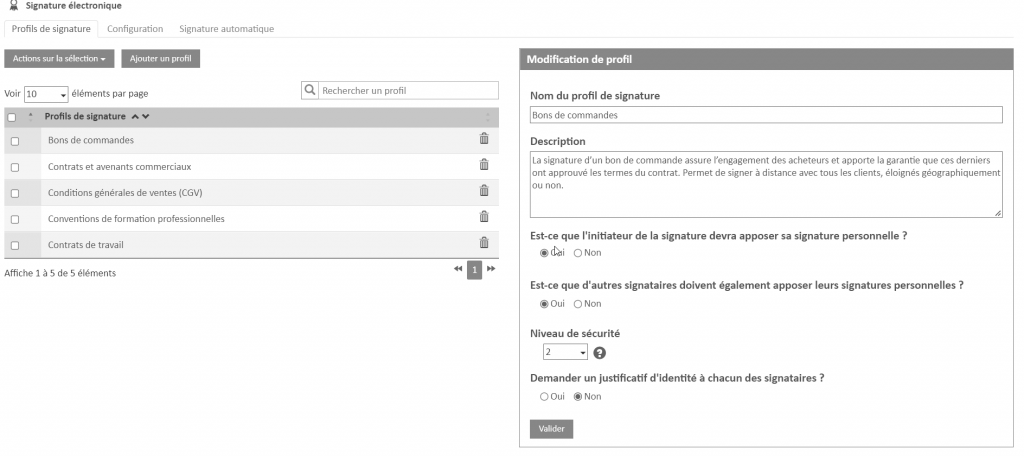
- Click Submit to finish.
A signature profile must contain a signer.
The different levels of security
Level 1 will ask you to enter a code received by SMS.
Level 2 will ask you, in addition to entering the code received by SMS, to upload an identity document.
For more information about security levels, the table below is displayed when the user hovers over the question mark.
| Level 1 Signature (Simple) | Level 2 Signature (Advanced) | |
| Description | Suitable for transactions with low legal and financial risk. Relies on a two-factor authentication process, namely the signer’s email and phone number. | Provides stronger identification guarantees for more engaging transactions. Allows you to unambiguously identify the signer by creating a certificate of identity issued on behalf of the signer. |
| Document Integrity and Signature Identification | EU standard quality timestamp: EN 319 421 OTP code authentication via SMS | EU Standard Quality Timestamp: EN 319 421 OTP Code Authentication via SMS ID Verification |
| EU eIDAS Certificate | No Nominal Certificate | Simple Nominal Certificate: EU Standard: EN319 411-1 |