Set-up
After installing the add-on, you still have several configuration steps before you can create an electronic signature.
From the admin panel in your Open Bee™ Portal solution, a new “Electronic Signature” entry allows you to access the Electronic Signature add-on.
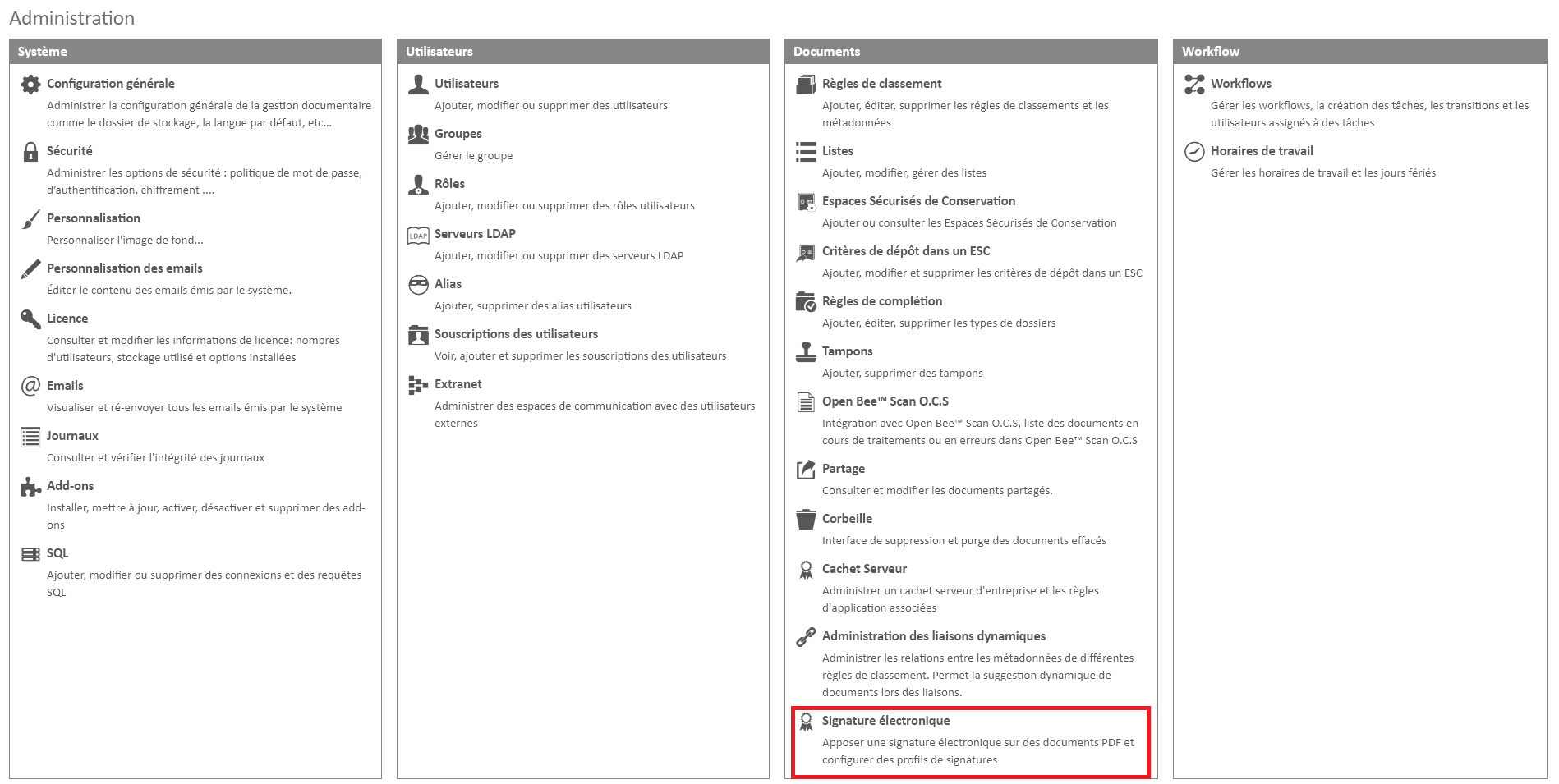
Save Signature Profiles
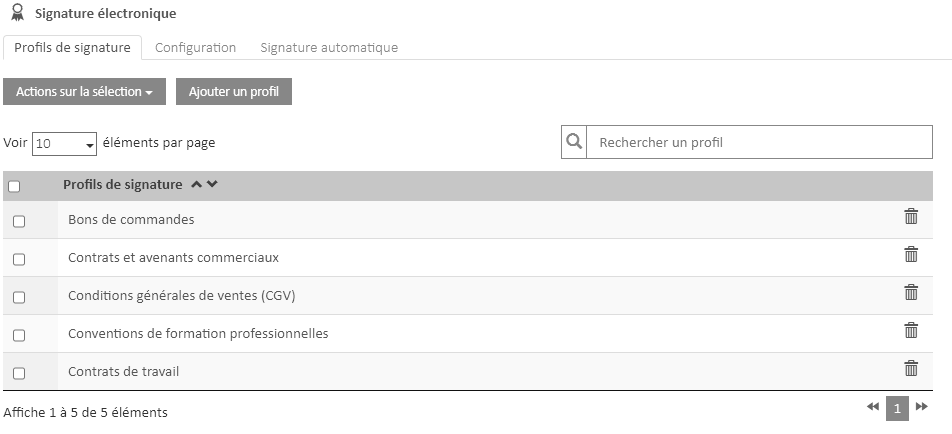
From the first tab of the e-signature module, you have the option to create and save predefined signature profiles.
These signature profiles are used depending on the type of documents to be signed (e.g. purchase orders, employment contracts, training agreements, etc.).
To create a signature profile, please refer to this page: click here
Module Configuration
The second tab of the module is dedicated to configuration.
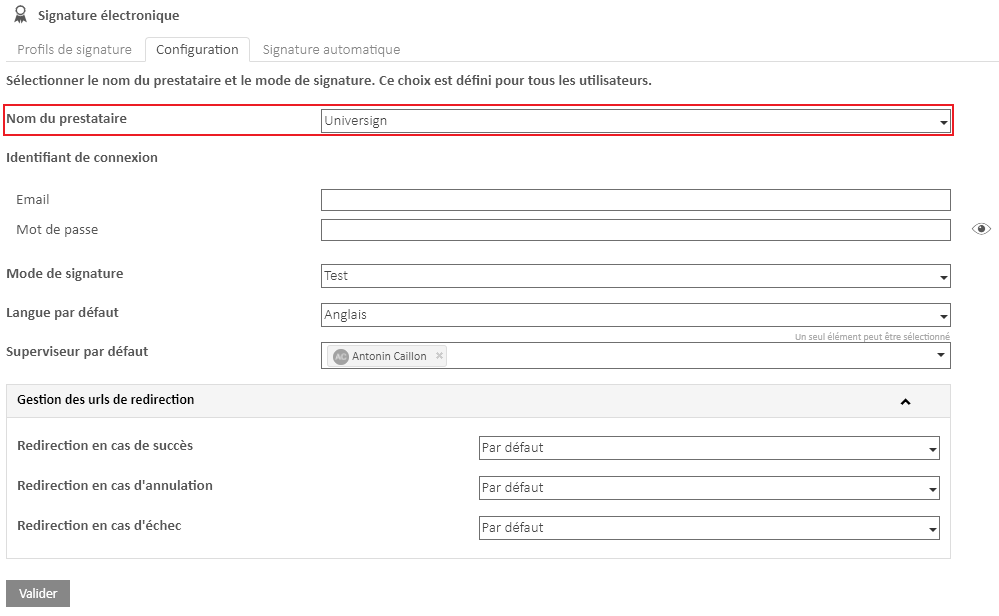
The first step is to select the e-signature provider
Universign Service Provider
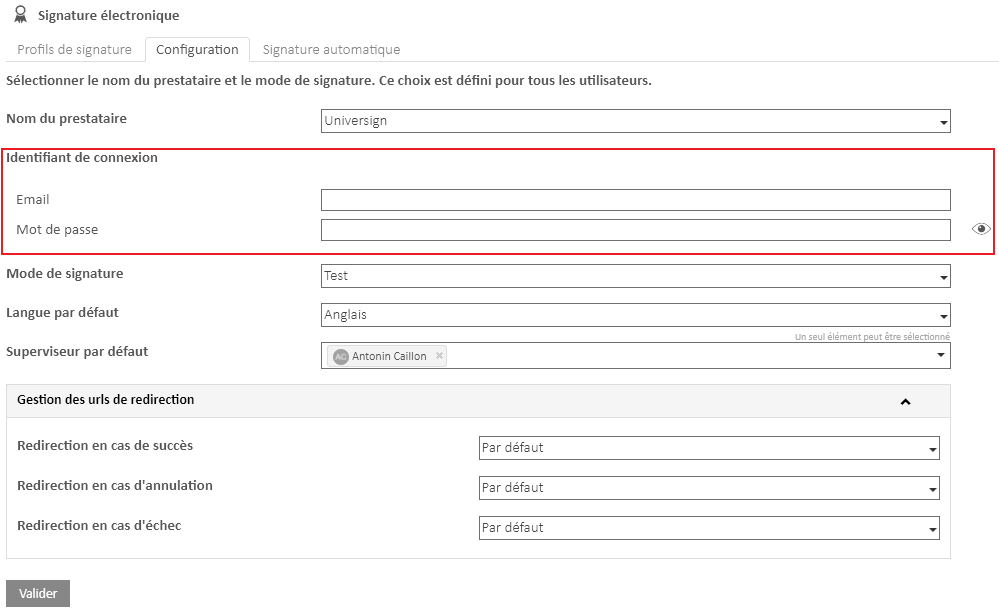
You must fill in the login credentials for the Universign signing service. These credentials are provided to you with the purchase of the Electronic Signature module.
Open Bee™ Portal will subsequently use these credentials for all electronic signature submissions.
Finally, the last step is to choose the redirect URL, i.e. the address of the website to which the signatories will be redirected after signing a document.
Set up signing account credentials from the user profile
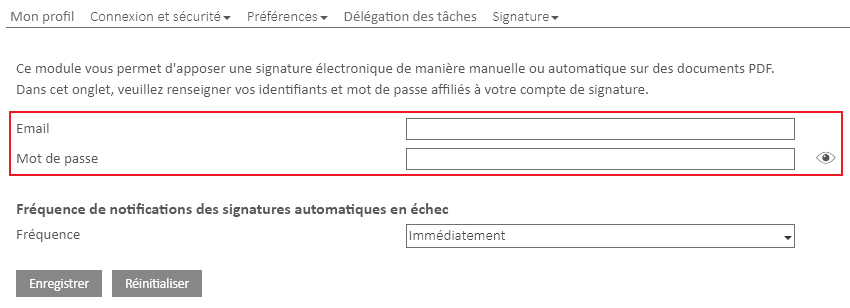
In the event that individual accounts have been created with the electronic signature provider Universign. It is possible to save personalized credentials on each user’s profile, which allows you to use different accounts on the same Open Bee™ Portal instance.
In this case, these credentials will be used when sending the signature request.
To do this, from the user profile settings
- Go to the “Electronic signature” area.

The screen below will appear, this is when you will need to fill in the email, as well as the password of your personal signature account if you have one. This username password will be used in priority on the generic account set up just before.
DocuSign Provider
In order to use the Electronic Signature module with DocuSign, you must first create an account directly on the DocuSign website.
Then, in order to make the e-signature work with DocuSign, you need to enter 3 things:
- User ID
- The Key to Integration
- The RSA Private Key
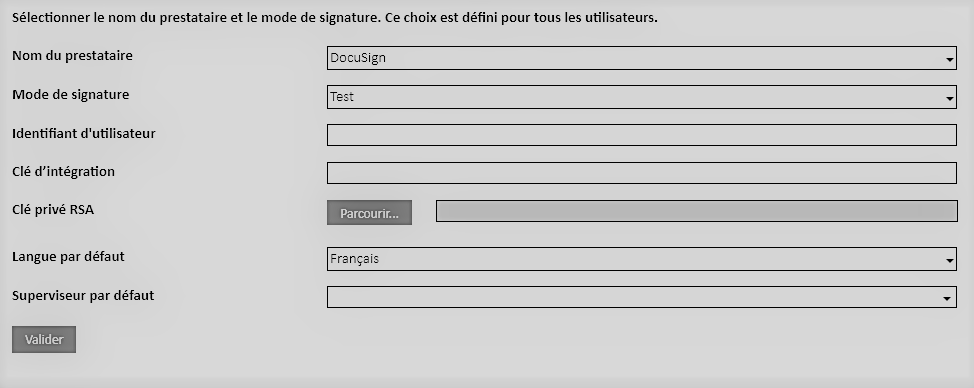
You can find more information on how to set up the DocuSign account on the following page: click here.
It is necessary to enter the URL of the Open Bee™ Portal instance in the DocuSign account settings (see section on callback configuration). DocuSign only accepts URLs that use the secure HTTPS protocol
SwissSign Service Provider
In order to use the e-signature module with SwissSign, you must contact SwissSign to create an account and obtain the following information:
- Login credentials (username/password)
- Certificate in pem format (.p12 certificates are not compatible)
- Certificate Password
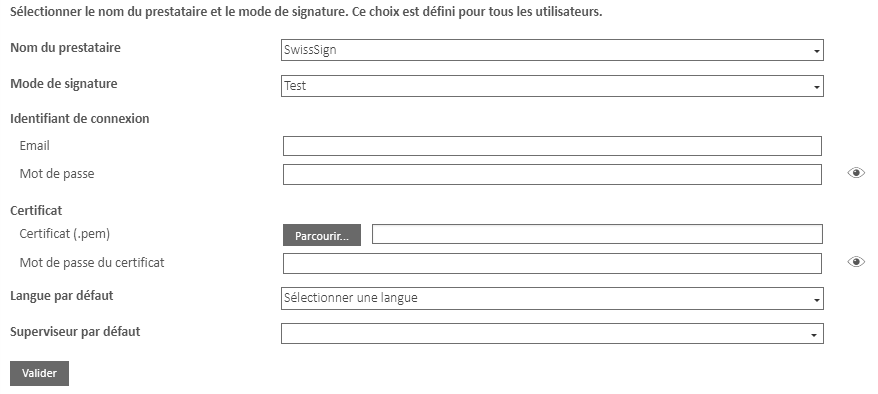
Dans le cas d’une intégration avec SwissSign en Cloud, il est nécessaire d’utiliser une version décryptée du fichier .pem.
Parameters common to different providers
Then, you can choose how the add-on works:
- Or in test mode during the configuration phase.
- Or in production mode.
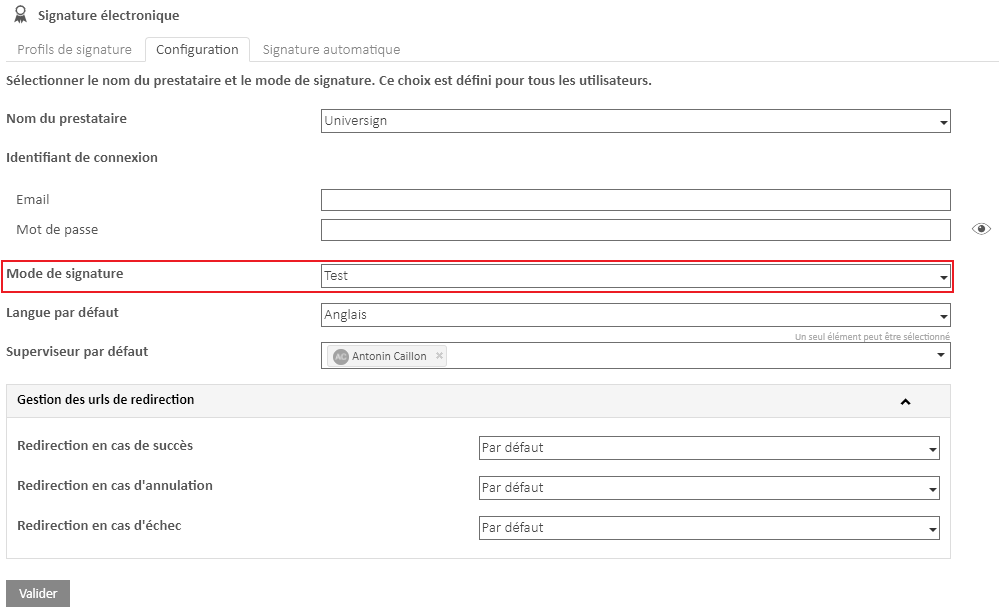
If the test mode of operation is selected, at the time of a signature the user will receive an alert message.

The default settings are used for automatic signature sending.
Indeed, it is possible that the selection of the language and supervisor is carried out dynamically based on metadata. If no value can be detected, the default value is used so as not to block shipments.
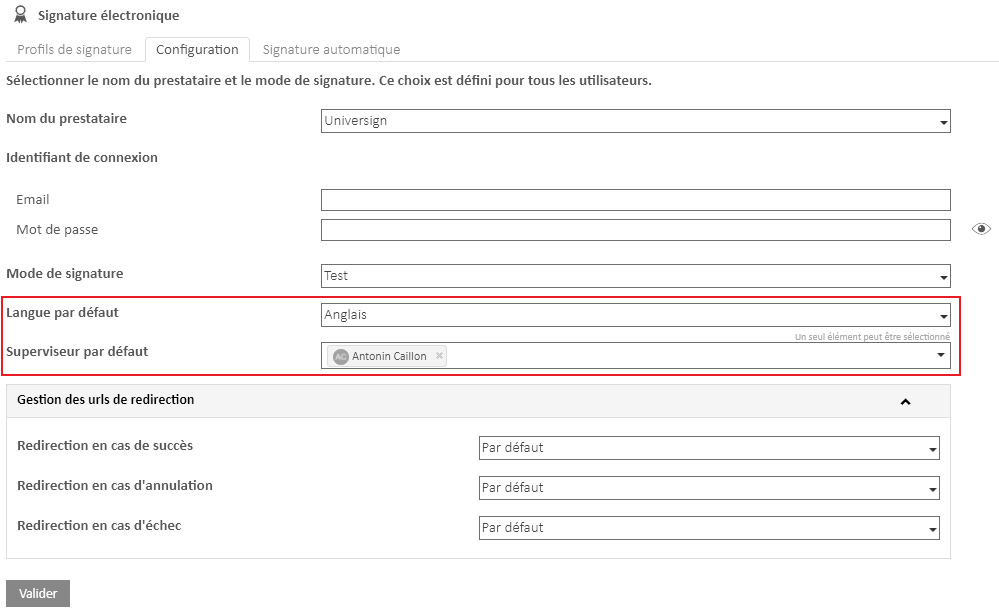
Default Language : Corresponds to the default language of the email and text message received for the recipient of the signature. This value can be dynamic for automatic sending.
Default Supervisor : Used for automatic sending when the sender of the signature could not be dynamically identified by metadata. This way, the default supervisor will be assigned the signature request.
Differences between providers
Most of the functionalities of the Electronic Signature module are identical between Universign, DocuSign and SwissSign. There are, however, a few differences that are listed here.
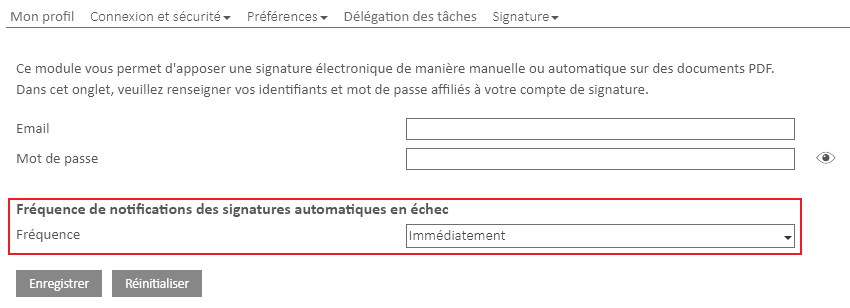
Set the frequency of notifications
It is possible to adjust the frequency of add-on notifications. From your user profile, go to the Electronic Signature section.
Register auto-signature shipments
From the “auto-sign” tab of the e-signature module, you have the option to create and save rules for sending auto-signatures.
This makes it possible to send a signature request to the filing of a document in your Open Bee™ Portal without manual intervention.
To create an automatic signature, please refer to this page: click here