Use
Developed in partnership with Universign https://www.universign.com/fr/ and DocuSign https://www.docusign.fr/, the module allows you to electronically sign PDF documents filed in the Open Bee electronic document management.
Key features
The module allows you to:
• Electronically sign documents via the Universign platform, by entering a username (email address), a code received by SMS and optionally an identity document (passport, national identity card).
• Configure signature profiles according to the type of documents and by choosing the security level, the signatories (one or several).
• Add a signature action in the completion of a workflow task.
• Track the status of signatures in progress and follow up when they have not been completed.
Document Action: Send a signature request on the fly
To electronically sign a PDF document:
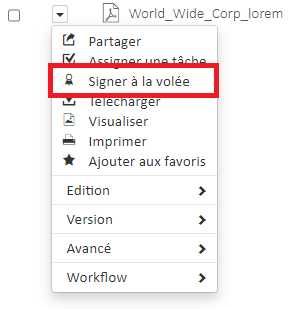
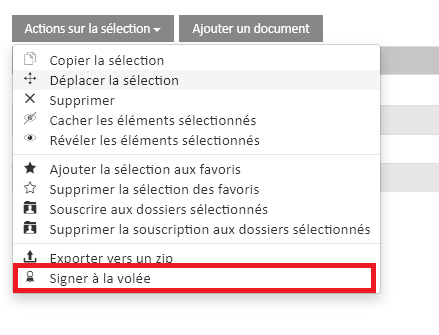
- Select a PDF document
- Click on « Actions »
- Click « Sign on the fly »
A wizard opens and allows you to create an electronic signature
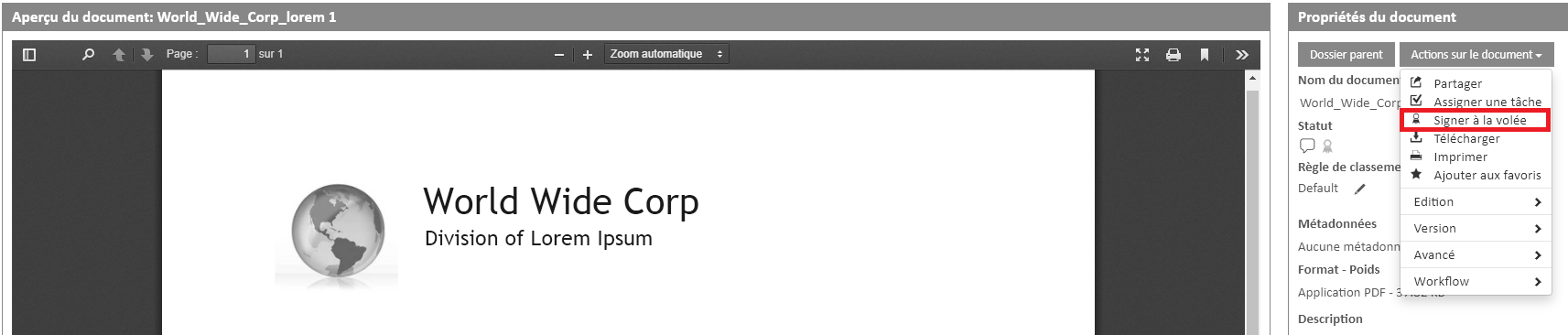
The electronic signature action can also be found when you view a document, from the “actions on document” button.
This action is also available when selecting multiple documents at once. This allows you to select multiple documents to sign.
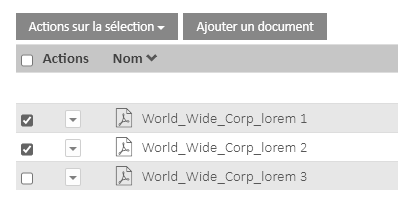
Please note that all documents will be sent to all signatories for signature.
Steps to complete to send a signature request on the fly
When you generate a signature action on the fly, the wizard below appears.
Step 1
- Choose the signature profile you want to use.
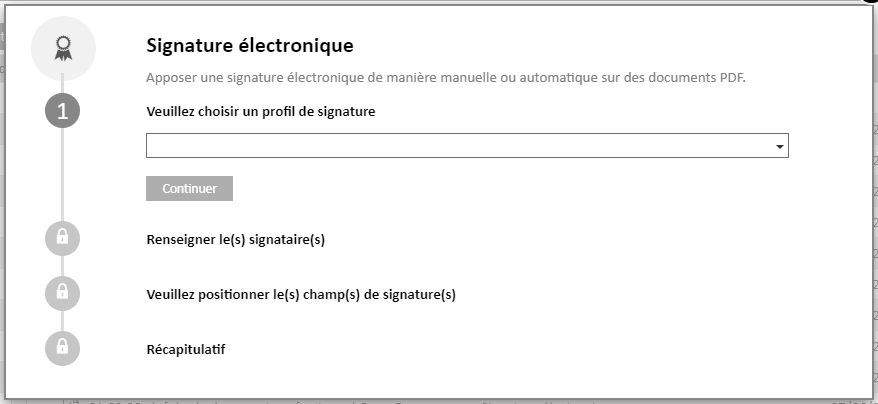
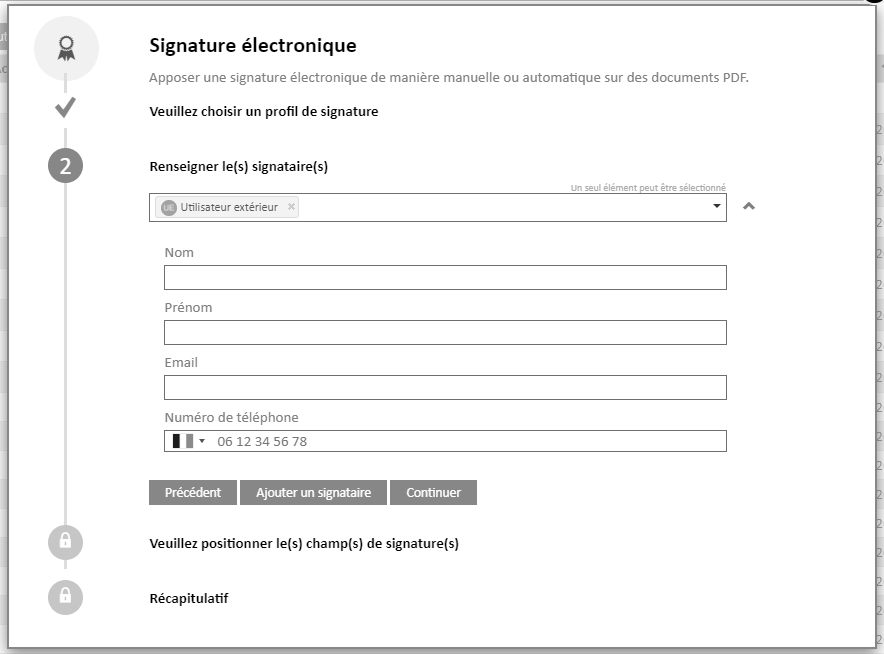
Step 2:
- Inform the signatory(s) who will be required to sign the document. You can select multiple signatories from within or outside your organization.
- Fill in the contact details of the signatories with their email addresses and phone numbers. Be sure to fill in the fields correctly, it is at this step that the user determines the email address on which the signer will receive the document to be signed, and the phone number on which he will receive his code by SMS.
Step 3
- A summary is displayed showing the information you entered to send the signature.
- You have the option to change the language of the email and SMS that the signers will receive.
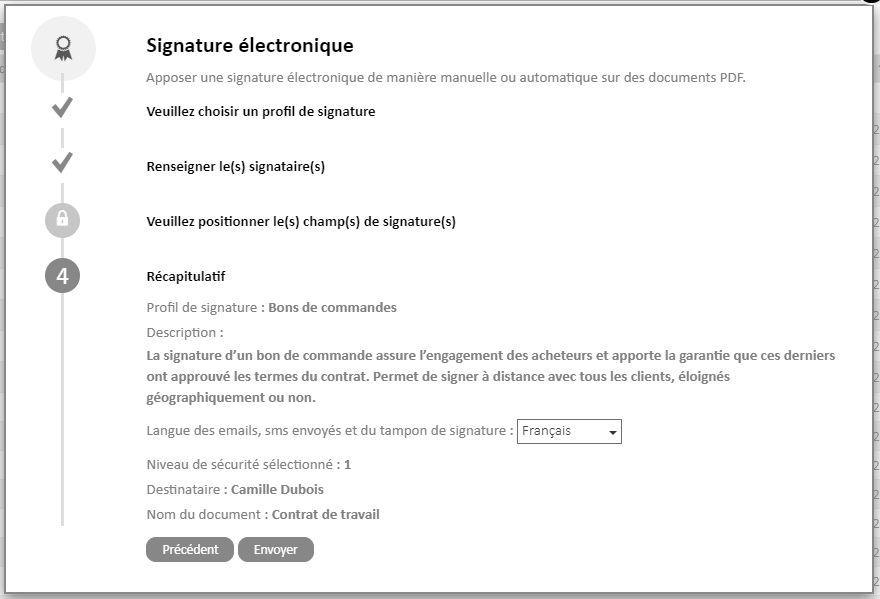
Warning: Only the signatories entered in step 2 will be displayed in the summary, if the logged-in user has to sign, it will not appear in the list of signatories
Do not apply a portal stamp or cursive signature to a document that has already been signed, otherwise the document loses its signature.
At the time of sending, if you are in the case of a signature that includes the signature of the logged-in user, a window will open allowing the user to sign the document directly from your Open Bee™ Portal .
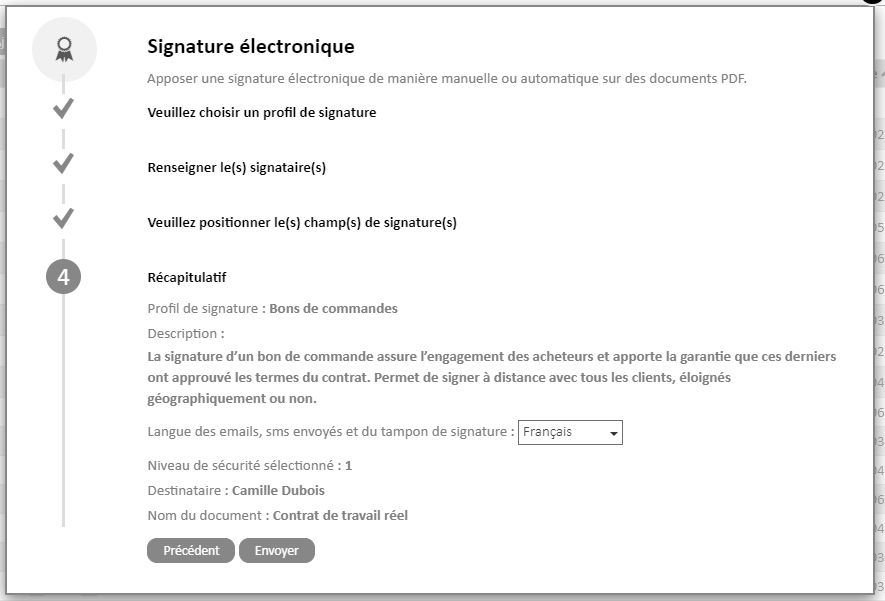
Steps to complete to send a signature request on the fly with the signature field
When you generate a signature action on the fly, the wizard below appears.
Step 1
- Choose the signature profile to use that has the “Affix a signature field on document” setting to yes or yes with wet signature.
Step 2:
- Inform the signatory(s) who will be required to sign the document. You can select multiple signatories from within or outside your organization.
- Fill in the contact details of the signatories with their email addresses and phone numbers. Be sure to fill in the fields correctly, it is at this step that the user determines the email address on which the signer will receive the document to be signed, and the phone number on which he will receive his code by SMS.
Step 3
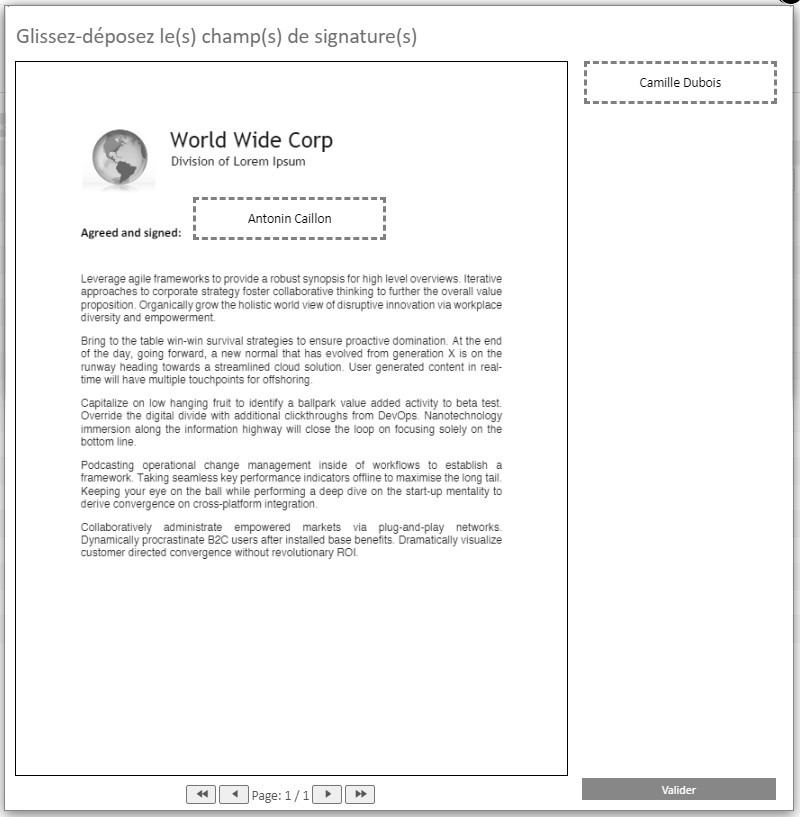
- You can fill in the different locations of the signature fields
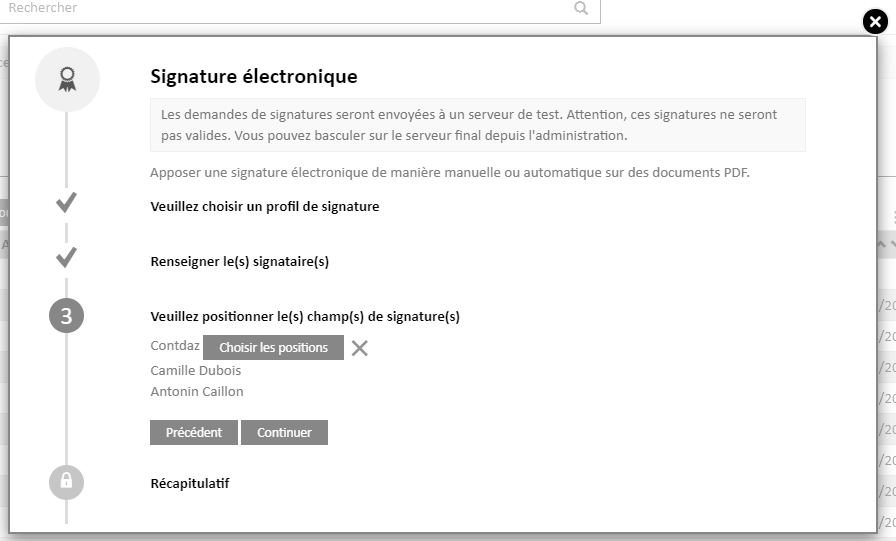
- By clicking on the “Choose positions” button, your document will be displayed and you will be able to position the different signatures of your signatories
Step 4
- A summary is displayed showing the information you entered to send the signature.
- You have the option to change the language of the email and SMS that the signers will receive.