Sending automatic signatures will allow you to send documents via a filing rule or by integrating them into a folder.
Go to the configuration
To access the Auto-Signature Shipments creation page:
From the ” Administration ” section, click on the ” Electronic signature ” tab.
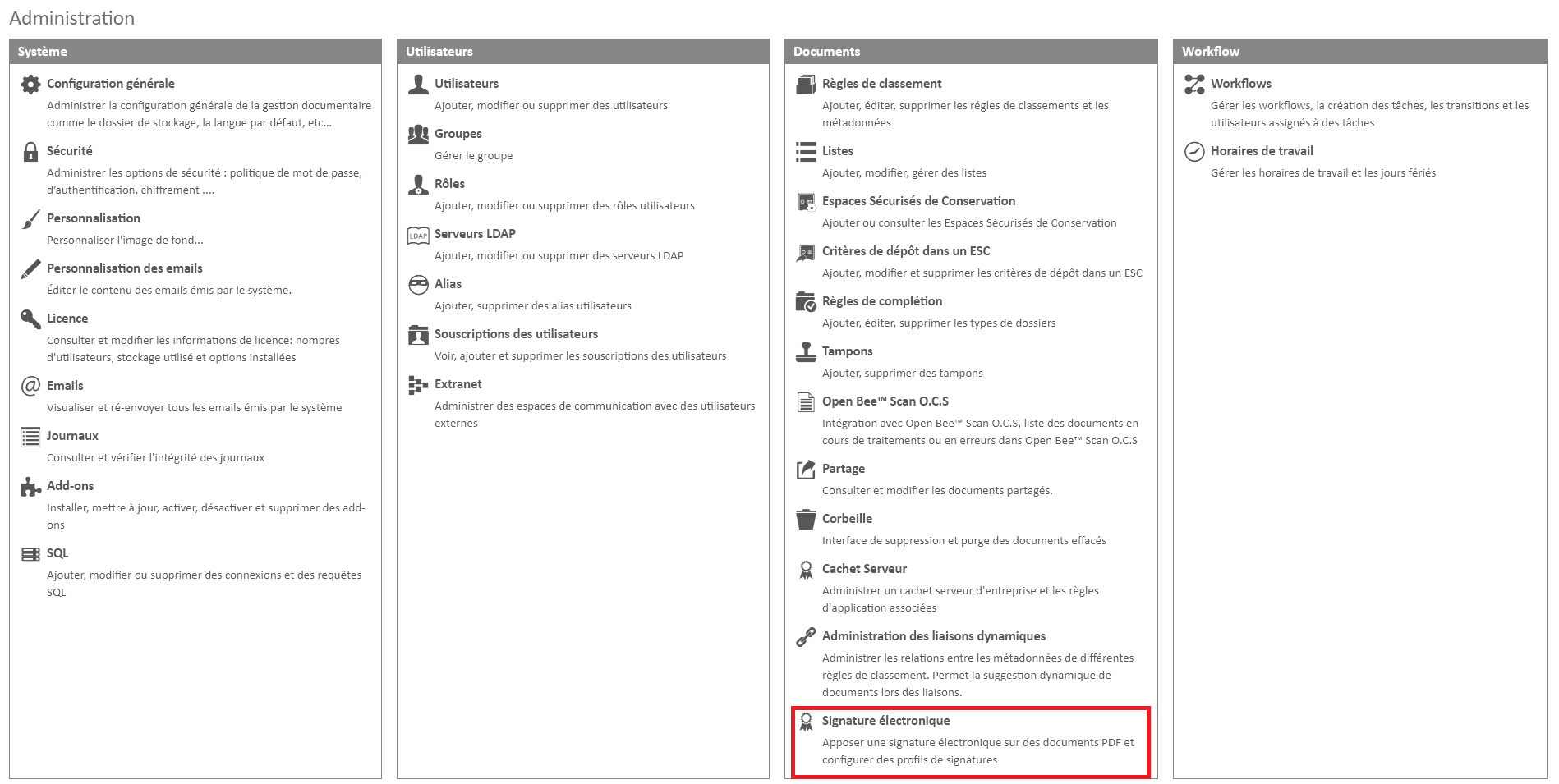
Click on the ” Auto-Sign ” tab
Add an automatic shipment
To add an automatic send, click the “Create an automatic signature send” button.

The “Create an automatic signature send” pop-up appears.
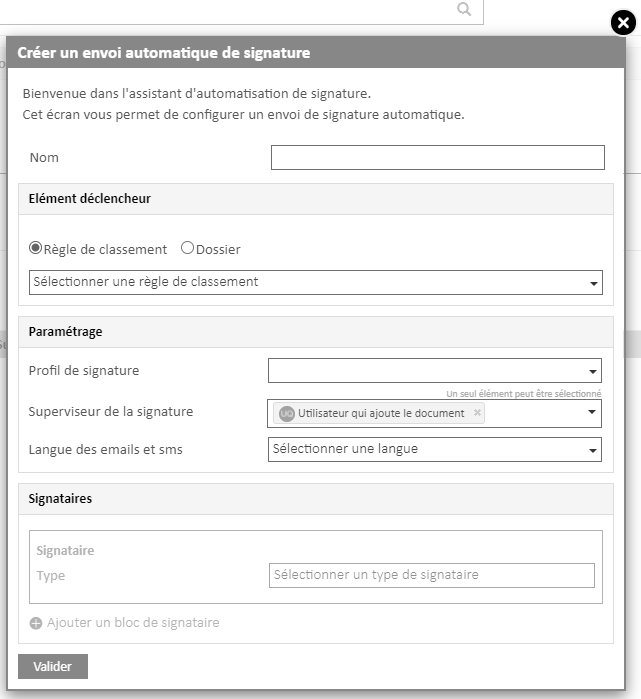
In this window, there will be an option asking you to enter the name of the configuration.
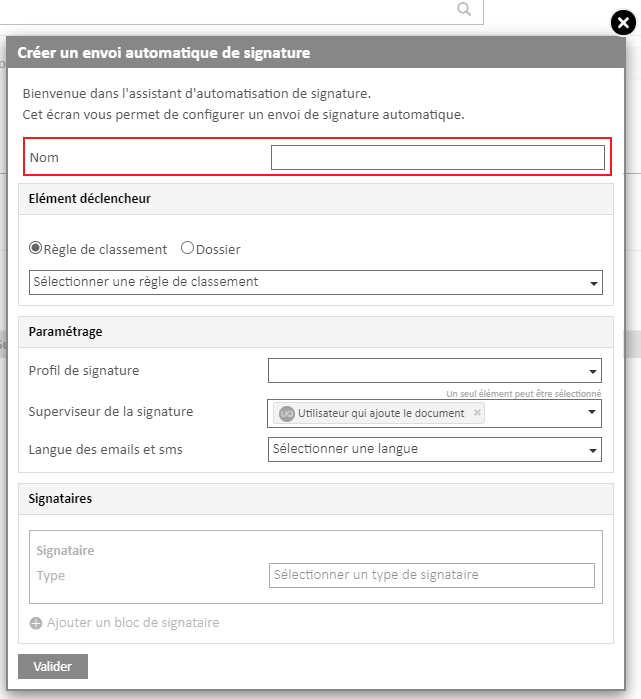
Next, the configuration is divided into 3 parts:
The “Trigger” section allows you to choose the filing rule or folder that triggers the signature to be sent.
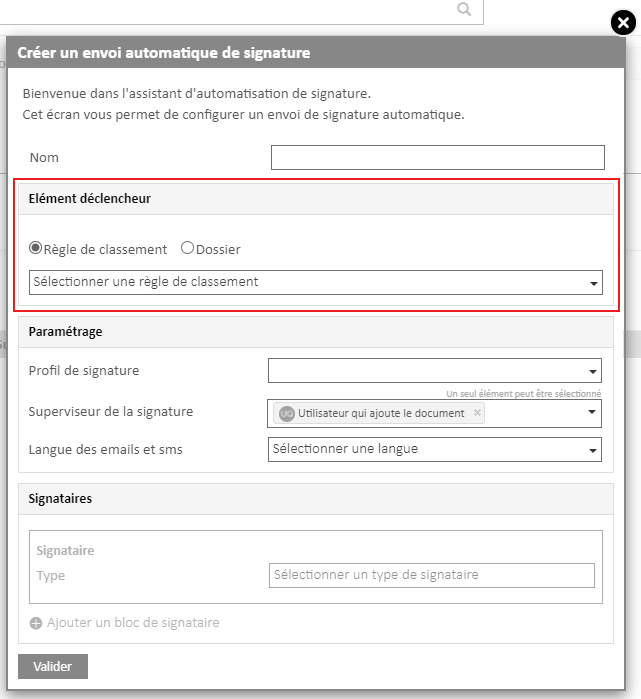
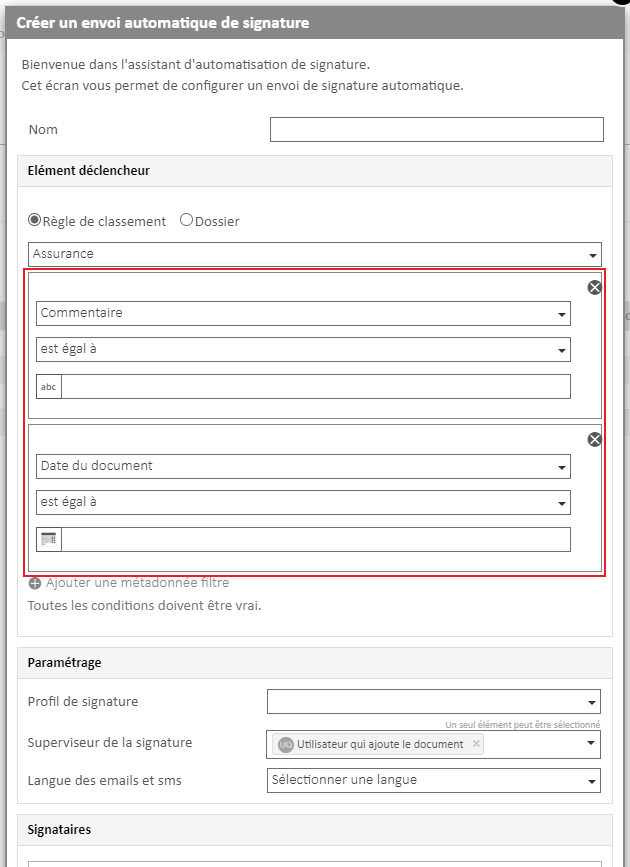
By selecting a ranking rule, it is possible to filter more precisely on a metadata.
It is possible to select multiple metadata filters, all conditions must be true to trigger the signature to be sent.
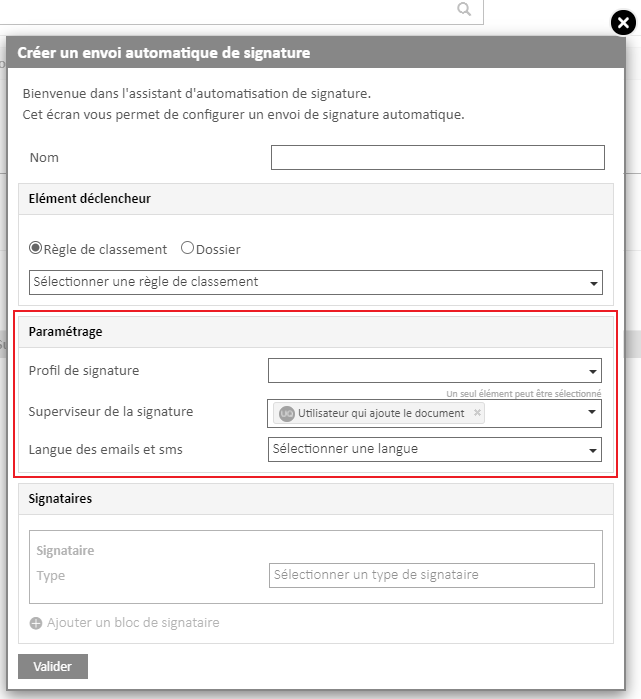
The ” Settings ” section allows you to choose different parameters for the shipment.
It is possible to choose:
- The Signature Profile
- The Signature Supervisor
- The language of emails and text messages
All signed profiles created are compatible with the auto-send feature.
Please note that if a signature profile requires the signature of the initiator or a signature field (visual signature), the automatic signature cannot be sent. This is because these options require manual action from the user.
The supervisor to be selected between:
- The user who adds the document
- A dynamic user that will be determined from a user/group metadata or alias
- Or by choosing a fixed user of Open Bee™ Portal
The choice of language for emails and text messages can be:
- A language dynamically determined each time a shipment is made by metadata
- Always the same for all automatic shipments.
Be careful if you choose a dynamic language, the value entered in the metadata must correspond to the ISO 639-1 code
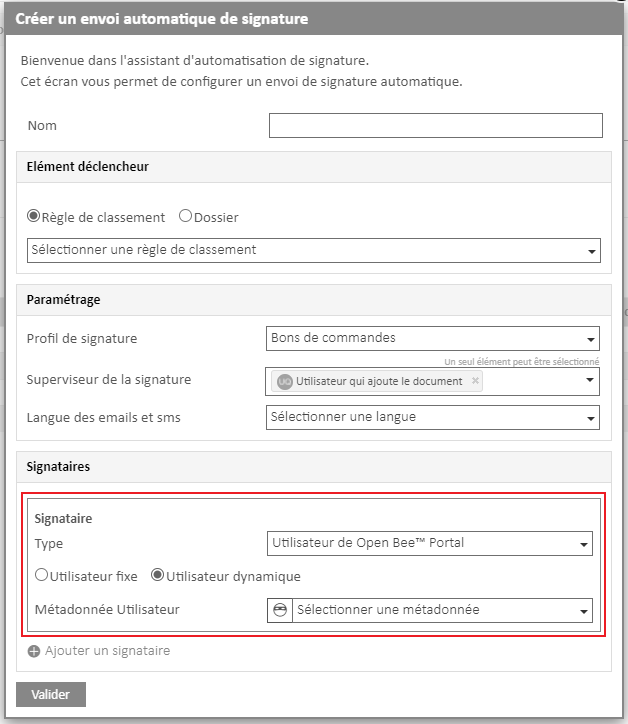
The “Signatory” section allows you to define the different ones who will sign the document:
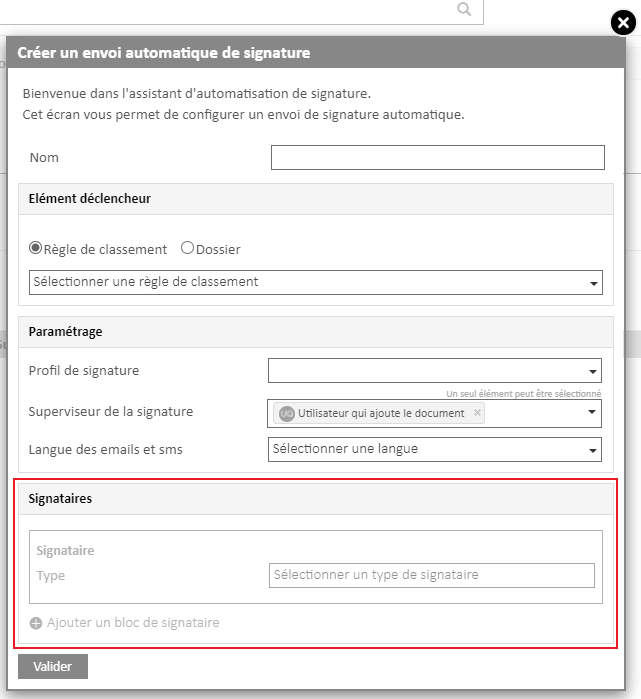
In this section, there is the possibility to add multiple blocks of signatories who will have to sign the document.
In the signer block, it is possible to choose between 2 types of signatories:
- Open Bee™ Portal User
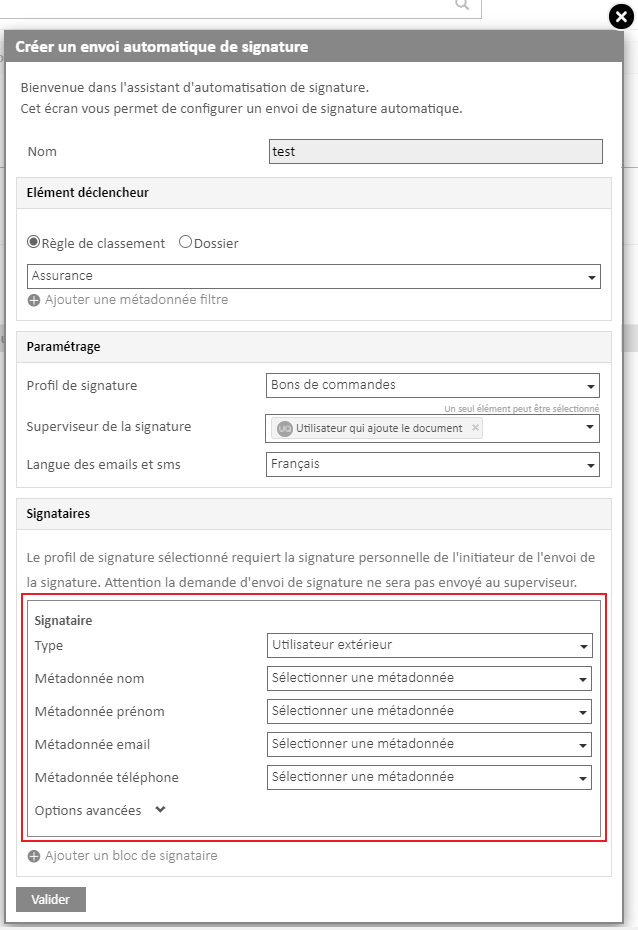
- Outside user
If you choose an Open Bee™ Portal user, it can be a fixed or dynamic user.
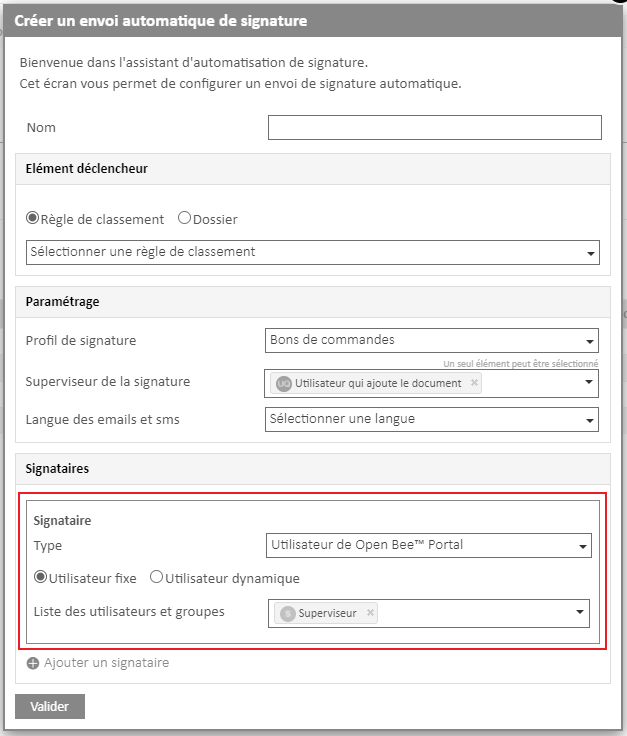
If the user is dynamic, it will be necessary to define a metadata to make this association.
Dynamic users use the alias system
If you choose an external user, you will have to associate a metadata for each piece of information required to send a signature: surname, first name, email, telephone number
Position of Signature Fields
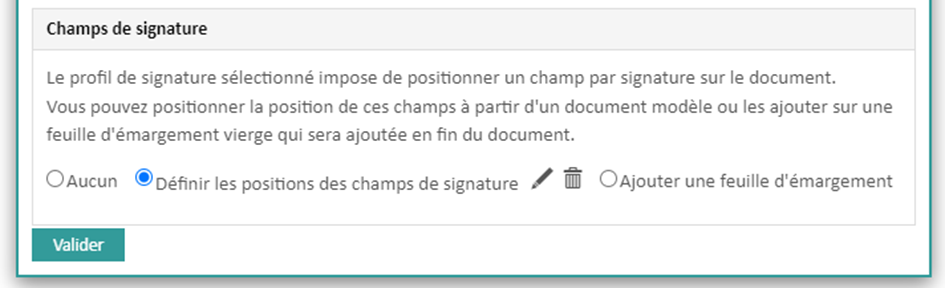
If the selected signature profile requires the placement of signature fields, new options are available:
- Define Signature Field Positions
If you choose this option, you will need to select a template document to place the signatures. The template document should correspond to the future documents that will be injected. If the last page is selected, a new option appears, allowing signatures to always be placed on the last page.
Note: This option is limited to placing a maximum of 5 signature fields.
- Add a sign-in sheet
A blank sheet of paper will be added to the document with all the signatories.
Note: This option is to be used in particular in cases where the number of signatories may be greater than 5.