Working with workflows
For more details on how to use a workflow, please refer to this page: Workflow
Validating a Task with the Send Signature Action
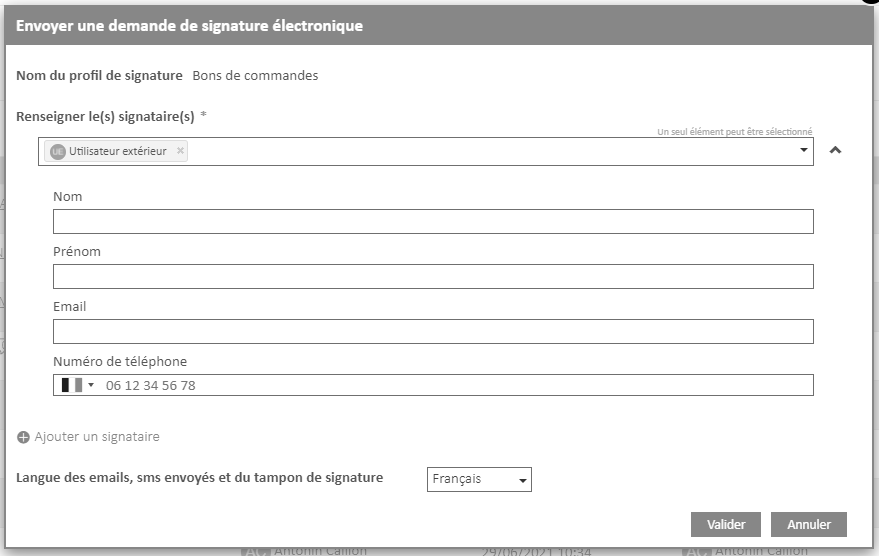
To complete a workflow task that requires a signature to be sent, and in the event that the signature profile selected in the action includes sending a signature to external recipients, the wizard below will be displayed.
From this screen, you will have to fill in the contact details of the signatories and define the language of the emails and SMS sent.
The task is validated as soon as the signature request is sent and not when the signed document is returned. The workflow immediately moves to the next step.
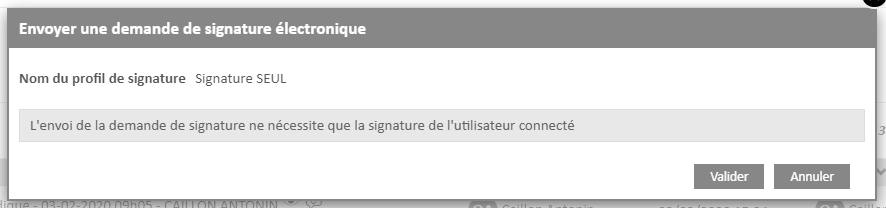
If the signature profile only includes the signature of the logged-in user, you will only have to validate by clicking on the button in the wizard below. As soon as you click on the “Validate” button, a screen will appear in your Open Bee™ Portal so that the user can sign the document.
If the task is set to automatic submission then the task is validated instantly.