The current version of Open Bee™ Doc Office Manager (version 6 and above) Automatically activates at the time of login with Open Bee™ Portal (version 6 and above) if the option is activated via the Open Bee™ Portal license key. In this case, the “Activation” tab of the “Add-in Manager” window is not visible.
Otherwise, if you have an Open Bee™ Portal version lower than V6, you must activate the software to make it work if the Open Bee™ Doc Office Manager version is less than or equal to version 6.0.3. The procedure takes only a few seconds.
Please start the ” Open Bee™ Doc Office Manager – Add-In Manager ” module:
- In the ” Start ” menu, click on ” Open Bee™ Doc Office Manager – Add-In Manager ” in “All Programs / Open Bee™ / Open Bee™ Doc Office Manager – Add-In Manager“.
Or
- Double click on the ” Open Bee™ Doc Office Manager – Add-In Manager ” icon that was created on the Windows desktop by the installer.

To activate the software if the version is less than or equal to version 6.0.3 :
In the tabs, select ” Activation ” and fill in your details in the “Contact details” section:
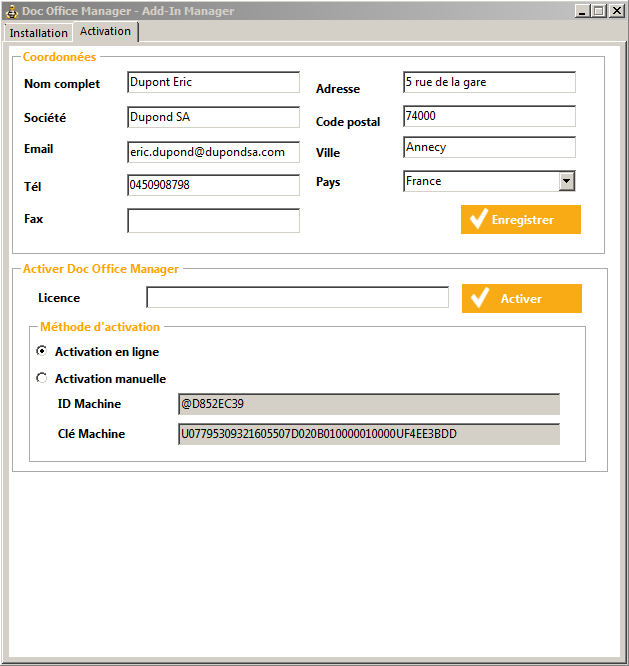
In the “Activate Open Bee™ Doc Office Manager” area, copy the license number of the software in the “license” field and click on “activate“
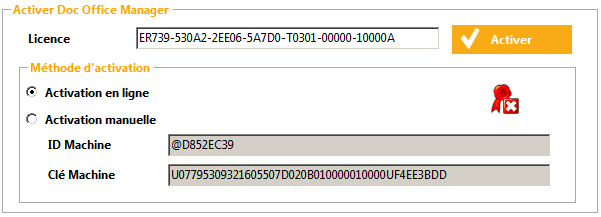
The “ ” icon informs you that your license is valid. Otherwise, this “
 ” icon will appear.
A label with the serial number and activation code is provided with the installation CD-ROM/USB stick. This number represents your license. It is confidential and must be kept safe.
Open Bee™ Doc Office Manager has 2 modes for activation:
Connected mode:
An internet connection is required for this mode.
The user enters their contact details in the appropriate fields and registers by clicking the ” Save ” button
Offline Mode:
The procedure is carried out by sending an email to
the license@myopenbee.org
address. The user provides their contact details, the serial number and the product number generated by the “MACHINE ID” system that is displayed on the screen. In return, an email containing the license key will be sent to the user, who only has to enter it manually to activate their application.