This step allows you to set the parameters for communication with your Open Bee™ Portal server.
Please start the module ” Open Bee™ Doc Office Manager – Configuration » :
- In the “Start” menu, click on “Open Bee™ Doc Office Manager – Configuration” in “All Programs / Open Bee™ / Open Bee™ Doc Office Manager – Configuration“
Or
- Double click on the “Open Bee™ Doc Office Manager – Configuration” icon that was created on the Windows desktop by the installer.

This window opens:
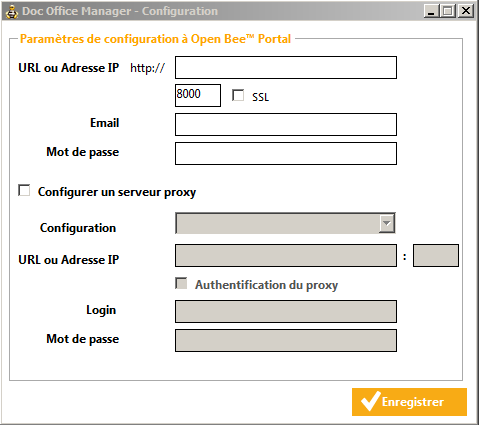
1. Enter the URL or IP address of the Open Bee™ Portal server. You can check the SSL box to automatically switch the connection to Open Bee™ Portal in secure mode, if this feature is enabled on your server.
2.Si you are using SSL (port 443), go directly to step 4, otherwise fill in the port linked to your IP/Open Open Bee™ Portal URL (usually, it is either port 8000 or port 80).
3.Enter your Open Bee™ Portal username
4.Enter your password
5.Si you are using a proxy, check the box next to “Configure proxy connection” and configure your network’s proxy connection.
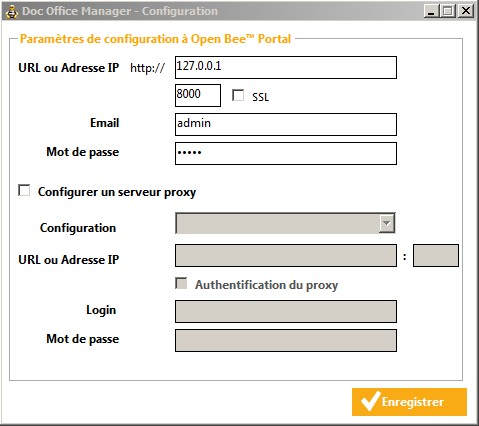
If you are using a proxy, click on “Set up a proxy server“. You have two configuration modes:
- Automatic configuration. Click on “Automatically detect settings“ and click on “Save“.
- Manual configuration. Click on ” Manually configure
settings
“
then fill in the required fields and click on ”
Save
“
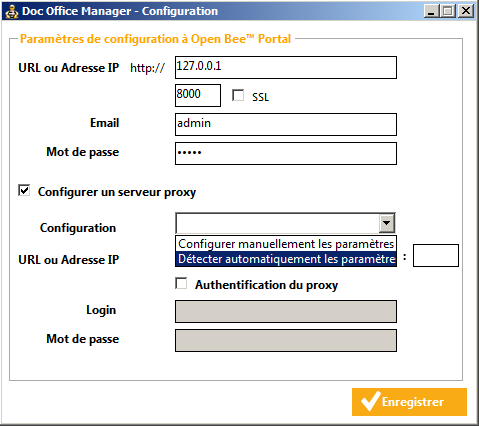
Click ” Save ” to save the Open Bee™ Portal server settings.
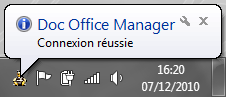
During registration, a communication test is carried out to test the parameters entered. A tooltip appears in the Windows notification bar to inform you of the test result.