Open Bee™ Doc Office Manager allows advanced indexing when archiving documents.
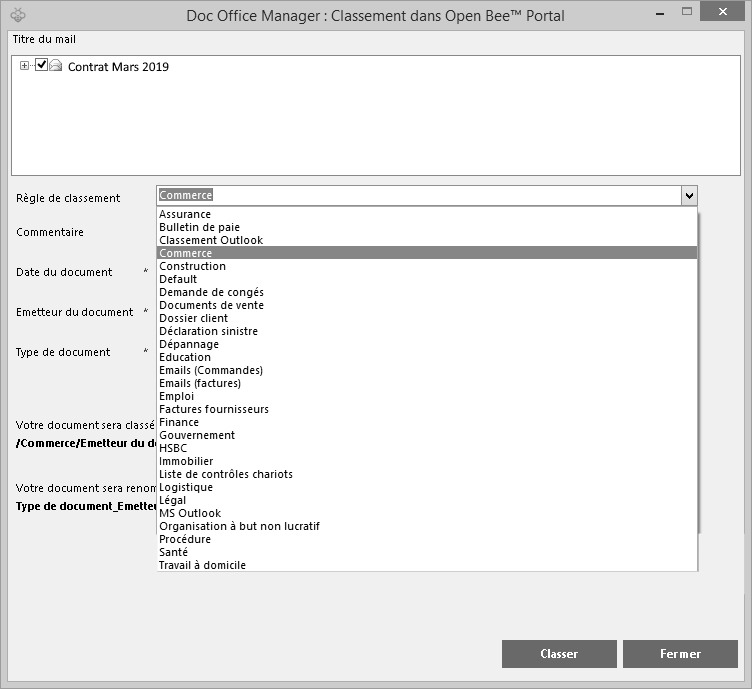
1. From the ” Ranking Rule ” drop-down menu, choose one of the ranking rules from your Open Bee™ Portal.
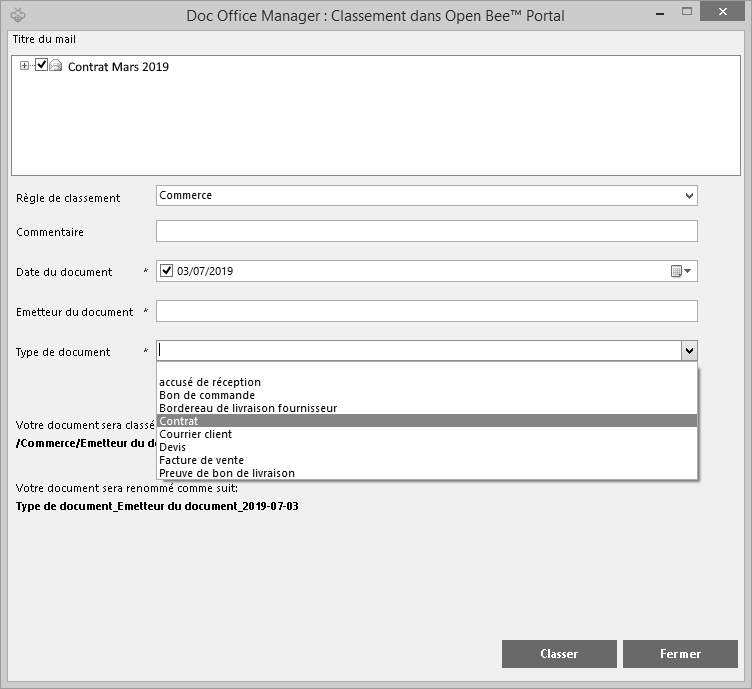
2. Once you have selected your filing rule, choose the ” Document Type ” from the drop-down menu:
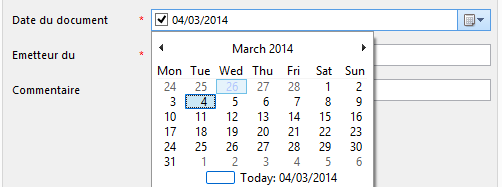
3. By default, in ” Document Date ” the current date will be displayed.
You can change it by clicking on the calendar tab and then select the desired date from the calendar that appears:
4. If you wish to leave a comment on the document, write it in the ” Comment ” section
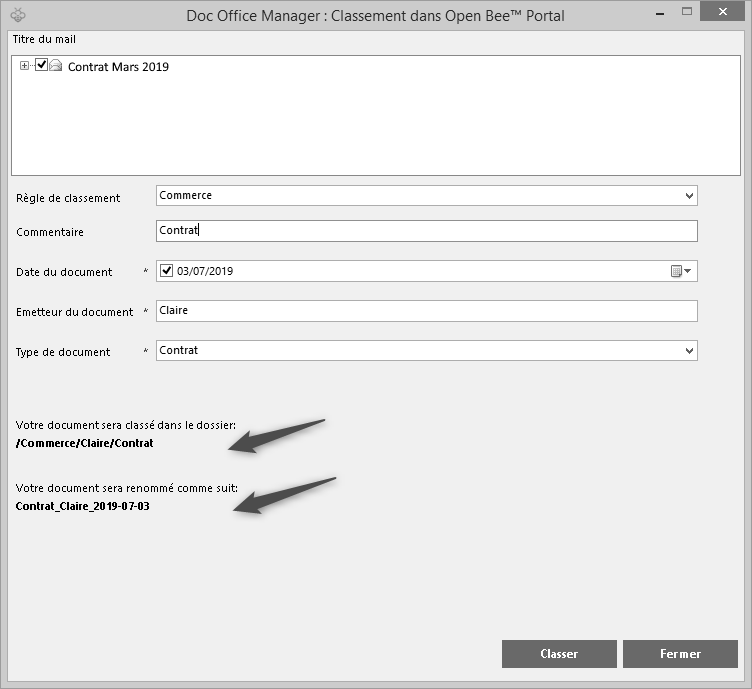
At the bottom of the window you will be able to see:
- The path or your document will be categorized in Open Bee™ Portal.
- The name of your document which will be automatically renamed at the time of archiving.
If you do not want your document to be automatically renamed when choosing a filing rule, change the settings directly in your Open Bee™ Portal interface in the “Filing Rules Administration>” section. Choose the ranking rule you want to edit by clicking on it.
On your right, in the ” Edit ranking rule ” column, uncheck the box to stop the automatic ranking rule.
Your documents will no longer be automatically renamed for the filing rule you selected.
5. Click on the ” file” tab to classify your document.
6. A tooltip will appear at the bottom of your screen in the taskbar to inform you of the result of your operation.

Your document is then successfully archived in your Open Bee™ Portal.
When checking in a document, Open Bee™ Doc Office Manager communicates with Open Bee™ Portal , which in turn sends it back the list of document types it can process, with their associated indexes.
If you want to use advanced indexing, Open Bee™ Doc Office Manager will display the list of rules. When you select the rule you want, a form appears with a list of indexes associated with that rule. These indexes will be associated with the document and will be used when searching for documents in Open Bee™ Portal.
You can find these indexes in the document properties in your Open Bee™ Portal interface
If you do not want to do advanced indexing, your document will be saved with the type ‘Default’ as explained in the section: using the ” Classification in Open Bee™ Portal ” window.