Ranking
This add-in offers the ability to classify and index emails and attachments in Open Bee™ Portal directly from Microsoft Outlook.
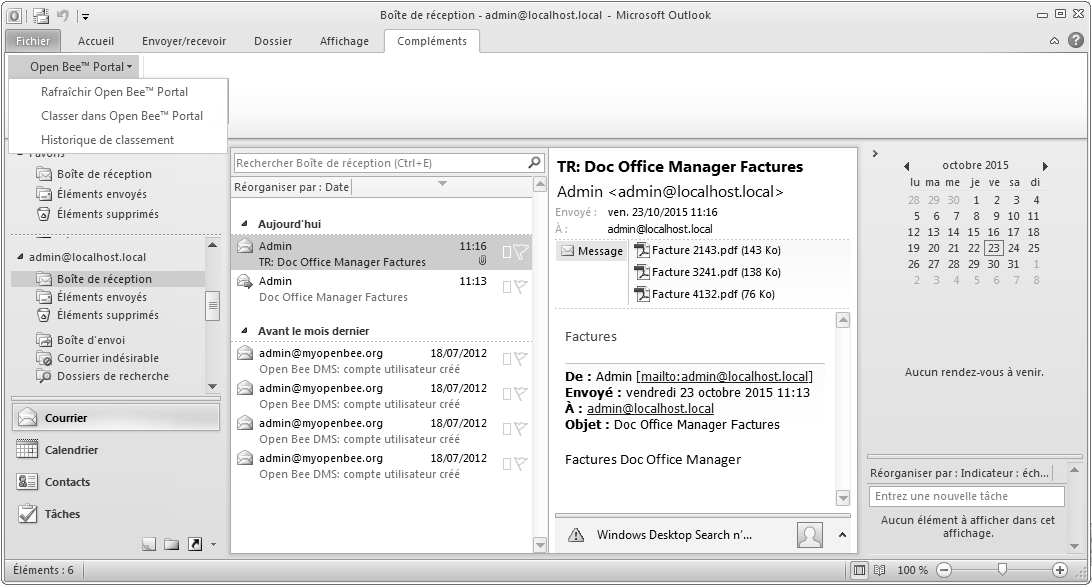
To classify one or more emails, simply select the email(s) you want to classify. Click on “Add-ins” in the taskbar and then on “Open Bee™ Portal“.
A drop-down menu will appear, select ” File in Open Bee™ Portal ” as below:
The “Open Bee™ Portal” window appears. It has features specific to Microsoft Outlook:
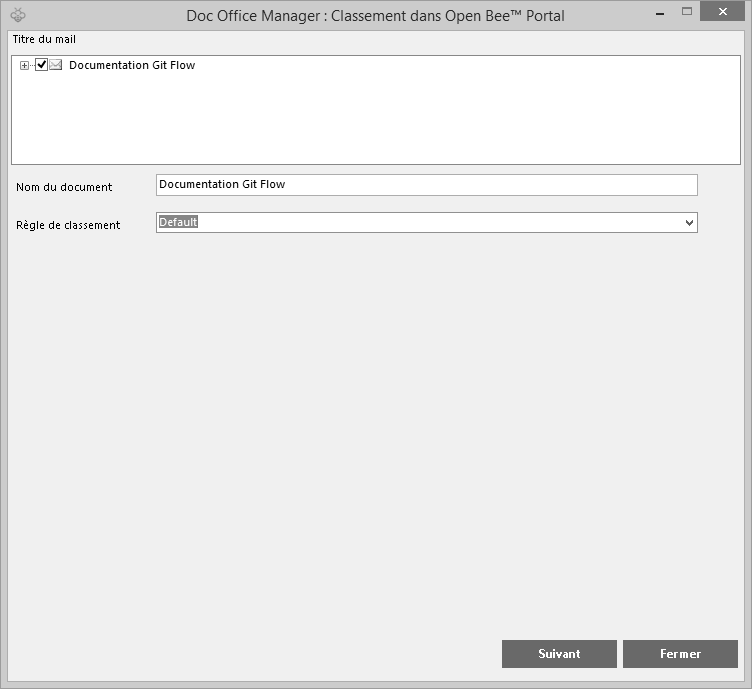
You can rename the email title to ” Document Name ” when there is only one email. In this window, you can select the emails and attachments to archive using the checkboxes; If you click on the ” +” symbol, all the attachments in your email will be displayed:
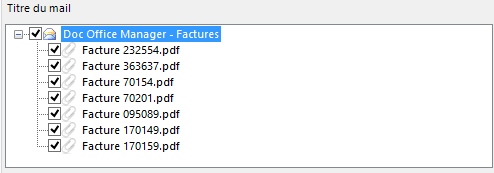
If you have selected two emails, the window will be presented as follows:
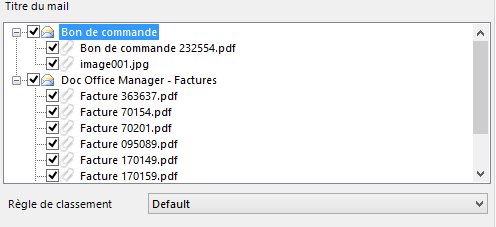
Click ” next ” to continue archiving. This window opens:
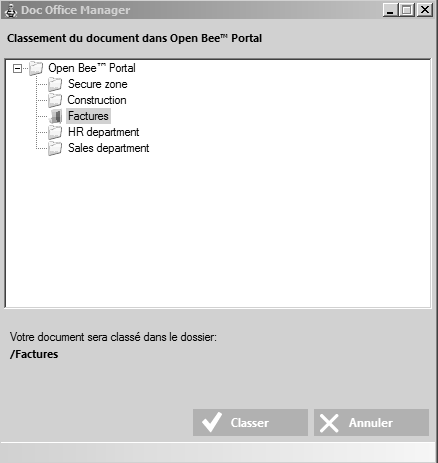
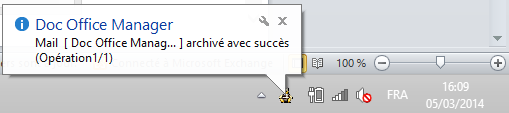
Select a directory in Open Bee™ Portal to organize your email and its attachments. Once the directory is selected, click on ” classe “. The counters in the “Ranking Status” section update in real time. In addition, a tooltip will appear at the bottom of your screen in the taskbar to inform you of the result of your operation:
Emails are archived in PDF text format and attachments in their original formats.
During archiving, Open Bee™ Doc Office Manager creates a directory in Open Bee™ Portal with the title of the email and in which it will archive the email in PDF format and the attachments in their native format.
If you select only one attachment, Open Bee™ Doc Office Manager will not create a directory and will archive the document in the Open Bee™ Portal folder selected from the Microsoft Outlook folder list.
 If needed, you can refresh the Open Bee Portal tree via the Outlook menu “Open Bee™ Portal > Add-ins > Refresh Open Bee™ PortalOpen Bee™ Portal Portal”.
Open Bee™ Doc Office Manager only archives emails. You can’t archive other Microsoft Outlook objects such as meeting requests, appointments, or tasks.
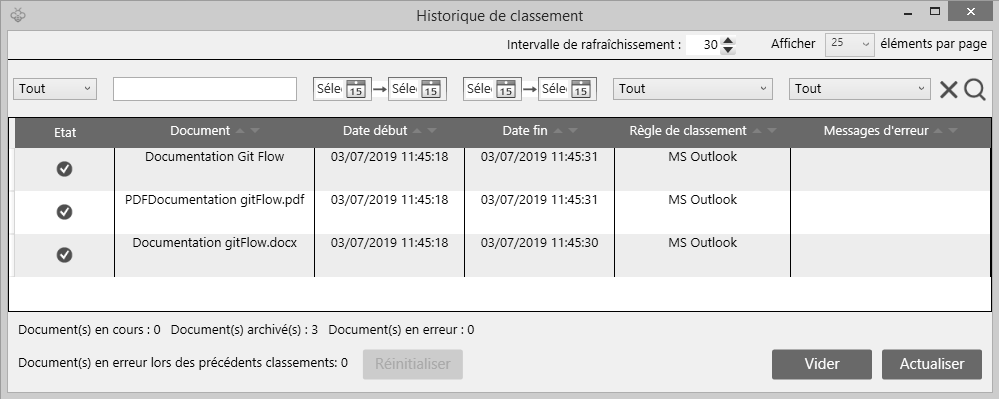
Historical
A history of Outlook rankings can be accessed from:
- the ranking window by clicking on the “Details” button
- or the ribbon in Outlook (Add-ins =>Open Bee™ Portal => Filing History).
This history allows you to have a list of all the rankings made from Outlook.
A counter is also present to indicate the number of errors that have appeared in previous rankings. The “Reset” button allows the user to acknowledge errors by setting the counter back to 0 to indicate that they are aware of them.