This section details the configuration required to semi-automatically transmit invoices to local authorities from Open Bee™ Portal : Chorus Pro Connector.
- Creating the technical account in Chorus Pro
- Configuration d’un compte fournisseur dans Open Bee™ Portal : Connecteur Chorus Pro
- Automatic metadata association
- Managing Recipients
- Manage users
- Manage bank details
- Automatic attachment linking
Creating the technical account in Chorus Pro
To allow Open Bee™ Portal : Chorus Pro Connector to interact with the Chorus Pro Portal, it is necessary to create a technical account.
If you haven’t already done so, please follow the steps in the attached guide: Chorus Technical Account Creation / Track Technical Account Creation
The creation of a technical account on the Chorus Pro portal requires a connection with a user with a “Main Manager” attachment on your structure.
Setting up a vendor account in Open Bee™ Portal : Chorus Pro Connector
In Open Bee™ Portal, click on the “Chorus” menu. You are directed directly to the “Configuration” tab.
Adding a Provider
Open Bee™ Portal : Chorus Pro Connector allows you to manage multiple locations to submit invoices to Chorus Pro.
By default, there is a provider that is already ready to be configured.
Click Provider to access the configuration.
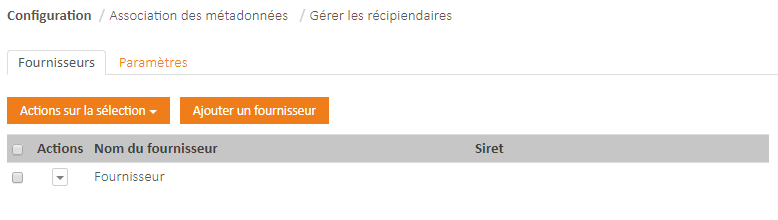
If you need to manage multiple locations, you can add a new provider by clicking the “Add Provider” button.
Configuration
When you click on a provider, you see the associated configuration.
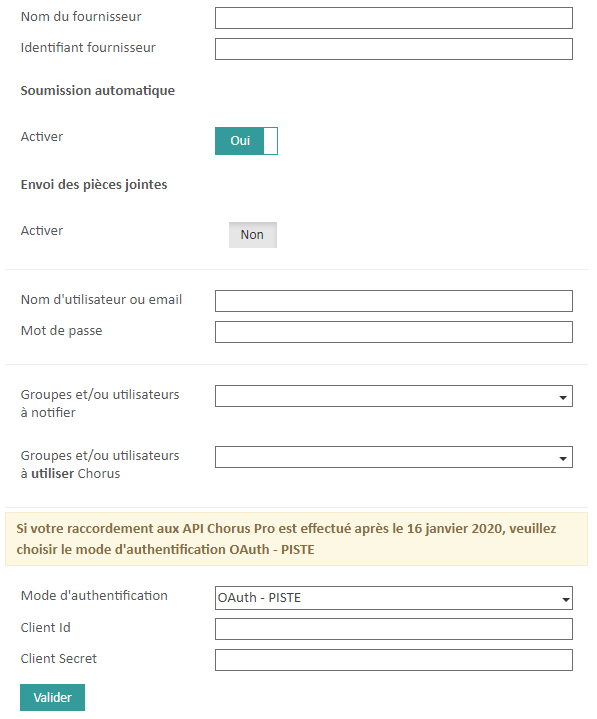
Here are the explanations for the different fields
Vendor Name : The name you give your vendor.
This label is free to type, it is used for display, put the name of your institution.
Supplier identifier : SIRET number of the supplier.
As the module allows you to manage several establishments for the sending of invoices, this SIRET number makes it possible to distinguish between them.
Automatic submission : allows you to automatically send complete invoices to Chorus Pro.
If this feature is enabled, full invoices will be automatically sent to Chorus Pro every 10 minutes without the need to log in to Open Bee™ Portal.
Send attachments: Enables automatic sending of attachments, see Automatic attachment linking.
Username : the identifier of the technical account of your entity previously created in Chorus Pro.
Password : the password for the technical account of your entity previously created in Chorus Pro.
These credentials will allow Open Bee™ Portal : Chorus Pro Connector to submit invoices to Chorus Pro. Icon
If you have a login issue during validation (and even though port 5443 is open), we recommend that you reset the technical account password.
The Chorus Pro documentation for creating the technical account (see our prerequisites) also explains how to reset the password.
Group and/or users to be notified : Users or groups entered in this field will be notified on their dashboards and by email during the following events:
- adding a new document awaiting submission to Chorus Pro
- document submitted to Chorus Pro
- Changing the status of an invoice in Chorus Pro
Group and/or users to use Chorus : Users or groups entered in this field will have access to Open Bee™ Portal : Chorus Pro Connector, but not to the configuration part.
Authentication mode: Certificate or OAuth – Track.
The authentication method with the Chorus Pro API has evolved.
From now on, the OAuth – TRACK mode is to be preferred.
Indeed, since January 2020, new connections with a certificate are no longer possible.
The OAuth-Track authentication mode allows you to do without an RGS* certificate.
For connections that existed before January 2020, certificate authentication still works.
On the Chorus Pro website, there is no end date for the certificate-based authentication mode.
Client ID, secret client: These are the OAuth credentials that you find when you log in to the PISTE portal.
Certificate Settings: These fields are used to add the certificate used for exchanges with Chorus.
Add a certificate by clicking Browse.
You can also choose the format of the certificate, p12 is recommended.
Finally, please enter the password for the certificate.
How invoices are uploaded
Remote or Local.
The default mode is Remote.
To display invoices in Tracking and Documents to be processed, Open Bee™ Portal : Chorus Pro Connector will query the Chorus Pro API.
The displayed information is therefore retrieved in real time, e.g. the status value.
Similarly, if the Chorus Pro API is not available, you will not be able to access these screens.
In Local mode, a run will run each night to retrieve the invoice information.
This means that the data displayed in the Tracking screens and in the Documents to be processed date from the last execution of the processing.
A message will show you the date and time of the last invoice retrieval.
You will be able to access the Tracking and Documents to be processed screens even when the Chorus Pro API is not available.
Chorus Pro Submission Criteria
Click on the Settings tab to access the criteria for submitting to Chorus Pro.
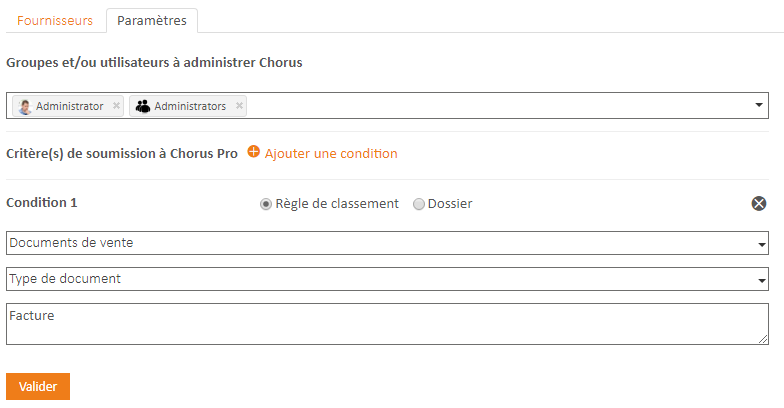
Groups and/or users to be administered Chorus :d define the users or groups that have the ability to administer Open Bee™ Portal : Chorus Pro Connector.Criteria(s) for submission to Chorus Pro:
This section gives you the opportunity to establish the criteria that allow Open Bee™ Portal : Chorus Pro Connector to determine which documents should be submitted to Chorus Pro.
A criterion is based on:
- or on a classification rule
- or on a
It is possible to create several criteria.
All added documents that meet these criteria will undergo automatic character recognition (OCR) processing in the background to facilitate submission to Chorus Pro.
It is necessary to add PDF type invoices (Chorus requires the use of PDF type documents) in order to be able to submit them
Automatic metadata association
A character recognition process is used to automatically determine some of the information needed for submission in Chorus Pro.
However, it is not uncommon for this information to be unrecognized or poorly recognized.
When Open Bee™ Portal has metadata corresponding to the information needed to submit the invoice in Chorus Pro, it becomes interesting to favor this metadata rather than that from character recognition.
Example:
Suppose the recognition process detects an amount of €1,500 on the invoice.
An “amount” metadata exists in Open Bee™ Portal on this document with a value of €1,800.
If an association has been set up on this Open Bee™ Portal metadata, the value of €1,800 will be offered to the user in the Chorus Pro submission form.
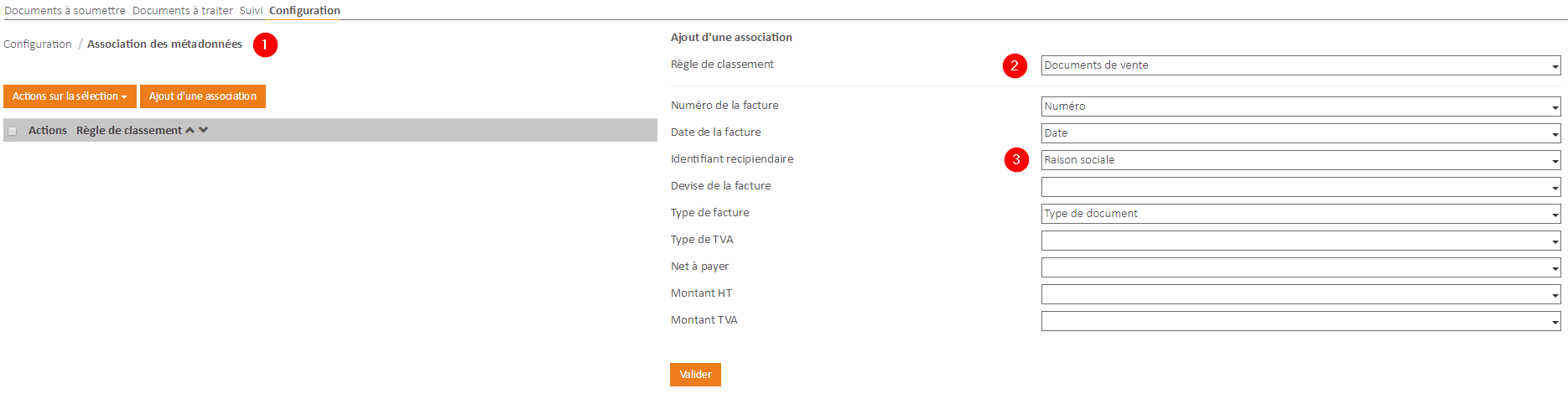
To set up the team:
- Click on the “Metadata association” sub-tab
- Choose the classification rule from which the metadata will be extracted for submission to Chorus Pro
- Associate Chorus Pro submission information with Open Bee™ Portal metadata
Managing Recipients
This screen allows you to match a recipient of the Chorus Pro directory to a label on your invoice.
For example, if on an invoice, the recipient’s wording is Mairie d’Annecy but this wording is not the same in the Chorus Pro directory, you can make this correspondence here.
Thus, if the wording of your invoice corresponding to the recipient is present in this recipient management list, it will be automatically replaced by the associated value from the Chorus Pro directory.
This feature is very useful in the context of the automatic submission of invoices to Chorus Pro and avoids the need to systematically search for the recipient.
Similarly, this correspondence may be made for the services of a recipient.
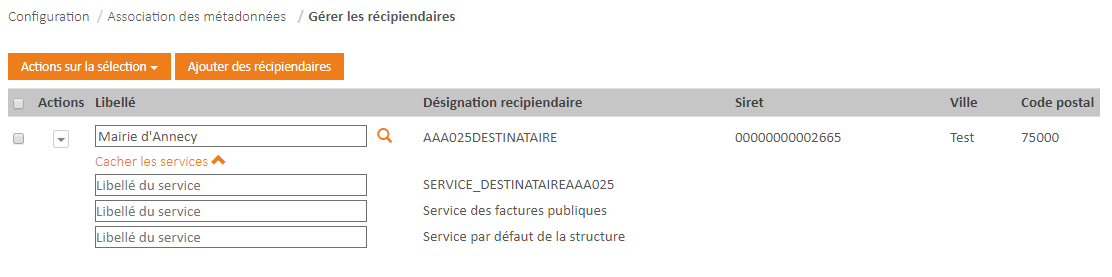
In the context of automated invoice mailing, it is advisable to put the recipient’s SIRET number as the value for the recipient.
For the service, it is preferable to put the Chorus Pro service code, as it is in the Chorus Pro directory.
Manage users
The invoice upload mode must be set to “Local” to use this filtering feature by user.
Use this screen to assign one invoice per user and match a Portal user to a label on your invoice.
Thus, users configured in this screen will only access invoices that have the corresponding metadata value (“User Label”) associated here.
Manage bank details
If you use several bank details to invoice the public institutions you work with, this screen allows you to associate a metadata value with a bank details already configured on the Chorus Pro portal.
This means that you must specify a value on your invoices to identify the bank details to be used and that this value is associated with metadata.
You can also select a default bank details.
Automatic attachment linking
Before you can automatically send attachments with your invoices, you need to set up automatic dynamic linking in Open Bee™ Portal.
In the configuration of the link, the same ranking rule must be used as in the Criteria(s) for submission to Chorus Pro section.
You can also choose a metadata that will allow you to activate automatic sending or not.
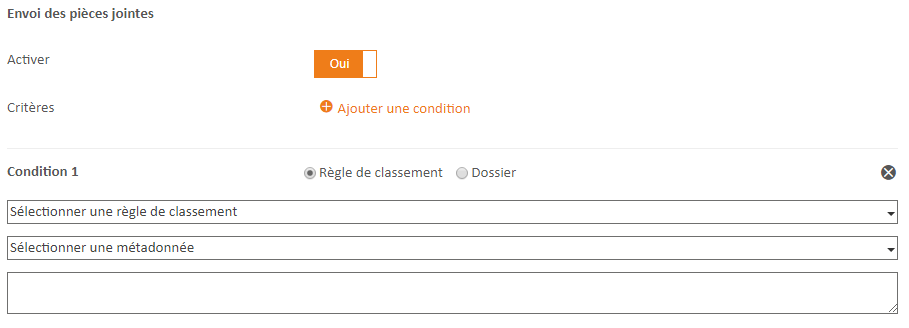
For example, on the invoice you can put a label “PJ”, and select a text metadata that will have the value PJ to send the attachments.