- Submit a customer invoice to Chorus Pro
- Track invoice processing
- Process invoices with “Suspended”, “To be recycled” and “Rejected” statuses
- Error invoice management
- Invoice in error before submission to Chorus Pro
- Invoice in error after submission to Chorus Pro
- Error messages
- Authentication information not present
- The Documents column is blank on the Documents to be processed or Tracking tabs
- Chorus Pro is not available, please try again later
- Performing service is mandatory for this recipient
- Attachment xxxxxxxx of unknown type does not exist
- This invoice could not be analyzed by the Chorus Pro system
- Header synthesis is not correct
- Recipient not located or inactive
- The consistency checks performed on the payment request are not valid
Submit a customer invoice to Chorus Pro
Open Bee™ Portal : Chorus Pro Connector automatically identifies the documents to be submitted to Chorus Pro based on the criteria set by the add-on administrator.
To be submitted to Chorus Pro, a document must have been filed in a folder or with a particular filing rule as defined by the administrator.
Documents awaiting submission to Chorus Pro are available in the “Documents to be submitted” tab.
To submit a document to Chorus Pro, click on the “Complete” action in the menu on the document or simply click on the name of the document.

A new screen is displayed to view the invoice along with a form with the information needed to submit to Chorus Pro.
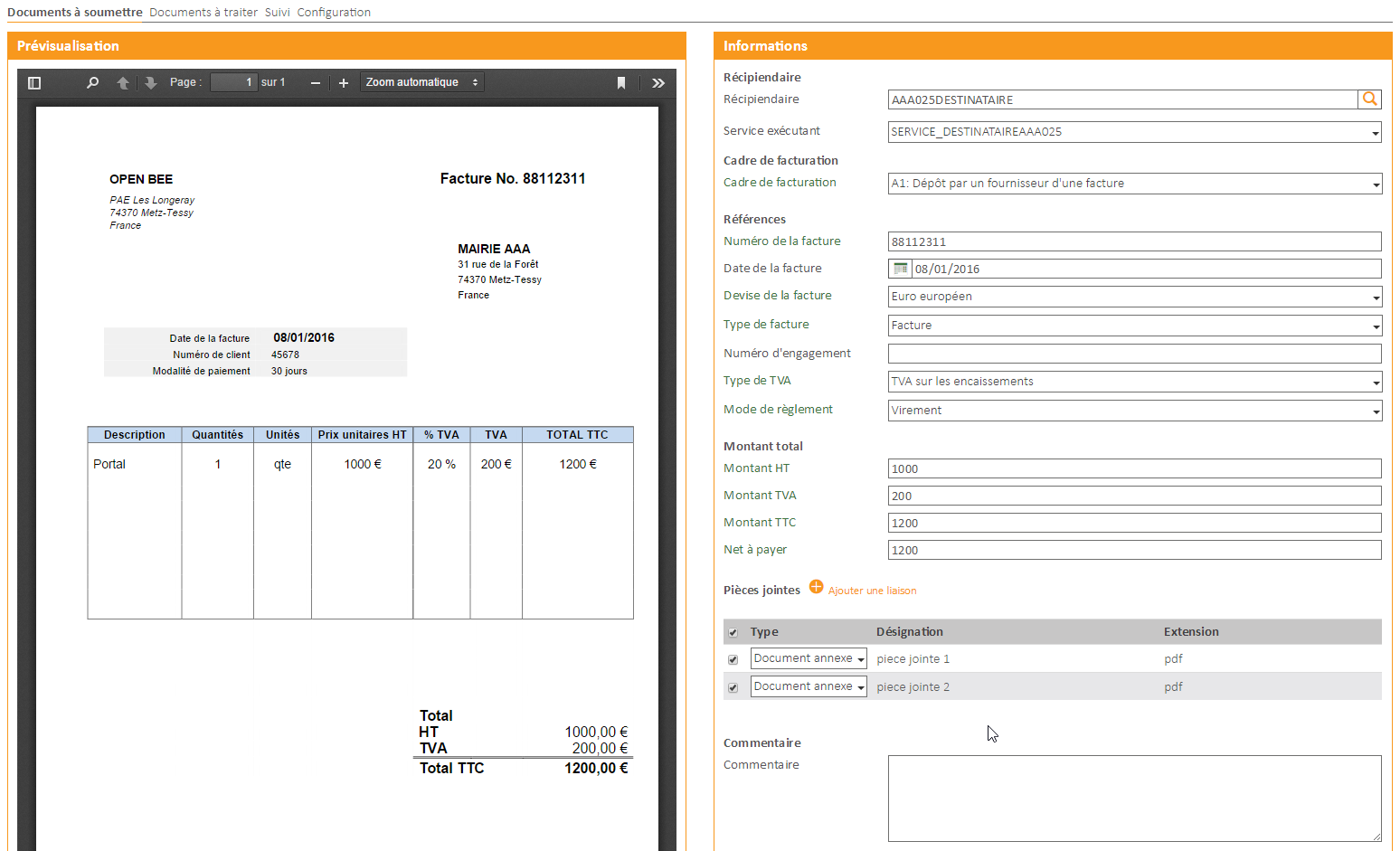
Fill in the form and click on the “Validate” button.
The invoice is submitted to Chorus Pro.
The tracking of the processing of this invoice is then available in the “Tracking” tab.
If there are multiple invoices to submit, the next invoice is directly displayed.
Track invoice processing
From the “Follow-up” tab, you can view all the invoices submitted to Chorus Pro.
Various search and sorting filters allow you to easily navigate through your invoices.
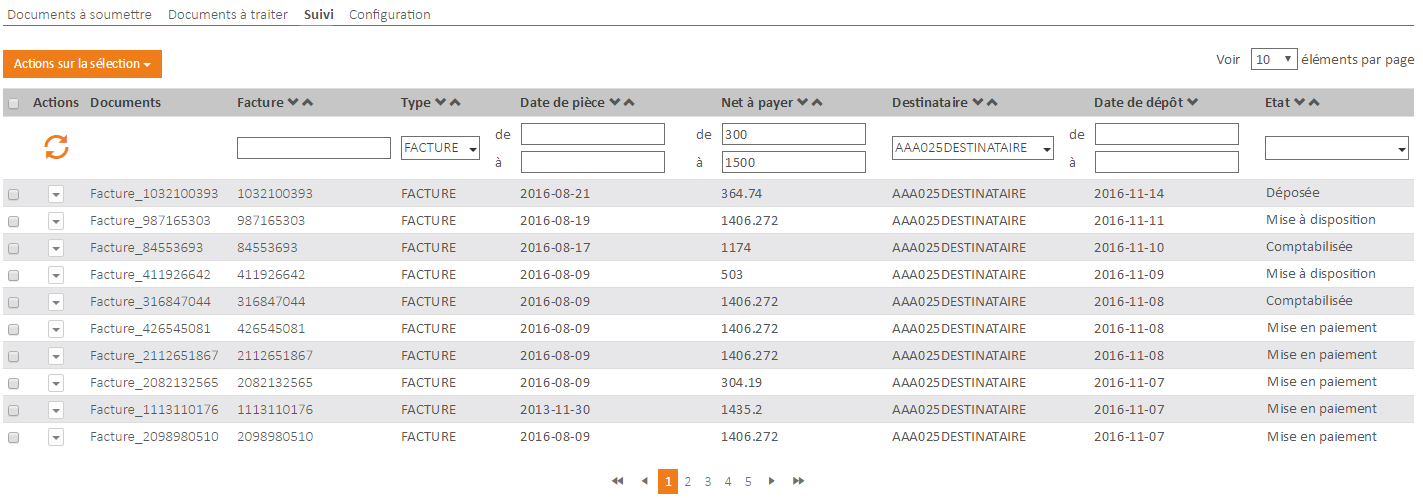
You can also “Export to CSV” the invoices displayed. This operation can take several minutes if there is a large volume of invoices.
To access the file, you will need to refresh the page.
Process invoices with “Suspended”, “To be recycled” and “Rejected” statuses
From the “Documents to be processed” tab, you can view all the invoices for which the recipients have reported statements requiring action on your part.
“Suspended” invoices
These are the invoices for which attachments are missing.
To process these invoices, click on the “Complete” action.

The invoice form opens and you have the option to add attachments and/or modify the comment field.
“To be recycled” invoices
These are invoices for which there is an error on the routing data (the choice of the recipient is wrong, service code or commitment number).
To process these invoices, click on the “Recycle” action.

The invoice form opens and you must choose a new recipient and their executing service (if it is mandatory).
“Rejected” invoices
These are the invoices for which the billing data is incorrect, error in the amounts, etc.
The rejection necessarily leads to the issuance of a new invoice by the supplier.
To find out if you have already processed a Rejected invoice, you can use the Pay Out action, which will allow you to enter the corrective credit notes and invoices.
Error invoice management
In the “Documents to submit” tab, invoices may be in error.
We can distinguish 2 types of error:
Invoice in error before submission to Chorus Pro
Before appearing in the “Documents to be submitted“, the invoice is sent to Chorus Pro for analysis.
If this operation does not work, the invoice has an OCR status of “Mistaken“.
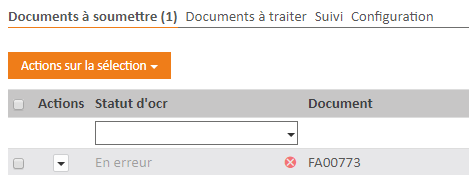
The invoice may be in error if the Chorus Pro system was not available at the time it was to be analyzed.
More rarely, the invoice may be in error if the Chorus Pro system is unable to parse the PDF file.
To fix this error, you can use the “Reprocess” action.
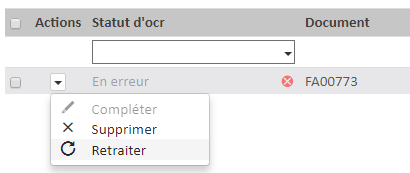
This action will again send the invoice to the Chorus Pro system for analysis. There is therefore a processing time of a few seconds.
When the operation is complete, the invoice is ready to be sent.
Invoice in error after submission to Chorus Pro
An invoice can be in error after being sent to the Chorus Pro system for several reasons:
- The invoice number has already been sent
- The service is missing
- Commitment number is missing
- etc…
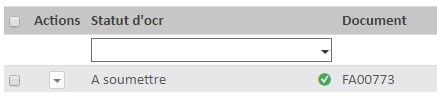
To identify these invoices in error, the OCR status is “To Submit” and the icon is red.
Hovering over the red icon will display the error message.

Once an invoice is in error, it will no longer be sent automatically, the error must be processed.
To deal with the error, there are several solutions depending on the problem:
- Manually send the invoice by filling in the missing information and click on the “Validate” button.
For example, if the commitment number is missing.
- Correct the matching problem in the management of recipients.
For example, for a missing service even though it is present on your bill
You can click on the “Submit” button or use the “Submit selection” action on the selection. - Edit the wrong metadata on the document in Open Bee™ Portal. Then use the “Reprocess selection” action to make the invoice ready to be sent again.
For example, if the supplier SIRET is incorrect, you can modify the metadata directly on the invoice and re-inject it into the Open Bee™ Portal module: Chorus Pro Connector.
Error messages
Error messages are retrieved from the Chorus Pro system.
The following is a non-exhaustive list of error messages:
Authentication information not present
This message may appear for clients that have migrated to PISTE authentication with versions 6.11.2 and 6.11.3 of the Chorus Pro module .
The problem is related to the validity period of the PISTE authentication token.
While waiting for a corrective version of the module, you have to go to the configuration and validate the authentication information again.
The Documents column is blank on the Documents to be processed or Tracking tabs
On the Documents to be processed or Tracking tabs, there may be rows where the Documents column is empty.
This means that the invoice was not sent to Chorus Pro from theOpen Bee™ Portal module : Chorus Pro Connector.
In this case, the invoice was sent from the Chorus Pro portal or from another solution.
Chorus Pro is not available, please try again later
The Chorus Pro system may be unreachable for various reasons, maintenance, too high volume, network unavailability, update of the Chorus Pro solution, etc.
Open Bee™ Portal : Chorus Pro Connector uses the Chorus Pro API . This is different from the Chorus Pro portal .
This is because although the Chorus Pro API may be unavailable, the Chorus Pro portal may continue to work.
If this message appears, please first check your network configuration.
If your network configuration is functional, the problem is with the Chorus Pro system .
In this case, you have to wait until the Chorus Pro system is available again.
The workaround is to use the Chorus Pro portal .
Performing service is mandatory for this recipient
If the service is missing even though it is present on your invoice, it is the correspondence between the label on the invoice and the Chorus Pro service that is missing.
In this case, you can go to the “Recipient Management” menu to complete the correspondence.
To check the match, click on the invoice and the service will be pre-populated.
You can click on the “Submit” button or use the “Submit selection” action on the selection.
Attachment xxxxxxxx of unknown type does not exist
This message occurs when the Chorus Pro system’s analysis of the invoice did not work correctly.
To correct this problem, you must use the “Reprocess” action or the “Reprocess selection” action on the selection.
This action will require the analysis of the invoice by the Chorus Pro system. This may take several seconds as the Chorus Pro system is queried.
This invoice could not be analyzed by the Chorus Pro system
This message comes from a malfunction of the Chorus Pro system.
Indeed, before appearing in the “Documents to be submitted“, the invoice is analyzed by the Chorus Pro system.
This error message appears when the Chorus Pro system failed to parse the invoice.
It is not the content of the invoice that is the problem but the PDF file itself.
We have created a ticket to the Chorus Pro team who are aware of the malfunction.
While waiting for this Chorus Pro system to fix this malfunction, here’s how to fix the problem:
First you need to “Delete” the invoice from the “Documents to be submitted” and then regenerate the PDF file of the invoice.
For example, by printing the invoice again with the virtual printer.
This will create a new PDF file and also a new version of the file in Open Bee™ Portal, this new version of the invoice will also be available in the “Documents to Submit“.
The workaround is as follows, you need to “Remove” the invoice from the “Documents to be submitted” and send it through the Chorus Pro portal.
Header synthesis is not correct
This message is displayed when the commitment number is required.
It may also appear when both the service and the commitment number are mandatory.
Recipient not located or inactive
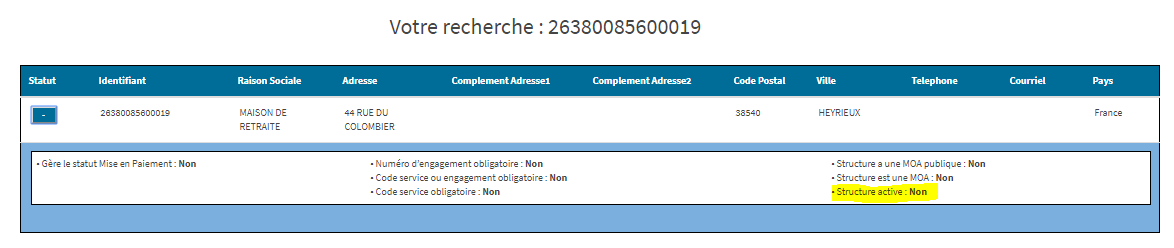
This message is usually displayed when the recipient is inactive.
You can check this information with the Chorus Pro directory:
https://communaute.chorus-pro.gouv.fr/annuaire-cpro/
Check the Active Structure field, in this example it is inactive
The consistency checks performed on the payment request are not valid
A consistency check between the commitment number and the service code is carried out in the case of invoices destined for the State.
Please check both of these information.