View supplier invoices from Chorus Pro
Invoices from Chorus Pro are automatically filed in your document space. Once filed, a Chorus Pro invoice looks like any other document. You can find it with the Open Bee™ Portal search engine.
Any attachments associated with invoices in Chorus Pro are also available as linked documents in Open Bee™ Portal.

Monitoring and processing of supplier invoices from Chorus Pro
To ensure the follow-up and processing of your supplier invoices, you have two tabs “Documents to be processed” and “Follow-up“.
Documents to be processed
It is in this tab that the new invoices from Chorus Pro are first present. They have the status “Provision“, meaning that they have been sent to your recipient entity.
Also shown in this tab are invoices with the status “Completed“. These are invoices that have already undergone an initial processing by you (see section “Processing supplier invoices”), and for which you have notified the supplier of the lack of attachments. This status “Completed” therefore informs you that new attachments have been added by the supplier.
Aftercare
In this tab, you will find all the invoices that are currently being processed, and for which you have the possibility to update the statuses (allowing your suppliers to follow different processing steps).
Manual archiving of supplier invoices from Chorus Pro
By default, new invoices from Chorus Pro are automatically archived every night in your document space.
There is therefore a period during which some new invoices will be visible in your “Documents to be processed” tab without being archived yet.
If you need to archive these invoices, you have the option to archive them manually by clicking File.

If you want to automatically file multiple invoices, you can use the Start invoice transfer action.
A message will tell you that several Chorus invoices are being classified.
Processing of supplier invoices from Chorus Pro
To notify your suppliers of the progress of the processing of their invoices, Chorus Pro provides different statuses specifying the different processing steps.
To “Process” a supplier invoice, i.e. change its status, click on the “Process” action of an invoice:

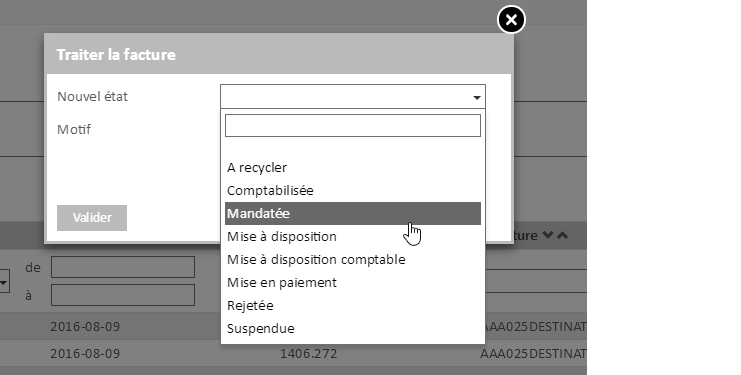
A popup will then appear allowing you to choose the new status of the invoice:
(if the new status is “To be recycled“, “Suspended” or “Rejected“, a reason is mandatory, allowing the supplier to perform the necessary actions)
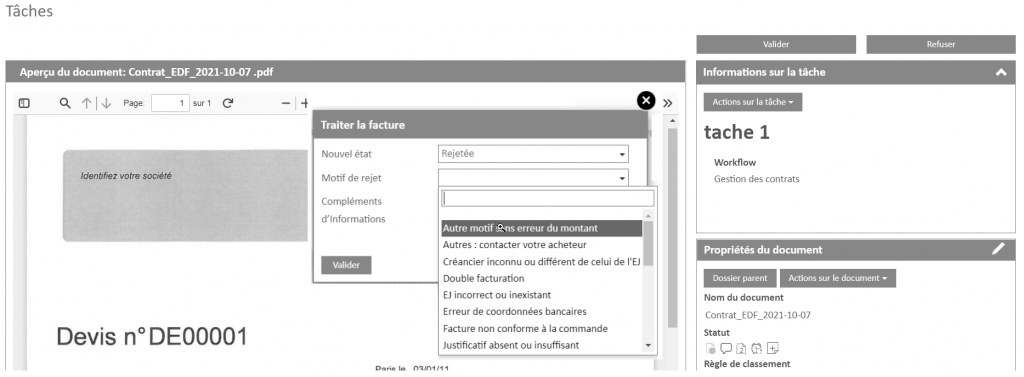
Since version 6.13.1 of Open Bee™ Chorus Pro, it is possible to directly process the invoice from a workflow task.
If an action is set up on the workflow task, the user will have to change the status of the Chorus invoice.