The steps below will guide you in setting up Open Bee™ Portal : Chorus Pro Connector to automatically archive your Chorus Pro invoices in your Open Bee™ Portal document space.
- Creating the technical account in Chorus Pro
- Configuration d’un compte récipiendaire dans Open Bee™ Portal : Connecteur Chorus Pro
- Associate metadata for automatic filing
Creating the technical account in Chorus Pro
To allow Open Bee™ Portal : Chorus Pro Connector to interact with the Chorus Pro Portal, it is necessary to create a technical account.
If you haven’t already done so, please follow the steps in the attached guide: Chrous Technical Account Creation / Track Technical Account Creation
The creation of a technical account on the Chorus Pro portal requires a connection with a user with a “Main Manager” attachment on your structure.
Setting up a recipient account in Open Bee™ Portal : Chorus Pro Connector
In Open Bee™ Portal, click on the “Chorus” menu. You are directed directly to the “Configuration” tab.
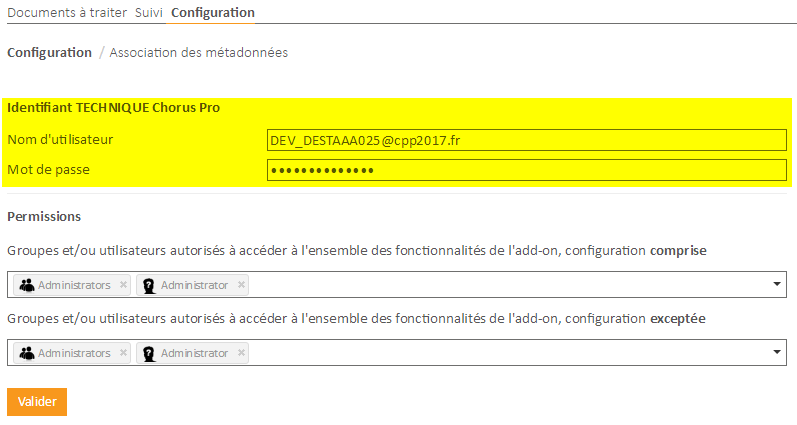
Chorus Pro Technical Account ID
In this area of the form, enter the credentials of the technical account of your entity previously created in Chorus Pro.
These identifiers will allow Open Bee™ Portal : Chorus Pro Connector to automatically classify your invoices from Chorus Pro in Open Bee™ Portal.
Permissions
This configuration restricts access to Open Open Bee™ Portal : Chorus Pro Connector features for Open Bee™ Portal users.
Allowed to “configure”
Users or groups entered in this field will only have access to the configuration of the Open Bee™ Portal add-on: Chorus Pro Connector, i.e. the “Configuration” tab.
Allowed to “use”
Users or groups entered in this field will only have access to the “use” features of Open Bee™ Portal : Chorus Pro Connector, i.e. the “Documents to be processed” and “Tracking” tabs.
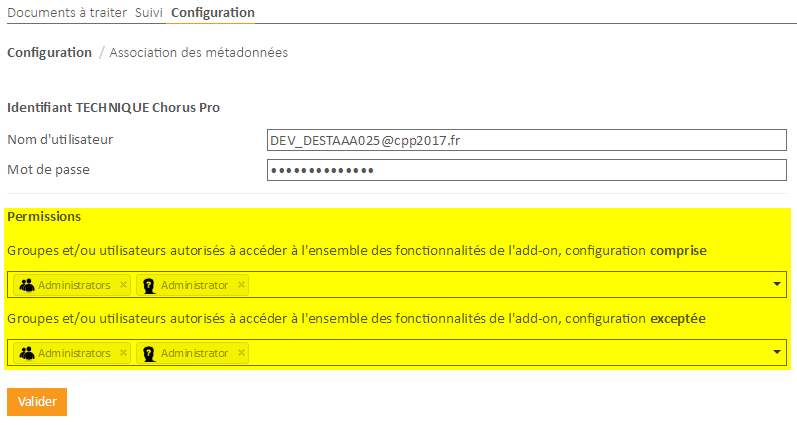
 If you want to give “use” AND “administration” access, it is necessary to enter the user or group in both fields.
Notifications
Users or groups entered in this field will be notified by email:
- of the number of invoices retrieved in Chorus Pro each day
- the number of invoices completed by the supplier(s), i.e. the addition of new attachments
Associate metadata for automatic filing
We will now define an association between the metadata of the invoices available in Chorus Pro and the metadata of the classification rule that will be used to classify the invoices in Open Bee™ Portal.
To set up the team:
- Click on the “Metadata association” sub-tab
- Choose the filing rule that will be used to classify your invoices from Chorus Pro
- Associate Chorus Pro metadata with Open Bee™ Portal metadata.
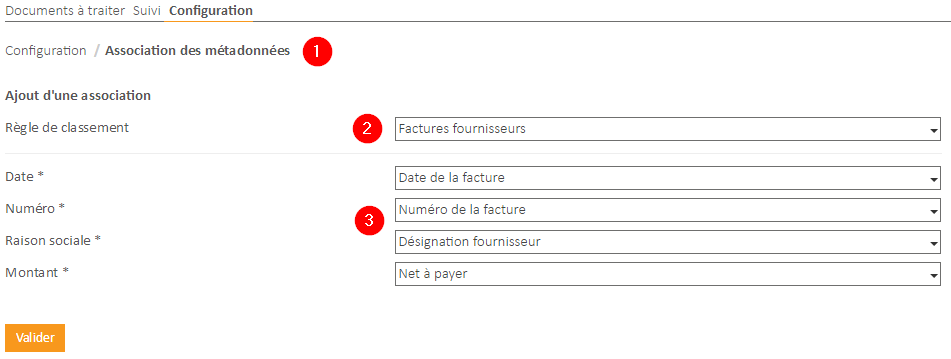
The Open Bee™ Portal metadata used for the tree and/or the name of the document must be associated in such a way that each document has a unique name, or that it is alone in a folder, in which case the invoices retrieved will be in the form of a document with N versions.
To avoid this, you must choose at least one Chorus Pro metadata from the association that is unique compared to all other invoices, this metadata is “Invoice number”.
Once this configuration has been established, invoices issued from Chorus Pro will be automatically archived in Open Bee™ Portal. Any attachments associated with the invoice will be filed in the same folder as the invoice and automatically linked to it thanks to the linking feature of Open Bee™ Portal.
In concrete terms, Open Bee™ Portal : Chorus Pro Connector is based on the date of submission of the invoice in Chorus Pro to identify the new parts to be archived in Open Bee™ Portal.
Invoices that have been completed by suppliers are recovered thanks to their new “Completed” status.
These checks are carried out every night.