Generic import allows you to import documents and their metadata from an XML, CSV, or JSON file containing this metadata.
The example described on this page is the import of scanned passports in PDF format with an XML file containing the metadata.
For each document scanned, an XML file containing the metadata (name, date of birth and gender) will have been generated beforehand.
The following is the XML file used in this example:
<?xml version="1.0" encoding="utf-8"?>
<root>
    <page>
        <item name="FullName" value="Nom Prénom"/>
        <item name="BirthDate" value="01/05/1980"/>
        <item name="Sex" value="Male"/>
        <FilePath>
            C:Document.pdf
        </FilePath>
    </page>
</root>
Information
It is also possible to have a single XML, CSV, or JSON file containing the metadata of multiple PDF documents.
Examples XML files
Here are some other examples of XML files supported by Open Bee™ Data Importer:
– xml1.xml
– xml2.xml
– xml3.xml
Examples CSV files
– csv1.csv
– csv2.csv
Example JSON file
– json.json
The wizard for setting up a generic import profile is broken down into 5 steps:
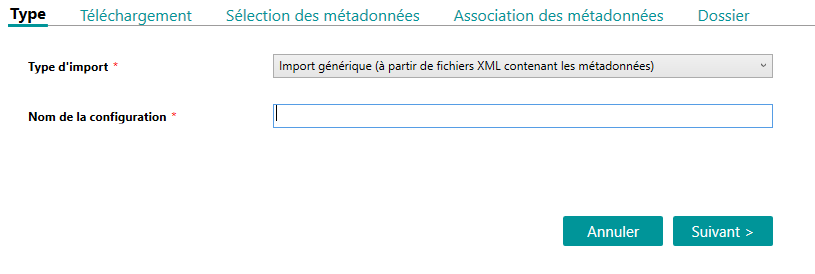
- Type
This screen allows you to select the type (Generic Import) as well as the name of the configuration.
- Download
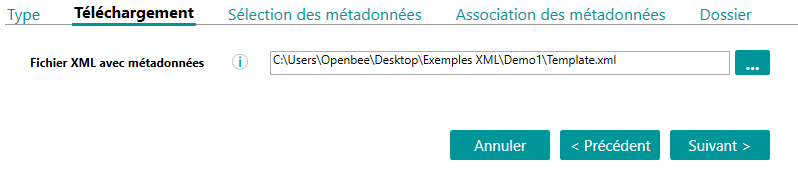
Next, an example of an XML, CSV, or JSON file containing the metadata must be filled in.
- Metadata selection
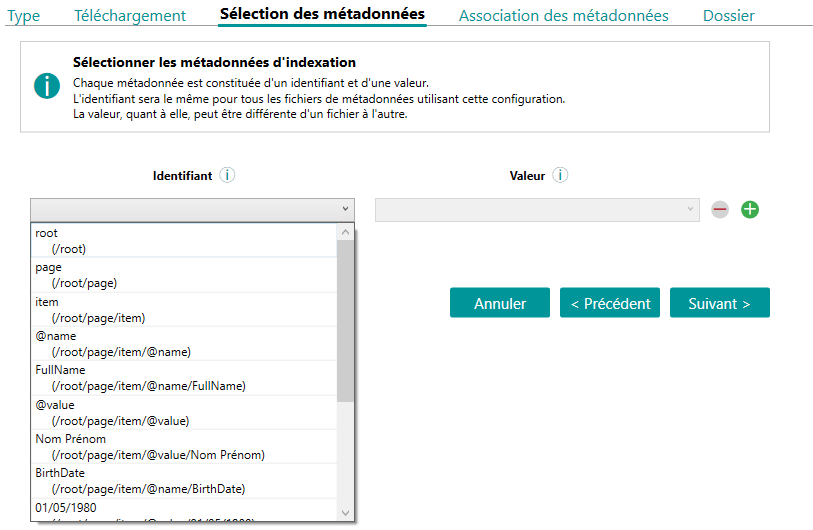
Open Bee™ Data Importer will analyze the file containing the metadata uploaded in the previous step and offer the user to select all the metadata they want to send to Open Bee™ Portal.
Each metadata consists of an identifier and a value:
- The identifier is information from the XML file that will be the same for all files sent to Open Bee™ Data Importer
- On the other hand, the value can of course be different from one file to another.
The list of identifiers and values corresponds to the tags detected in the metadata file (For XML files: tag name, tag content, attribute name, and attribute content).
Example: Setting up 3 metadata: Name, Date of Birth, and Gender
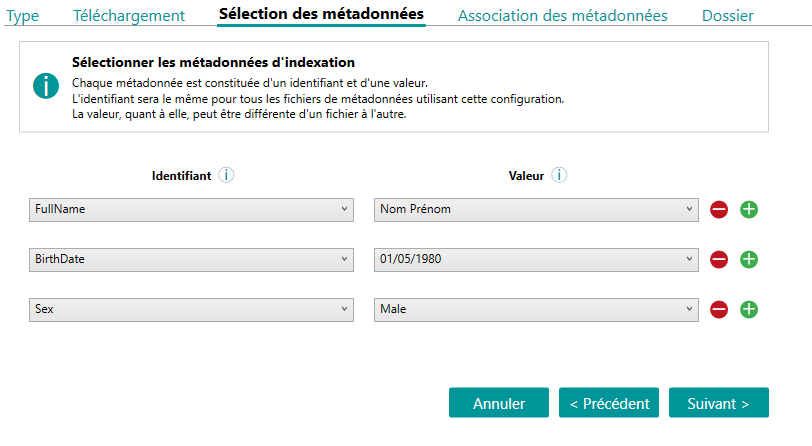
Adding or removing metadata is done using the “-” and “+” buttons
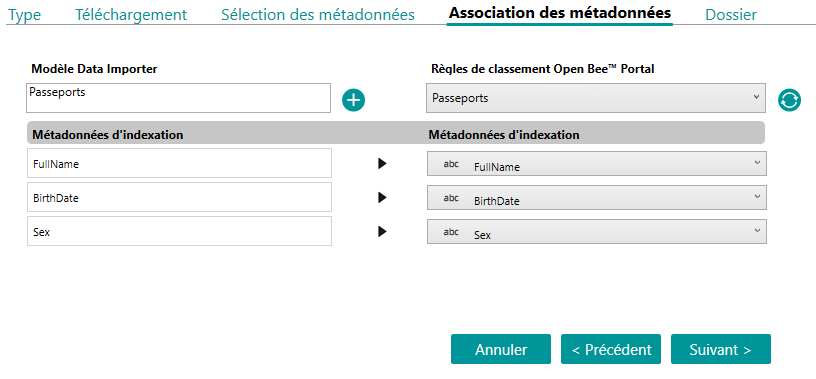
- Metadata Pairing
After selecting the metadata, it must be associated with an Open Bee™ Portal ranking rule.
It is possible to select an existing ranking rule in Open Bee™ Portal or create a new one by clicking on the “+” button.
- Folder
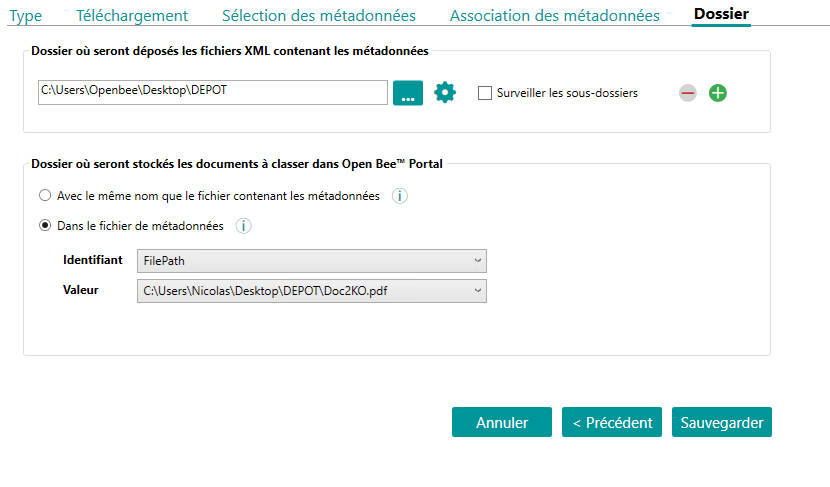
Configuring the generic import ends with the selection of the folders:
- Selecting the folder where the metadata files will be deposited (XML, CSV or JSON)
- Selection of the folder where the PDF documents to be sent to Open Bee™ Portal will be stored.
- Either the PDF document is in the same directory and has the same name as the metadata file (only the extension will be different)
- Or the document path is defined in a metadata file tag (useful if a metadata file contains the metadata of multiple documents)
Network Directory
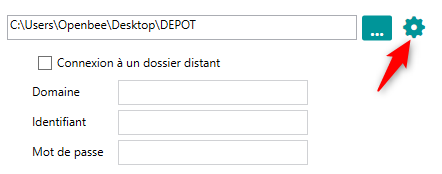
The folder where XML, CSV, or JSON files are deposited can be a network directory
In this case, you will need to configure the login information for this directory
Special case of a file with several documents to import
Documents that have already been checked out will be imported.
To import documents that have not yet been extracted, you must modify the original file located in the temporary folder (C:Program Files (x86)OpenBeeOpen Bee Data ImporterTemp) and delete the lines corresponding to the previously extracted documents.
This file can then be moved to the filing folder to extract and import the missing documents.
Note: If the import is not stopped or suspended, the above manipulation is not to be performed.