The dashboard allows you to give information about the imports as well as to start, pause and stop them.
The dashboard can be accessed by clicking on the button on the import profile screen or directly from the “Dashboard” menu entry.
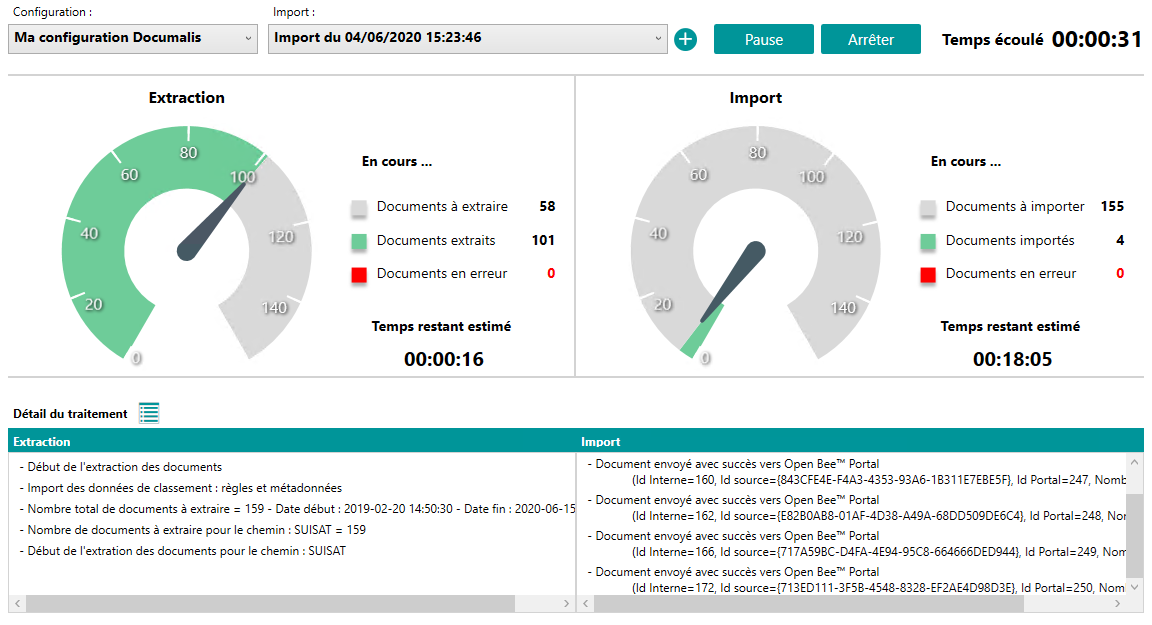
Whatever the type of import to Open Bee™ Portal, it is done in two steps:
- Extracting documents to the Open Bee™ Data Importer database
- Importing documents to Open Bee™ Portal
The table displays the following information:
- Configuration: selectable from the drop-down list
- Displays all configurations created from the Import Profile menu
- Import: selectable from the drop-down list
- Time elapsed since the start of the import
- Information on document extraction and import
- Time estimation
- Meters
- Extraction and import information and errors
- Link to the list of extracted and imported documents (More information available on this page)

Information
It is possible to have different imports for a configuration.
New imports can be created by clicking on the

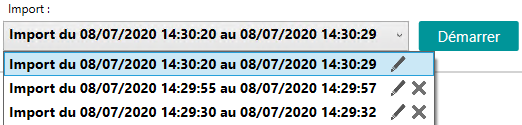
Rename an import
It is possible to rename an import from the drop-down list.
Delete an import
Imports that are no longer needed can be permanently deleted from the drop-down list.