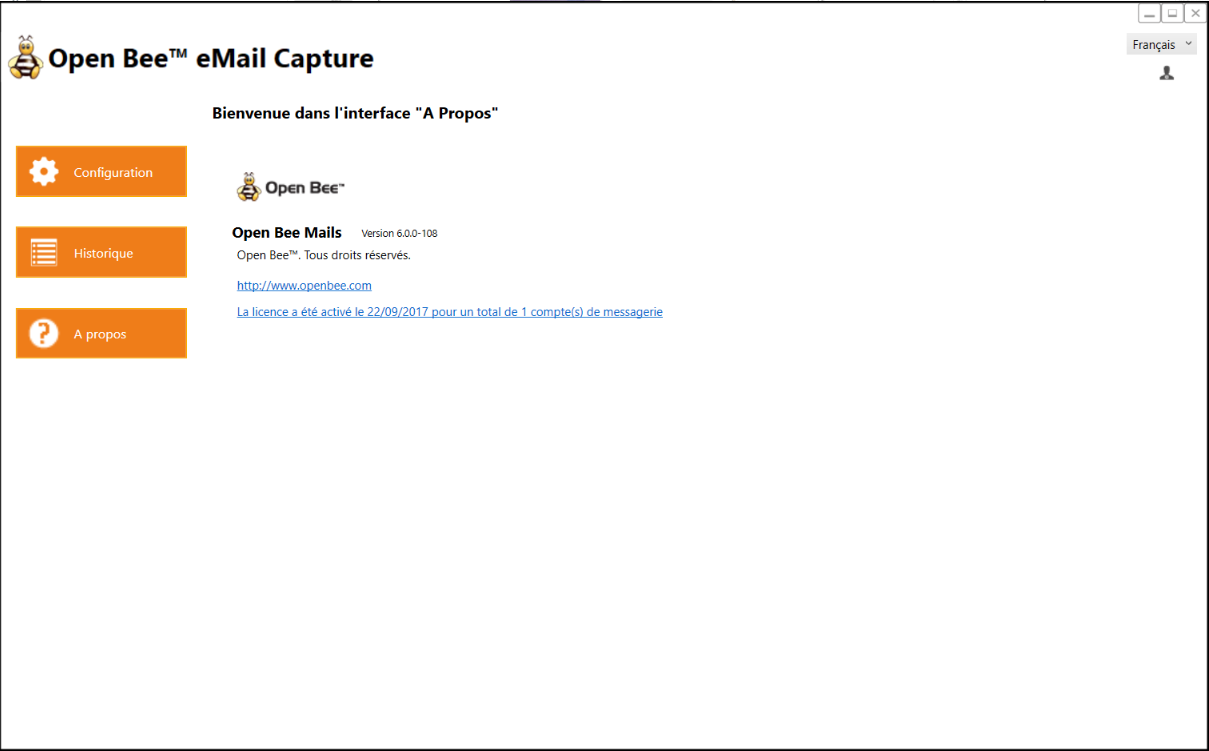
Use of the Open Bee™ eMail Capture application is subject to license.
At startup, Open Bee™ eMail Capture verifies that a license is active for the product.
Otherwise, Open Bee™ eMail Capture displays the license activation screen.
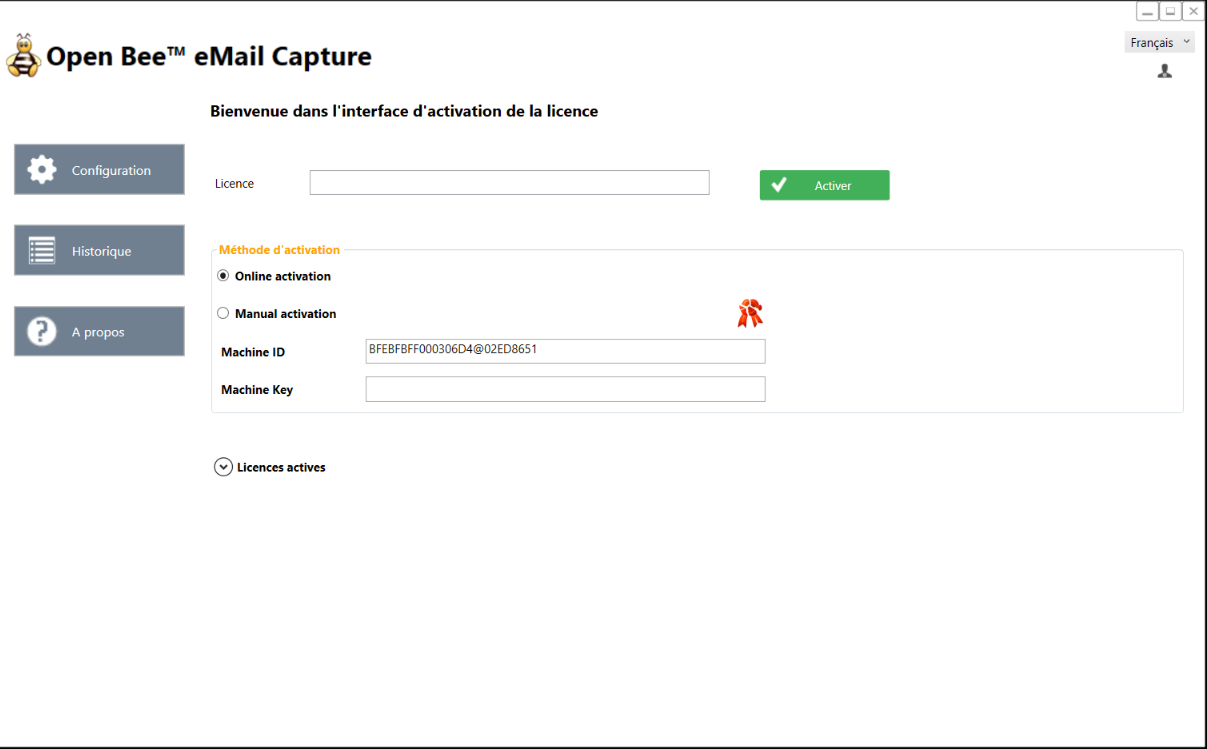
Online Activation
- Enter your activation key in the “License” field
- Press the “Activate” button
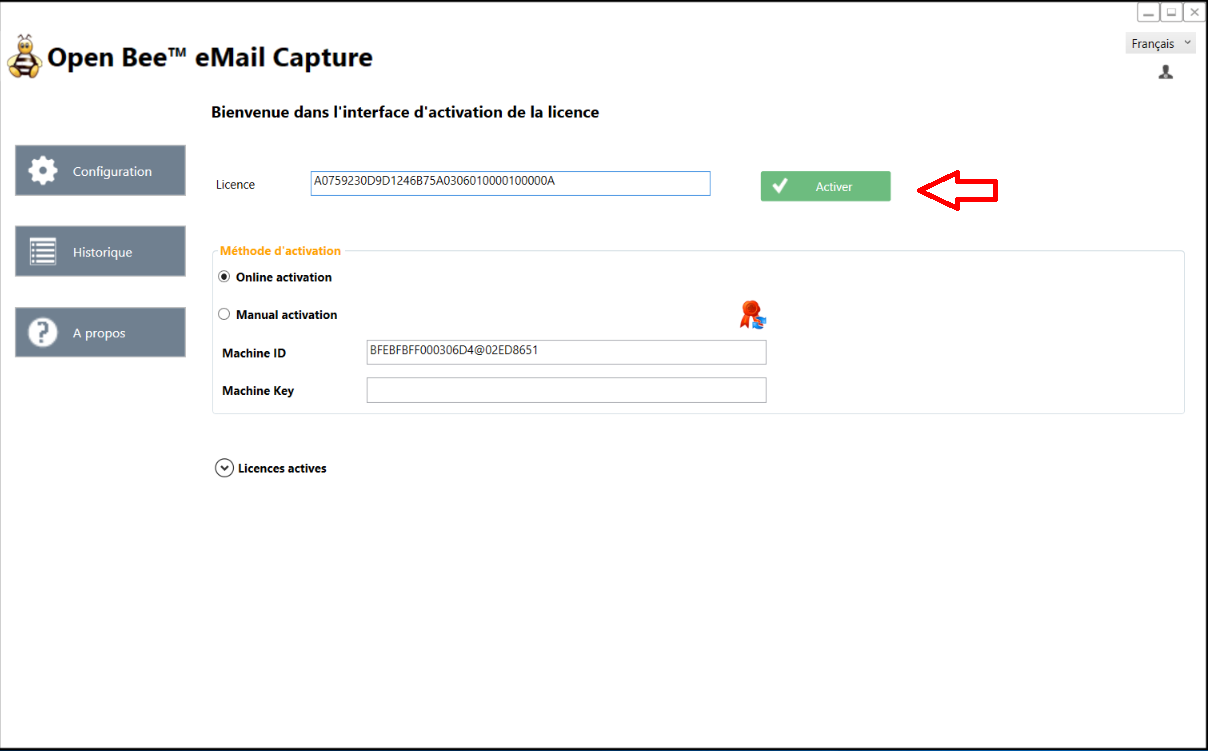
- A message will appear telling you that the activation has been successful.
Access to the left side menu is enabled.
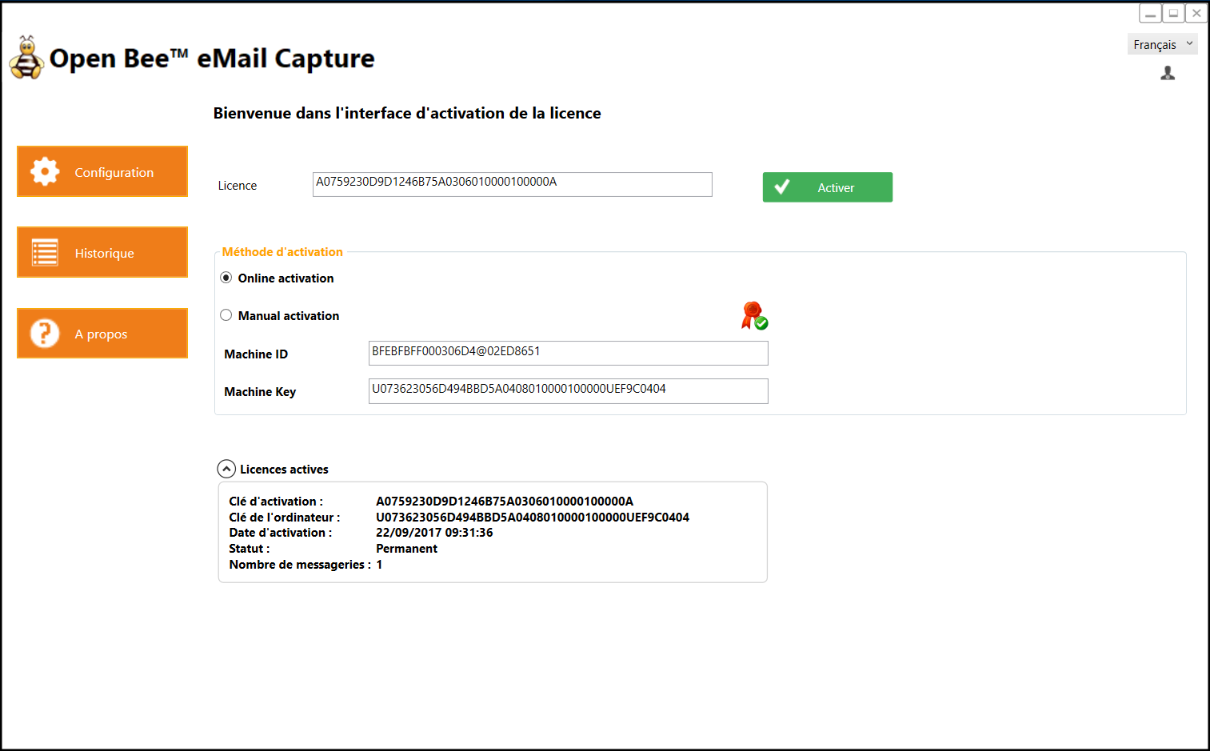
It is possible to view the number of active licenses for this application by clicking on the button to the left of the text “Active licenses”.
You will find a summary of the license activation as well as the number of mailboxes allowed for this installation.
Offline activation
In the event that the workstation on which you want to install Open Bee™ eMail Capture temporarily no longer has access to the Internet, it is possible to activate the license in offline mode.
Open Bee™ eMail Capture requires an internet connection to work
- Enter your activation key in the “License” field
- Select the “Manual activation” option.
Please note that the “Machine Key” field must be empty. Otherwise, delete the displayed content and start the operation again. - Open Bee™ eMail Capture displays simultaneously
- A window with a 30-day temporary key.
- A PDF containing the information needed to manually activate the key
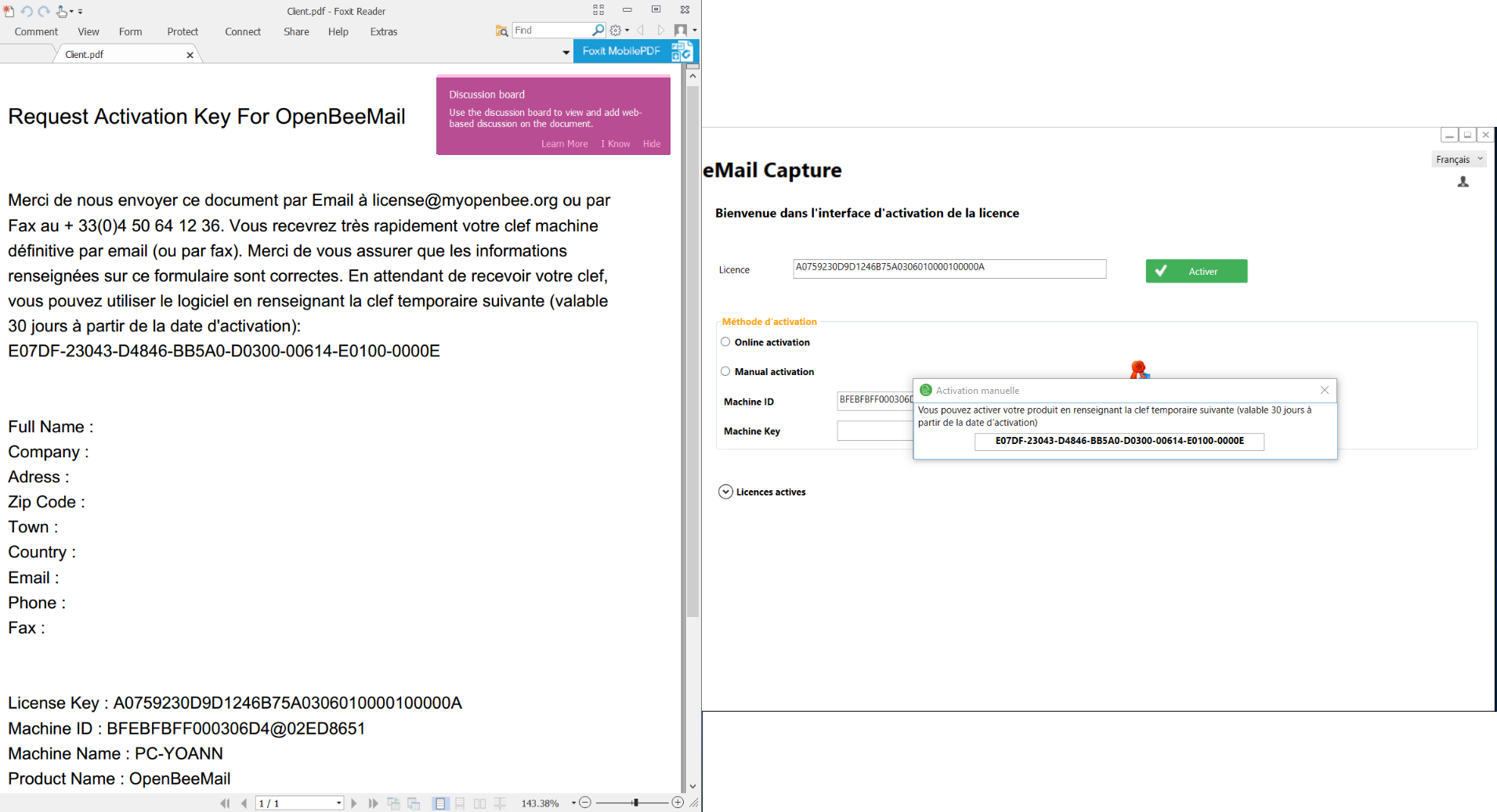
- The PDF must be returned to Open Bee in order to proceed with manual activation
A new key will be sent to you. This must be inserted in the “Machine Key” field.
Press the “Activate” button to activate your license manually.
2. You can use the 30-day temporary key to unlock the app immediately
Insert the temporary key in the “Machine Key” field.
Press the “Activate” button to activate your license manually.
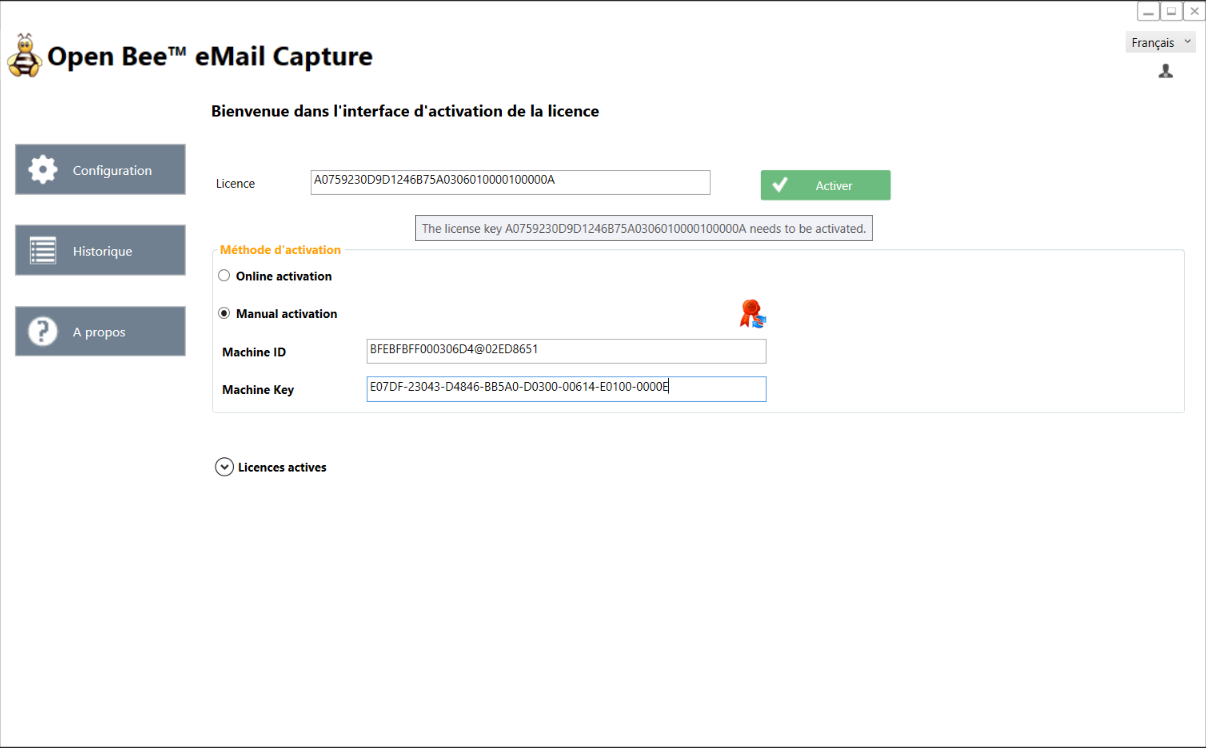
- Access to the left side menu is enabled.
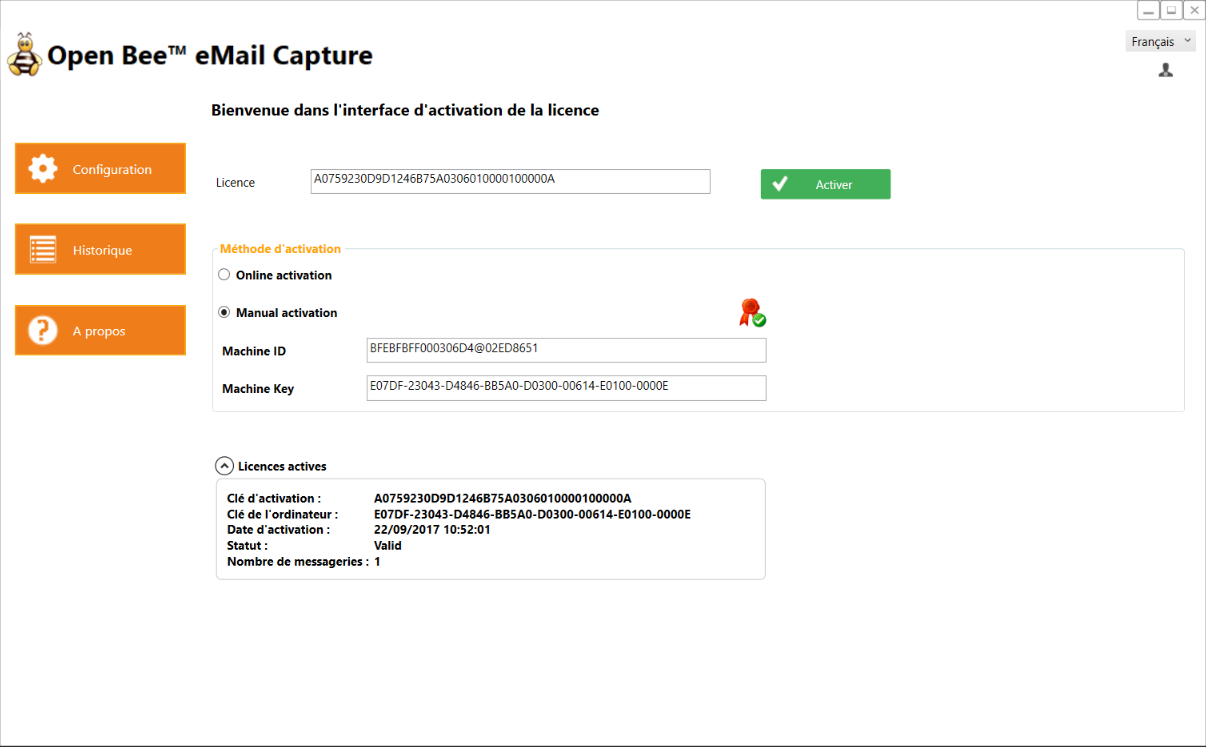
You can view or add a new license at any time by displaying the license activation interface in the “About” menu