In addition to the indexes that come with the Open Bee™ eMail Capture application, it is possible to create custom variables to meet more specific needs.
Creating a Custom Variable
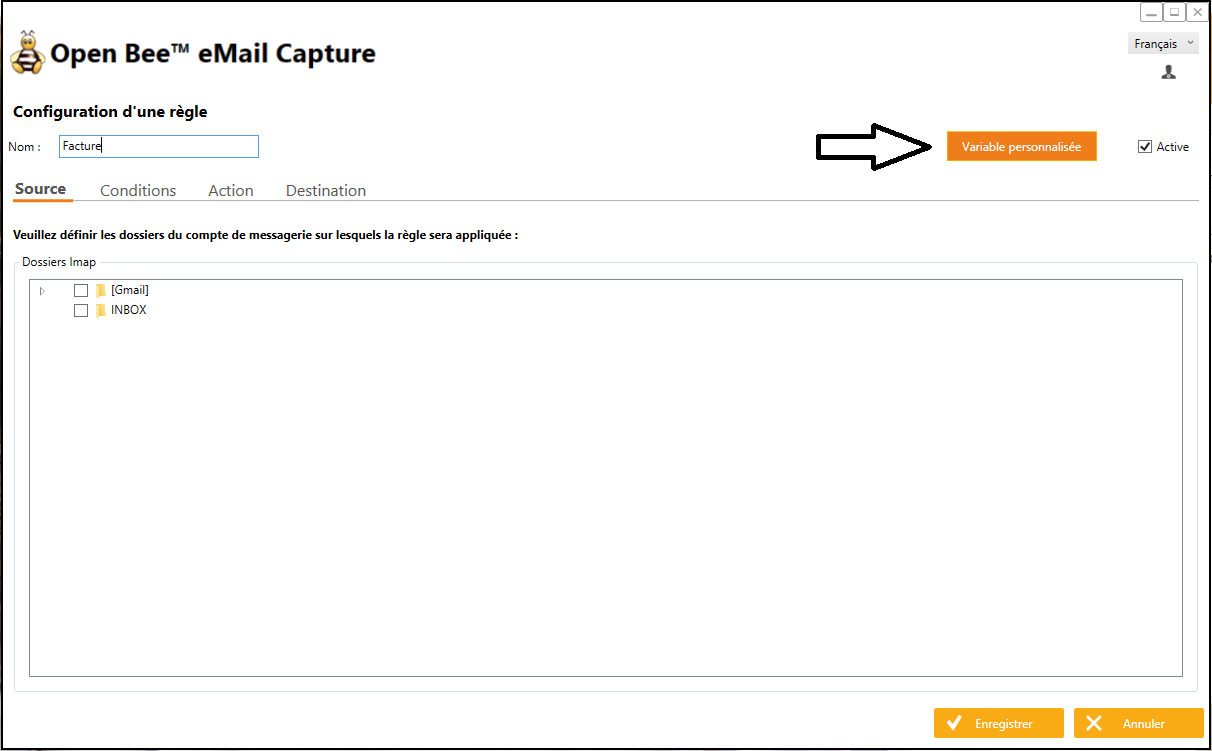
From the interface for creating or modifying a rule, the “Custom variable” button will allow you to specify a regular expression.
A regular expression will allow you to search for a word or a string of characters corresponding to a predefined format.
In the example presented here, we want to look for a folder reference that is always made up in the same way: 3 letters, 1 hyphen, 3 numbers.
Examples (Ref-123, XET-943, AZE-341, etc.)
Access the screen for creating and modifying a custom variable.
Click the “+” button on the left to create a new variable.
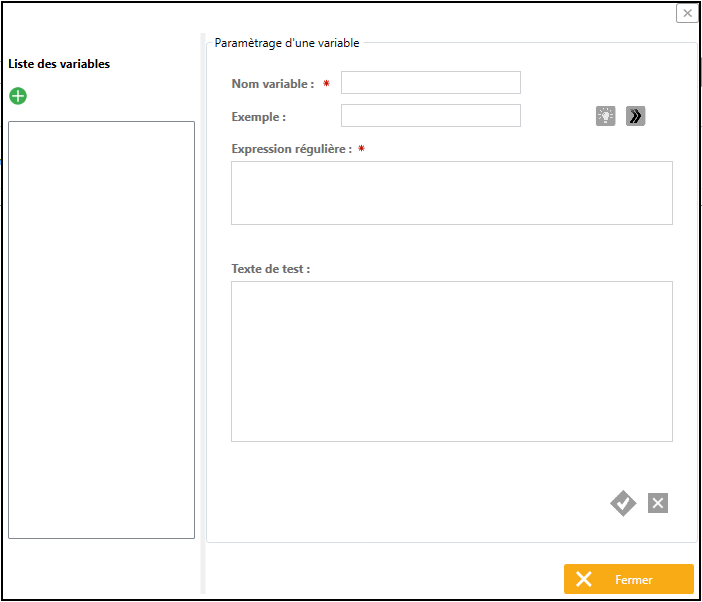
There are 2 fields to fill in:
- The name of the variable
- Regular expression
Astuteness
There is an abundance of literature on regular expressions on the Internet.
A quick search will allow you to find documentation on their creation and operation.
However, two creation aids are present on this interface
- The “>>” button allows you to help with typing
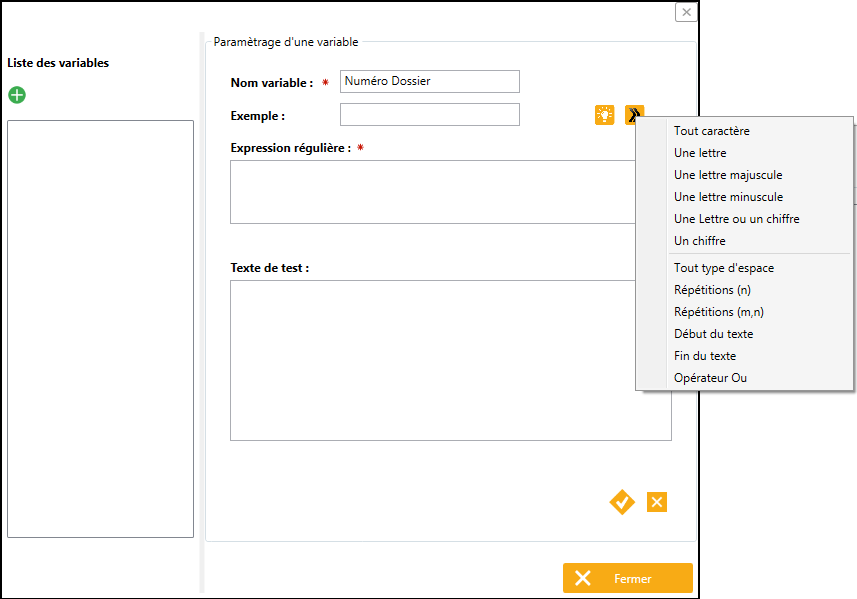
- The “Idea” button allows you to generate a regular expression from a previously entered example
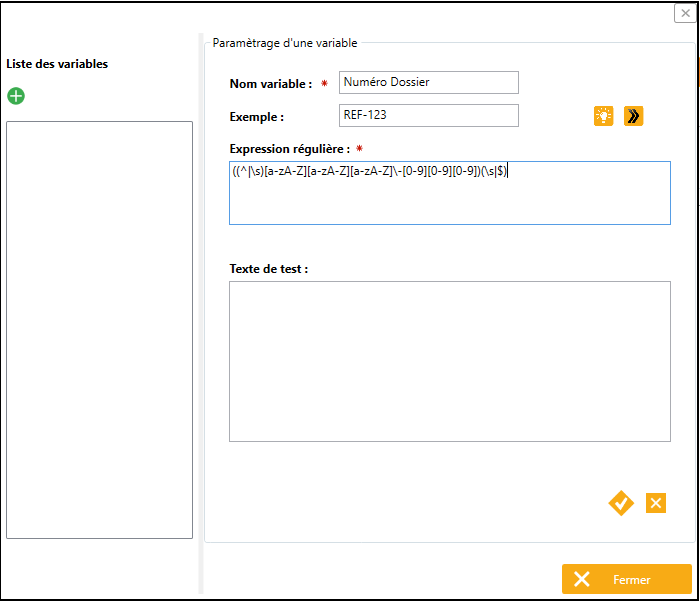
Note that the regular expression generated from the example additionally adds a condition. The search word must not be in the middle of another word, i.e. there must be a space before and after the search phrase.
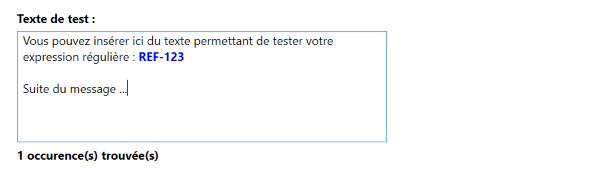
In any case, it is possible to test its regular expression to check that it behaves as expected.
Insert text in the field provided to test the result.
Using a Custom Variable
Once the variable is created, it can be used throughout the application both in the “Conditions” tab and as an index in the “Destination” tab.
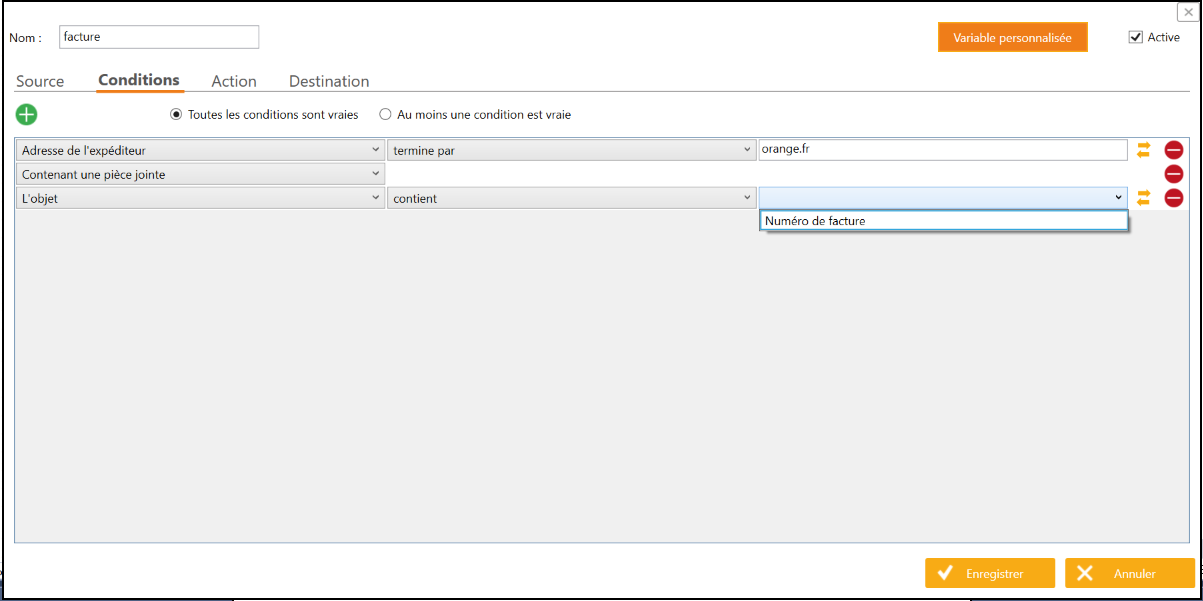
Custom variable tested under conditions
If a custom variable has been defined in the application, the double arrow icon allows you to switch between entering free text and choosing a custom variable.
It is therefore possible to test regular expression instead of free text.
Custom variable as an Open Bee™ Portal index
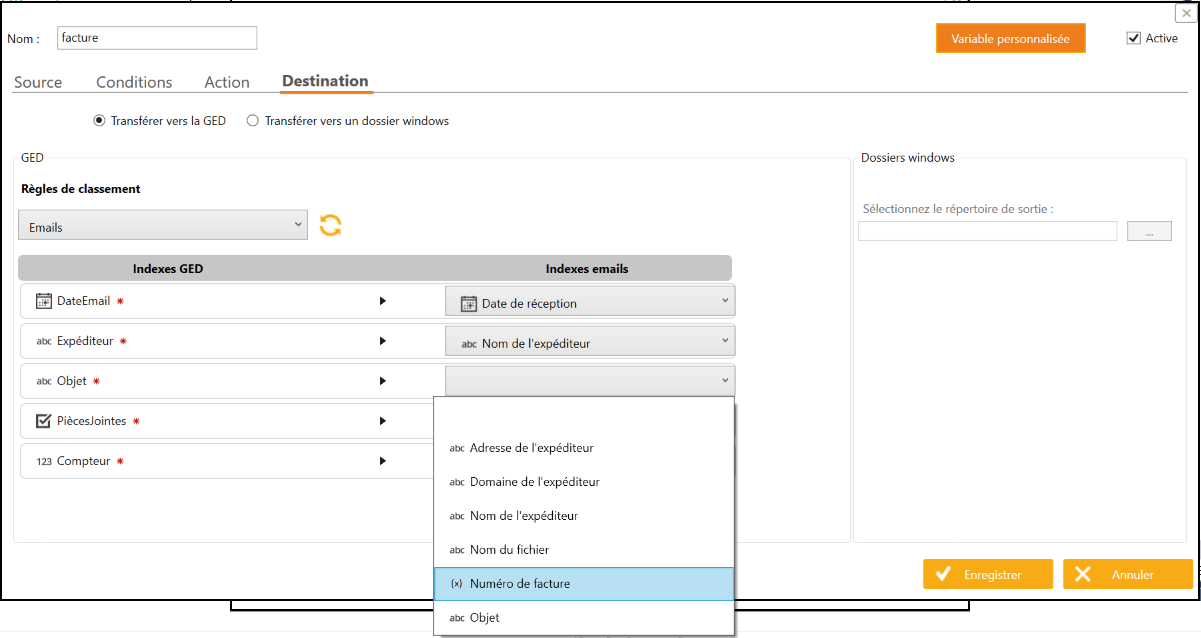
In our example here, we want to automatically classify our emails according to the folder number contained in our received emails.
We therefore want to use the result of the regular expression as the index of Open Bee™ Portal.
If you scroll down to the list of available Open Bee™ Portal indexes, the custom variables appear in the list of available indexes and you can select them.
This phrase will be searched first in the subject line of the email, then in the body of the message, and finally in the name of the attachment. The search stops at the first occurrence found.
It is possible that no match is found, in which case the email will not be indexed and you will have to complete the indexing manually.
It is important to note that as soon as a “custom index” is added, it may result in manual action by the user to correct the missing indexes (see ” History Management” chapter)