When adding a new email account, the first thing you need to do is fill in the authentication method.
The available authentication methods are password or OAuth 2.0.
Gmail authentication
The steps to sign in to a Gmail account are set out on this page.
OAuth 2.0 authentication is only available for Office and Outlook servers.
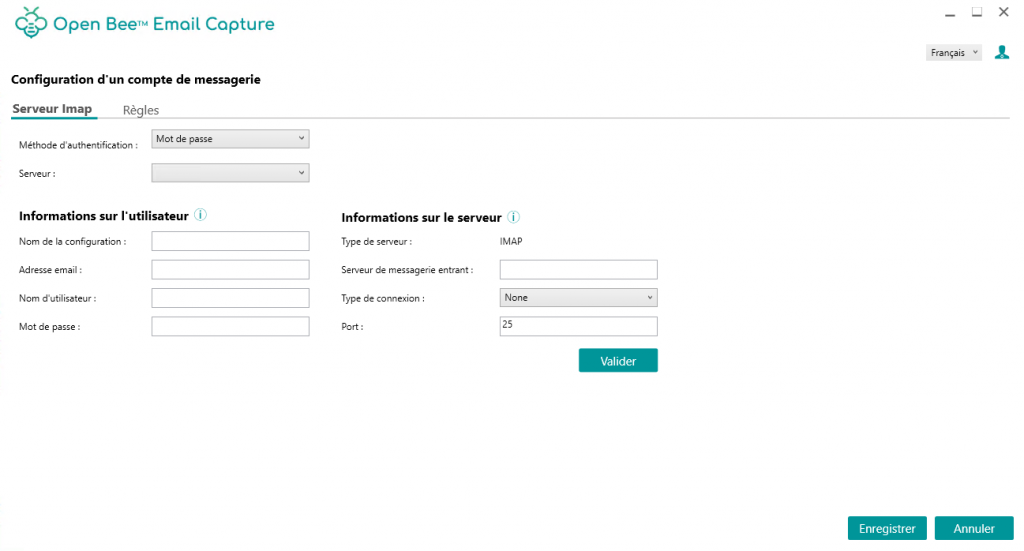
Once the authentication method is selected, the server can be selected.
In the case of password authentication, the server is optional, it only allows you to pre-populate the “Server Information”.
User information is your personal settings:
- The name you want to give to your email (free choice)
- Your email address
- Your username (Login)
- Your password (if authentication method = password)
The server information is specific to the mail server you are using.
This will be the same information for all accounts on that server.
- Inbound server (IMAP)
- Connection type
- Port
Before moving on to the next step, it is important to test that the connection to the mail server is done correctly using the “Validate” button.
Some mail servers may require IMAP to be enabled (see Appendix section)
OAuth 2.0 authentication
OAuth 2.0 authentication allows for more secure login with authorization to only certain resources. Thanks to this protocol, the password is not entered or stored in Open Bee Email Capture.
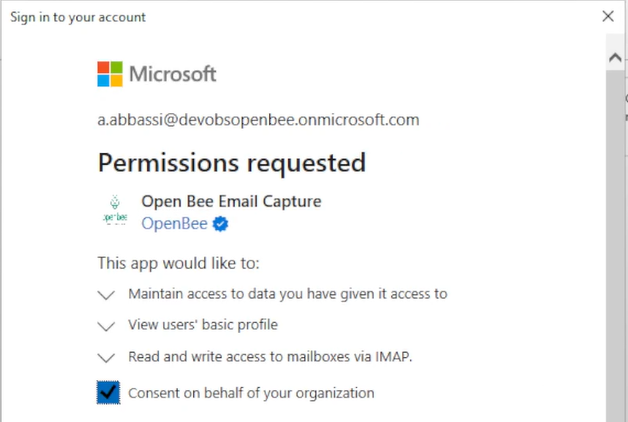
When using the OAuth 2.0 protocol (whether for Outlook or Office), the password will be entered in a new window. You will then have to make sure that Open Bee Email Capture is given permission to read the emails.
| Office |
|---|
 |
Shared mailboxes
Shared mailboxes are not compatible with Open Bee Email Capture