Configuring Open Bee™ Sync Auto-Launch
Open Bee™ Sync can be launched in three different ways:
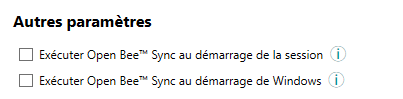
- “Run Open Bee™ Sync on session start” will automatically launch Open Bee™ Sync when the user who has set up the configuration logs on to Windows.
If the Windows session is not open, no synchronization will be initiated.
- “Run Open Bee™ Sync when Windows starts” will automatically launch Open Bee™ Sync when the workstation starts.
The synchronization will be initiated automatically at the set frequency even if no Windows session is open.
Note : Enabling this option requires admin rights
- If neither of the two options below is checked, Open Bee™ Sync will have to be run manually
Language selection
You have the option to choose the display language of your software.

Setting up confirmations
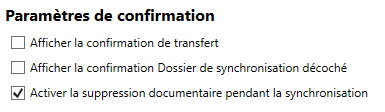
View Transfer
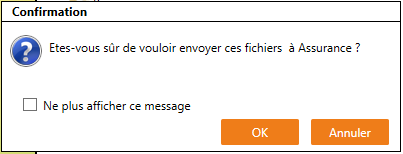
Confirmation– This option will bring up the file transfer confirmation window in the “Filing” tab
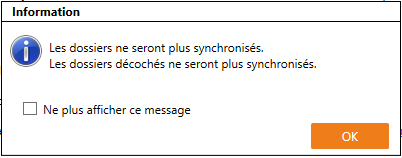
- Show “Sync folder unchecked” confirmation
– This option brings up the following information window, which informs you that in theSync
tab, if youuncheck a folder, it will be automatically deleted once the configuration is saved.
Once all your settings are configured, save the configuration by clicking on the “Save” button.