The “
Filing
” tab allows you to transfer one or more documents to Open Bee™ Portal online from your workstation.
This section details the two transfer options available to you.
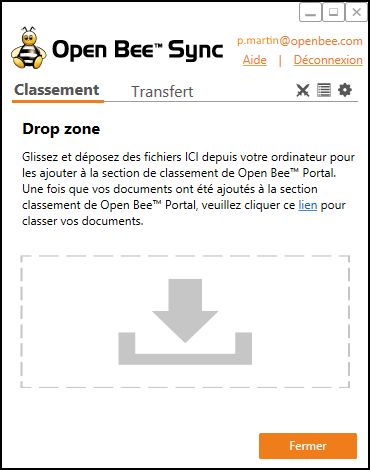
You can transfer documents from your workstation to Open Bee™ Portal Portal online, in two different ways:
- Drag and drop your files with the loading area
- File your scanned paper documents directly from your scanning solution
Option 1: Loading Area
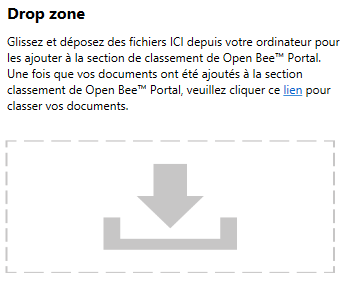
Drag and drop your files into the dotted area below “option 1“.
This option allows you to send as many documents as you want from your workstation in the “Ranking” section of the Open Bee™ Portal .
Option 2: Organize your scanned paper documents directly from your scanning solution
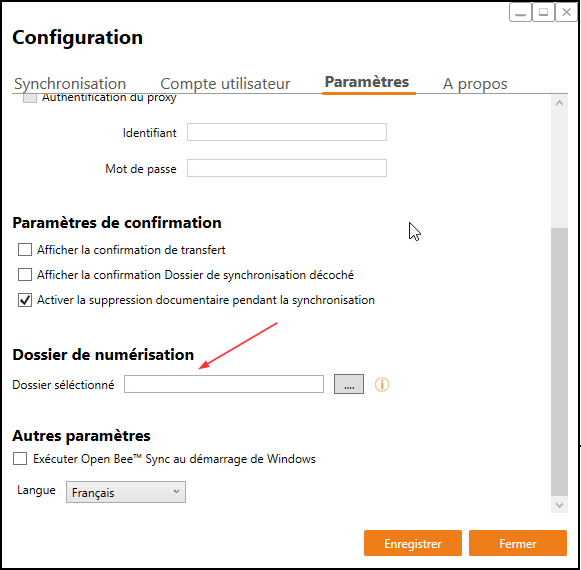
Select your folder for receiving scanned paper documents in option 2 “
Scan to Open Bee™ Portal
“.
All documents submitted in this file will be automatically sent to the “Ranking” section of your online Open Bee™ Portal.
Setting up your scanning solution
So that your Open Bee™ Sync sync tool can transfer your scanned paper documents directly into the “Ranking” of your Open Bee™ Portal online, it is necessary that your scanning solution has been previously set up so that the scanned paper documents are deposited in the same folder as the folder selected in option 2″Scan to Open Bee™ Portal” by Open Bee™ Sync.
Once your “scan” folder is selected, click on the “Save” button to validate the configuration.
ASTUTENESS
Congratulations, you can now send paper documents from your scanning solution directly to the “Ranking” section of Open Bee™ Portal online.
To view your scanned paper document in Open Bee™ Portal online, click on “link” in the next screen.
