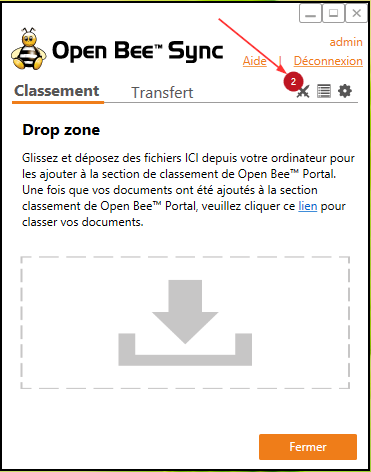
The main interface of the application tells you at any time if there are conflicts and in what number:
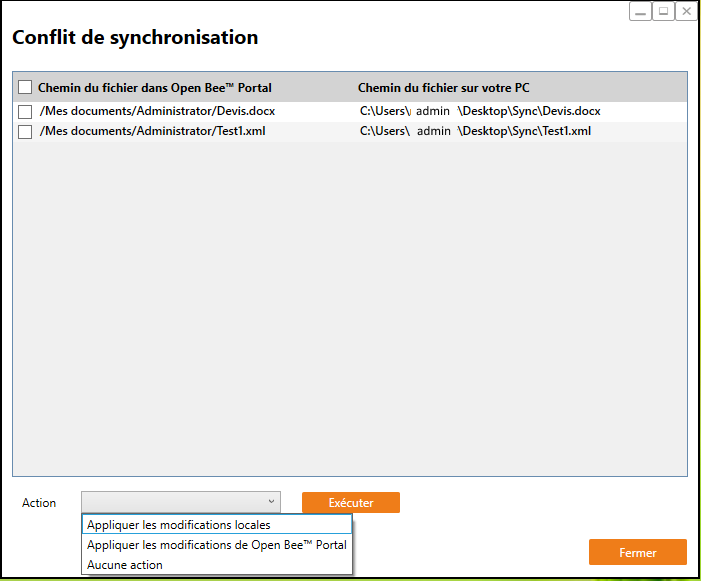
The “Sync conflict” tab displays the sync conflicts between your desktop and your Open Bee™ Portal .
If folders appear in this topic, you have experienced a synchronization issue.
A synchronization conflict occurs when the same document exists on both your workstation and your Open Bee™ Portal , but they have different backup dates (one is newer than the other, but they are the same documents). Open Bee™ Sync will then offer you two options:
– Keep your job version
– Download the version of Open Bee™ Portal online and replace the existing version on your workstation.
- In the “File path in Open Bee™ Portal” column, you will find the path of the online document that encountered a synchronization issue.
- In the “File path on your PC” column, you will find the path of the document on your computer that has experienced a synchronization problem.
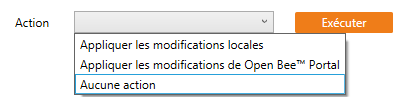
- In “Action” you will have three options: “Apply local changes“, “Apply Open Bee™ Portal changes“, “No action“. Once one of the actions is selected, click on “Run“.