The
Event Log
tab notifies you of all the actions that took place during your syncs and transfers.
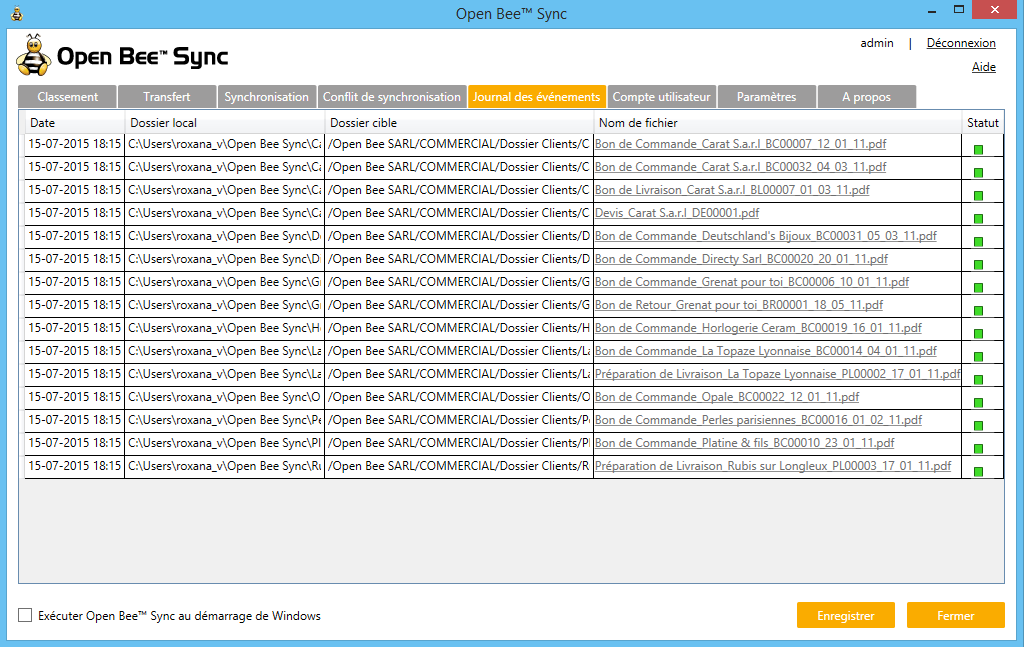
- The “
Date
” column shows the date and time your files were synced or transferred.
- The “
Local folder
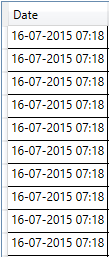
” column shows the location of the Open Bee™ Portal local folder on your PC.
- The “
Target Folder
” column shows the name of the corresponding folder in your online Open Bee™ Portal .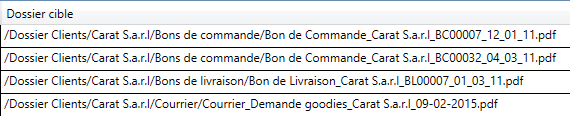
The “
File name
” column shows the name of the file.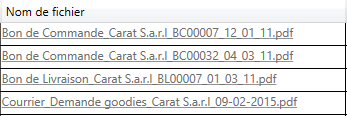
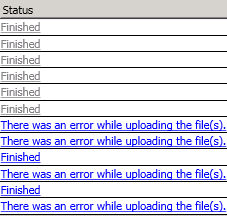
The “
Status
” column shows the status of your document’s processing. .The green square tells you that your document has been successfully synchronized.
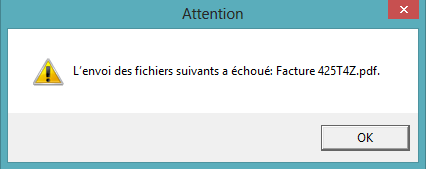
The red square tells you that there was a problem syncing.
During a transfer or download:
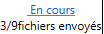
During a transfer, if you click on ”
In progress
” you will have the possibility to cancel the transfer when it concerns several documents (the document being transferred cannot be cancelled).
This window appears:
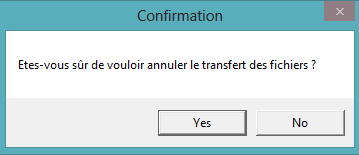
Click “Yes” to confirm the cancellation.
The download of a file can be interrupted at any time if desired.
Transfer completed:
The “
File name
” column shows the name of the document and the “
Status
” column shows the progress of its transfer:

A row is added to “
Event Log
“.
Once the upload/transfer is complete, the “
status
” “in progress” will be renamed to “
Completed
“.
When the download is complete, the document will open automatically, its name will appear as a link in the “
Event Log
“.
Clicking on this link will allow you to open the document.