Authenticate on the app
In order to connect with Open Bee™ Mobile, please launch the app from your smartphone or tablet by clicking on the icon:
The login screen looks like this:
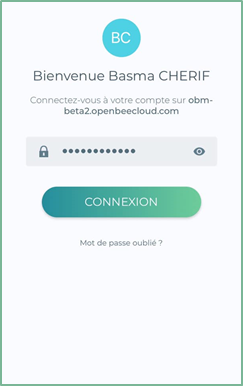
Fill in your login details and then click on the ” Login ” button.
The language used in the app depends on the language your device is set up with. If your device is in English, Open Bee™ Mobile will be in English.
Multi-account login (advanced use)
The multi-account feature allows you to manage multiple accounts in the app and easily switch between them. You must have at least two Open Bee™ Portal accounts set up beforehand.
When logging in to the Open Bee mobile app for the first time:
- Log in to the Open Bee Mobile app with your regular account.
- Press the Menu
 button on the home screen.
 - Tap the

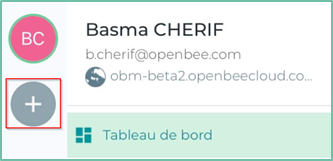
At the bottom of this “Account Management” interface, tap the 
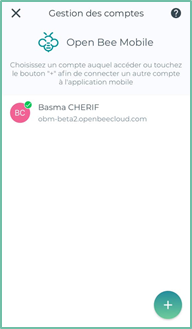
The following interface is displayed
A context menu appears at the bottom of the interface with two options: Enter Information or Scan Code.
Select your connection choice.
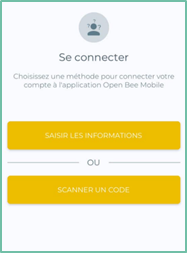
Option 1: Enter the information
If you choose this login option, enter the associated username and password and press the Next button.
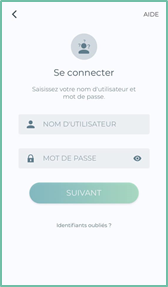
A new interface is displayed asking you to select the server where your Open Bee account is connected.
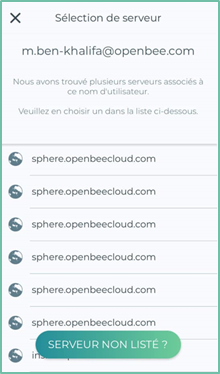
If your server is not listed, click on the ” Server not listed ” button
Enter your server address, then click on the ” Next ” button
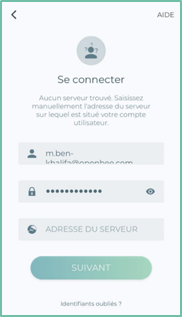
You can now start using and customizing your new account if you wish.
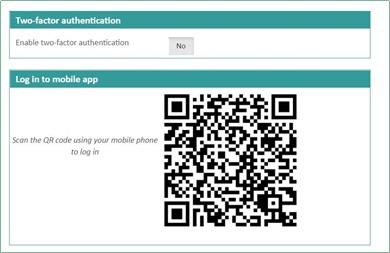
Option 2: Login via QR Code
To log in using a QR code :
- Click the Scan Code button
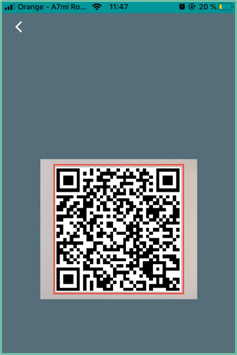
- Select the rear camera.
- Find your QR code in your user profile, from your web interface
- Hold your device so that the QR code appears in the viewfinder of the Camera app. Your device recognizes the QR code and the account is automatically added
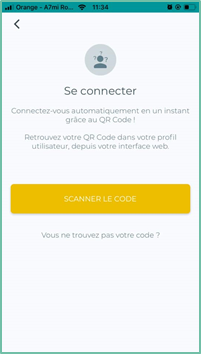
If you need further help, follow the instructions by clicking on the “Can’t find your code?” link.
Forgot your password
If you’ve forgotten your password and want to reset it, or if you’d like to change your password for security reasons, follow the steps below:
Click on the “Forgot your password?” link.
Enter the address of the server on which your account is located as well as the email address associated with it, then click on the ” REINTILAISER ” button
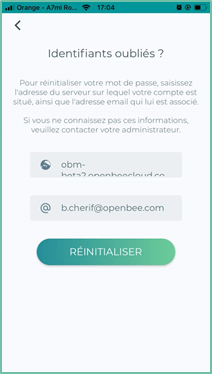
Follow the instructions in the verification email that will be sent to you
“If you do not know this information, please contact your administrator”
Switch from one account to another in multi-account on the Open Bee mobile application
The advantage of setting up several accounts in the application is to make navigation from one account to another simpler and faster, without the need to log out and log in again.
To do this:
- Press the Menu
 key on the home screen, this action will display the list of connected accounts
 - Then select the account you want to log in to.
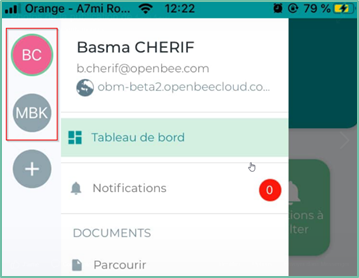
The different statuses of the accounts
 Connected account
 Disconnected account
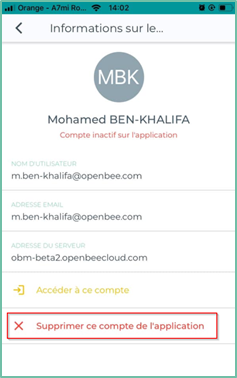
Deleting an account
To remove an account from the Open Bee mobile app
Press the Menu  button on the home screen.
Tap the 
The next window allows you to manage your accounts
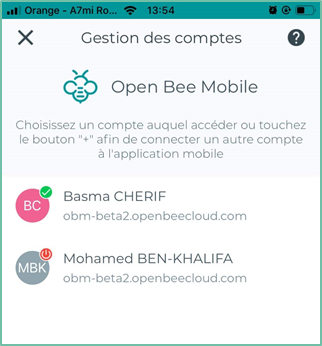
- Click on the name of the account you want to delete
- Click on the ” Remove this account from the app ” button