- Browse documents
- Viewing recent documents
- Search for a document
- Actions on documents
- View a document
- Comments on documents
- Edit a document’s metadata
- Add a new document
Browse documents
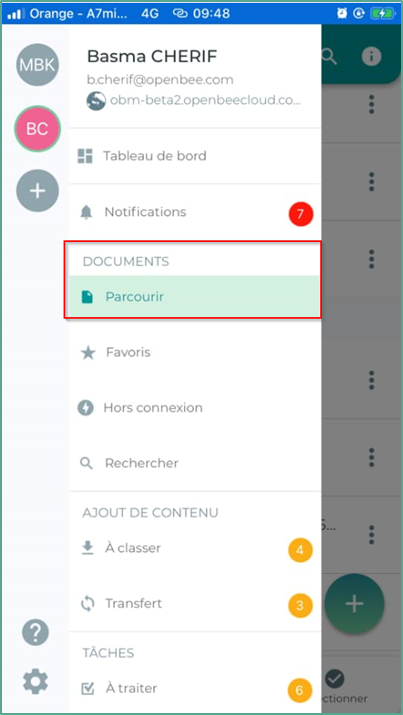
To browse your documents, please select the ” Documents ” tab from the retractable menu.
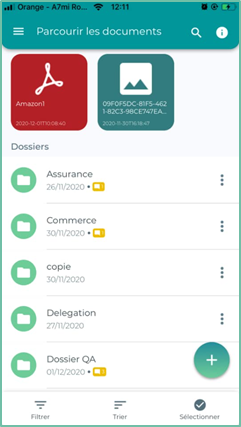
The interface for viewing your documents is divided into several sections:
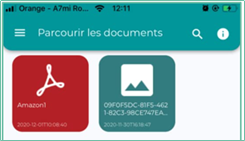
Viewing recent documents
This list displays the most recently accessed documents.
To scroll through documents, drag documents from left to right
Search for a document
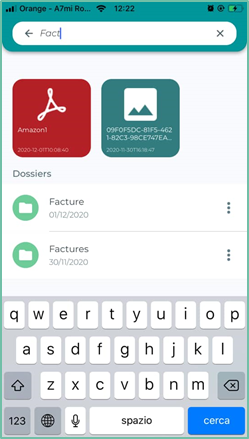
To search for a document, click the icon  in the action bar:
A search field appears, enter a search term and validate with the keyboard.
Once the search is complete, the results appear in a new window similar to the list of documents:
Actions on documents
Various actions can be performed on documents from the “Documents” interface:
 | View: view and manage documents |
 | Information: View document properties |
 | Comment: View and add comments on documents |
 | Share: Share documents via a secure link |
 | Export: Export documents to another application |
 | Assign: assign documents as a task to your collaborators |
 | Favorites: Add/remove documents from your favorites |
 | Download: Make this document available offline |
 | Erase: Erase documents offline |
 | Rename: Rename documents |
 | Move: Move documents to another folder |
 | Copy: Copy documents to another folder |
 | Delete: Delete the document |
View a document
To view a document, click the row corresponding to that document in the list:
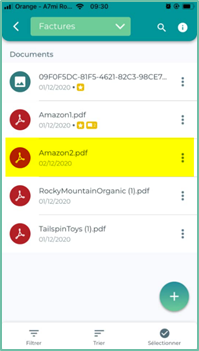
A new window will open. It displays the preview of the document as well as its detailed information
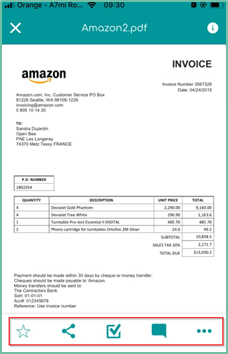
You can perform the same actions on the document as from the document list: renaming, deleting, moving, etc.
Comments on documents
You can add new comments, but you can also view existing comments for deletion or reply.
To do this:
- Click to view the desired document
- Click the

A new window will then appear with the list of comments for the document:
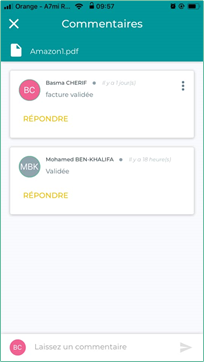
From this screen, you can:
Add a new comment by typing a text in the field:

Reply to a comment by clicking on the ” Reply ” button
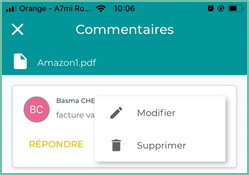
To see the other options, click the 
On this interface you can edit or delete a comment
Edit a document’s metadata
It is possible to edit a document’s metadata from a document’s detail screen.
To access a document’s metadata
View the desired document and click the icon  to view the document’s properties.
Click the ranking rule field
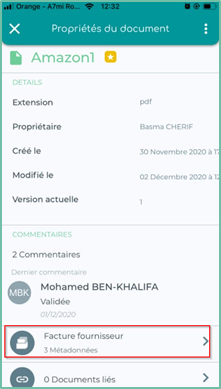
The metadata view looks like this:
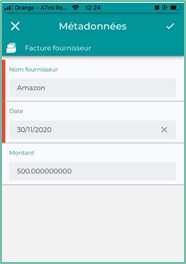
On this interface, you can modify the metadata of the document and then choose to validate or cancel the changes made.
Add a new document
Import content
Import content from your mobile’s internal storage (iCloud Drive, email, files, …)
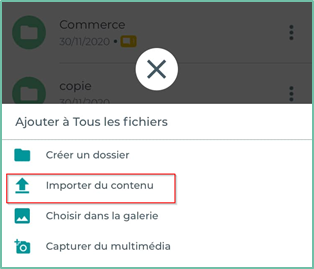
To add a new document from the “Documents” interface, please tap the ” Import Content ” button, then select the document you want.
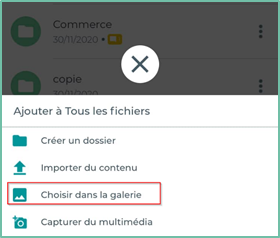
Add a new document from Gallery
Add a new document from Gallery: This option allows you to add a document by selecting it from your device’s image gallery
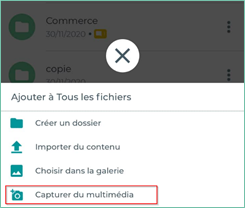
Capture multimedia
Add a new document using the ” capture multimedia ” option: This option allows you to add a document by taking a photo directly with your device
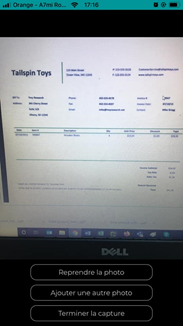
The following interface allows you to change the name of the new document by clicking on the icon  , you can also delete the document by clicking on the
You can also view the document in full page by clicking on the 
You also have the option to add multiple documents by clicking on the “Add more documents” button
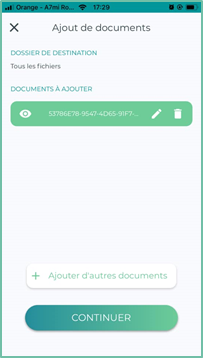
- Click the ” Continue ” button to choose a ranking rule.
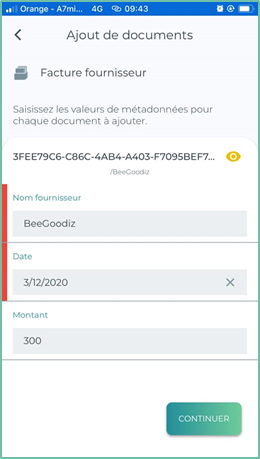
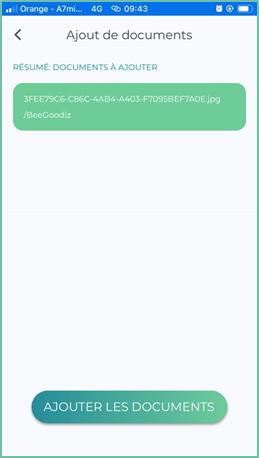
- Fill in the metadata values then click on the “Continue ” button and click on the ” Add documents ” button
Icon
The classification rules are defined in your Open Bee™ Portal document management area