Dashboard Access
To access your dashboard :
- Press the Menu
 button on the home screen.
 - ClickDashboard
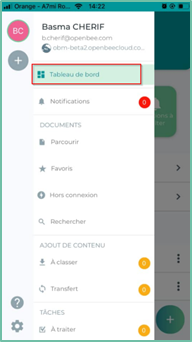
In the next window, you will find the different sections of the dashboard
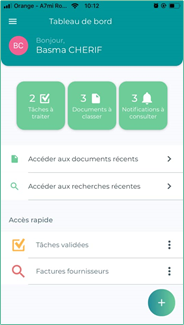
Tasks to be addressed
The following interface shows the list of tasks assigned to you

You can reorganize your list using different tools:
Search on the name of a task:
Click the search icon to initiate an instant search on the name of a task in the list:

Filter tasks:
You can filter your tasks by customizing the filters:
To do this :
Click the filter button  which is located at the top right of the interface.
Click on the ” customize filters » 
An interface is displayed with the different filters :
You can filter your tasks by applying the following filters:
- Statutes
- Task Type
- Initiator
- Actor
- Due date
- Date of entry
- Date of completion
Sort tasks
Different sorting options are available. You can sort by the name of the task, the action, and the due date.

Documents to be filed
Contains the number of documents filed
Notifications to consult
Contains the number of notifications triggered when actions are performed on folders, documents, and Added Comments
This interface also allows you to access the :
Recent documents
By clicking on this option, you will have a list of the most recently viewed documents already set up beforehand at the customization step.
Recent Research
Clicking on this option will display a list that contains the most recent searches performed.
Quick Access
In this section, you’ll find the buttons you’ve already customized in the Dashboard Customization step (to view tasks/to search for content)
Validated tasks: by clicking on this button you will find the list of all the documents you have validated.
Supplier invoices : by clicking on this button you will find the search list