The “Export formats” section allows you to manage the accounting export formats used by the Expense Report application.
It displays the list of activated export formats and allows you to edit/create export formats.
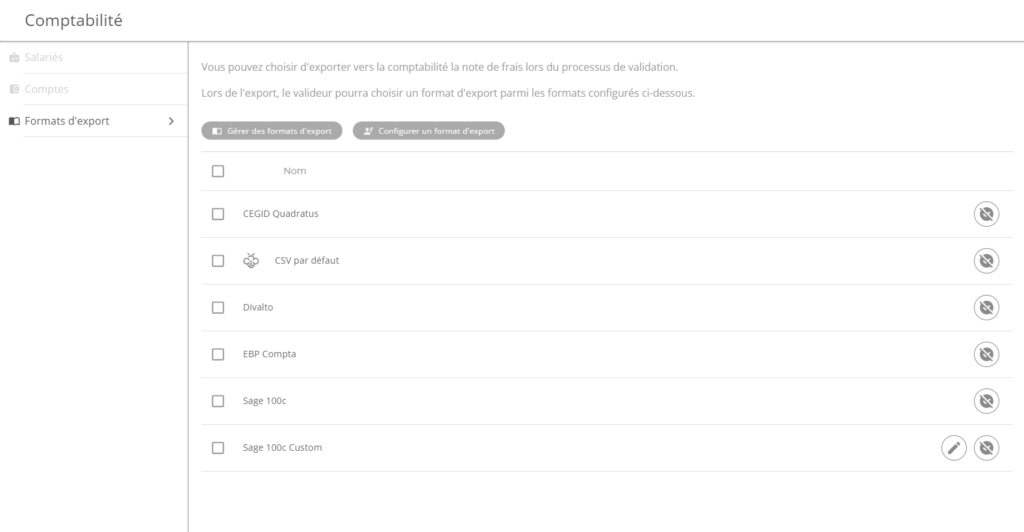
The list of export formats corresponds to those that are “enabled”. These formats will be offered when validating the expense report workflow task, for the generation of accounting entries.
Each format in this list can be disabled if necessary via the action  . A disabled format disappears from the list and can be reactivated in the format management window (see below).
A custom format can be edited via the action  .
.
Pre-embedded formats cannot be edited. They can, however, be duplicated (see below) and then edited.
Manage export formats
The action  opens a new window to manage the export formats configured on the application.
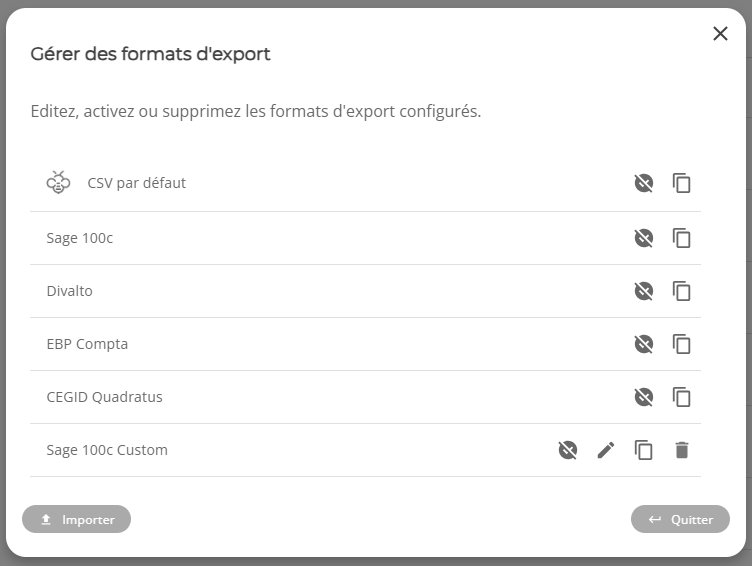
For each export format configured on the application, actions are possible:
- Enable / Deactivate : an activated format will be selectable during the accounting export
- Edit : allows you to edit the export format (custom format only)
- Duplicate : Allows you to duplicate the export format in a new format
- Delete : Delete the export format (custom format only)
Export format configurator
The configurator allows you to configure a new export format or edit an existing export format.
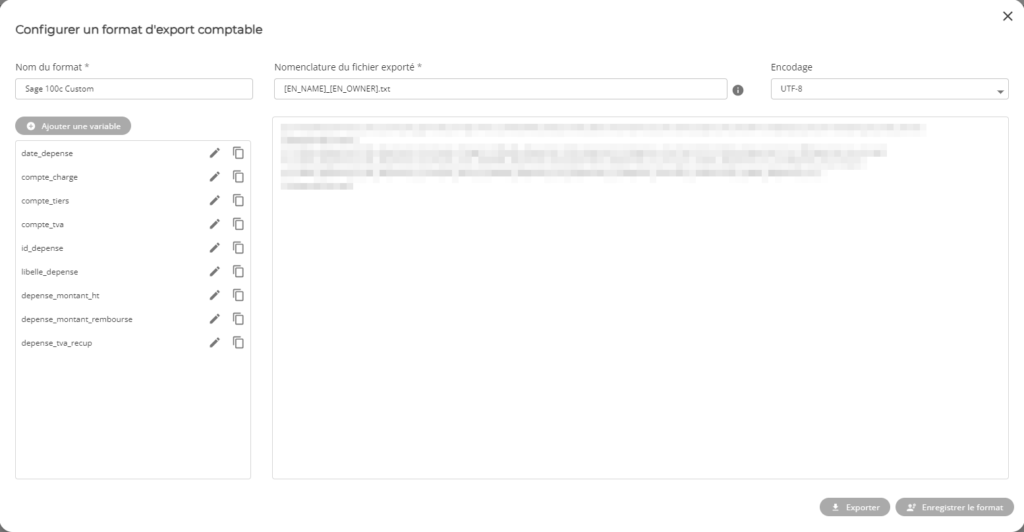
A format is defined by the following information:
- Format name : as it will appear in the expense report application
- Nomenclature of the exported file : name of the file downloaded to the client workstation when the accounting entries are exported. This name must contain the file extension. Variables are available to make the file name dynamic:
- [EN_NAME]: Name of the expense report
- [EN_OWNER]: Full name of the creator of the expense report
- [EX_DATE]: Date of the accounting export
- [COMPANY_NAME]: Company Name
- Encoding : Encoding for the exported file
- Variable List : Variables created for this accounting export format. These variables are then used by the template when generating the export.
- Template : MustacheJS template defining the accounting export
Variable Management
It is possible to create and insert variables directly into the MustacheJS template from the variable block:
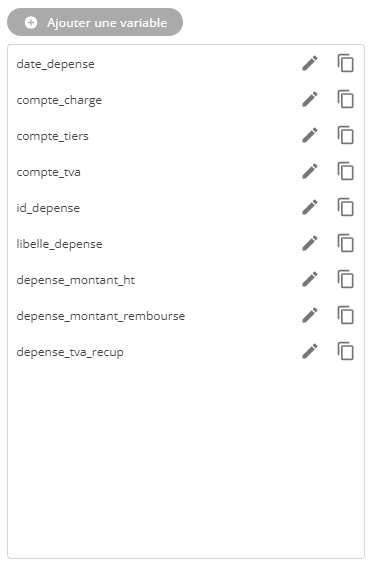
A variable defined in this window can be used in the template using the syntax:
{{nom_variable}}
Each variable has the following actions:
 : Edit the
 : Allows you to copy the variable in the correct syntax to insert it into the template
A variable can be deleted using the edit button and then the “Delete” button.
Create a variable
A new variable can be created using the “Add Variable” button:
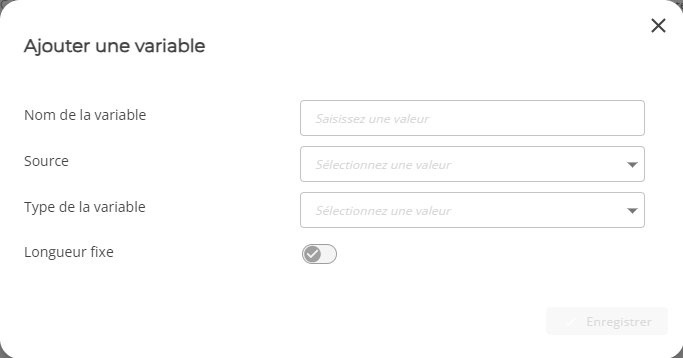
The variable is identified by the following parameters:
- Variable name : This is the name that should be used in the template ({{nom_variable}})
- Source : This is the data source from which the application will retrieve information during the accounting export (see below)
- Variable Type : This is the type of the variable. Additional parameters can be set depending on the type chosen (see below)
- Fixed Length : Allows you to set a fixed length for the variable (see below)
Variable source
Here are the sources available for a variable:
| Spring | Description |
| Line Number | Line number of the accounting export. The number auto-incremented during export. |
| Identifier (Expense) | Technical identifier of the expense |
| Identifier (Expense Report) | Technical identifier of the expense report |
| Label (Expense) | Name of the expense entered by the user |
| Date (Expense) | Date of Expenditure |
| Category (Expenditure) | Expense category name |
| Country (Expenditure) | Country in which the expenditure was made |
| Amount to be reimbursed (Expense) | Amount to be reimbursed for the expense |
| Amount excl. VAT recovered (Expense – calculated) | Calculated amount of the amount before tax compared to the VAT actually recovered for an expense |
| VAT Amount Recovered (Expense – Calculated) | The amount of VAT recovered for the expense, based on the VAT recovery rate defined for the category of the expense |
| Unrecovered VAT Amount (Expense – Calculated) | The amount of VAT not recovered for the expense, based on the VAT recovery rate defined for the category of the expense |
| Total VAT recovered (Expense report) | Total VAT recovered for all expenses in the expense report, based on the VAT recovery rate defined for those expenses |
| Total VAT not recovered (Expense report) | Total VAT not recovered for all expenses in the expense report, based on the VAT recovery rate defined for those expenses |
| Title (Expense Report) | Name of the expense report entered by the user |
| Current Date | Current date during the accounting export action |
| Amount to be reimbursed (Expense report) | Amount to be reimbursed for all expenses in the expense report |
| Original Currency (Expense) | Original Currency of Expense |
| Currency (Company) | Currency set up for the company |
| Expense Account (Category) | Expense account for the expense category |
| VAT Account (Category) | VAT account for the category of the expense |
| Third-Party Account (Calculated Employee) | Third-party account calculated for the employee who made the expense report |
| Name (Employee) | Name of the employee who prepared the expense report |
| Number (Employee) | Number of the employee who made the expense report |
Variable Type
There are three types of variables available:
- Date
- Date format: allows you to define the desired format for the date (e.g. dd/MM/yyyy will give 28/06/2024)
- Number
- Decimal separator: e.g. a period “.” or a comma “,” (leave blank so that there is no separator)
- Number of decimal places: Allows you to set the number of decimal places after the separator
- String
- Truncate: If enabled, this option allows you to truncate the data if it exceeds the number of characters defined in “Maximum characters”
Fixed Length
This option allows you to have a fixed length for the variable. This means that the exported data will always have the same length, regardless of its content (whether it is shorter or longer than the defined length).
To set a fixed length, three parameters must be entered:
- Length : The desired length for the variable
- Replace with : the character with which the desired length will be reached if the variable data is shorter than the desired length
- Location: Specifies whether wildcards should be placed before or after the data