- Log in to Smart Capture for the 1st time
- Smart Capture Authentication
- License Activation
- Identification Open Bee portal
- Managing Smart Capture Module Permissions
- Open Bee™ Portal/Smart Capture Link
Log in to Smart Capture for the 1st time
Enter the address of the capturing server and the port, then click “next”.
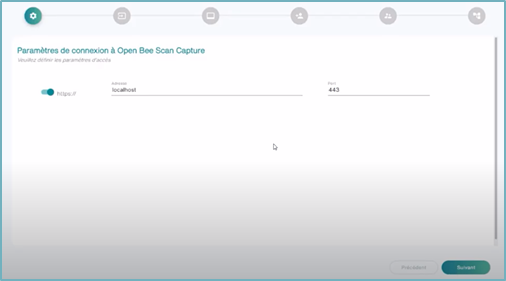
It is possible to switch between http and HTTPS with the switch button located first on the line.
The default ports will be: 8090 for http and 433 for HTTPS.
Smart Capture Authentication
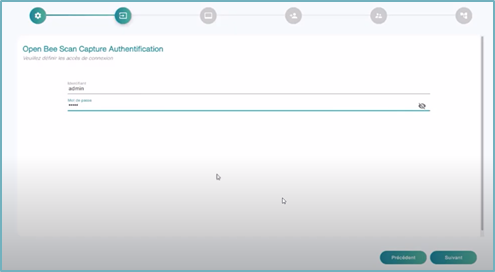
Fill in the Smart Capture administrator credentials (login, password), then click ” next “.
License Activation
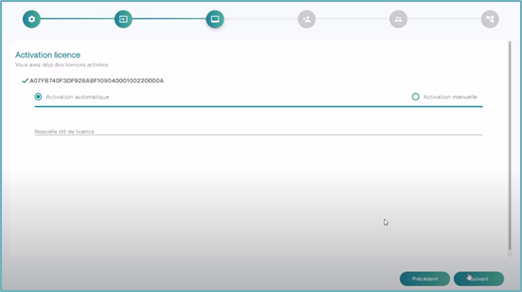
You can activate your licenses directly on Smart capture either by selecting ” Automatic activation ” or by selecting ” Manual activation ” and then clicking on “ Next ”
Identification Open Bee portal
Enter your Open Bee portal administrator user login and password, then click on ” Next “
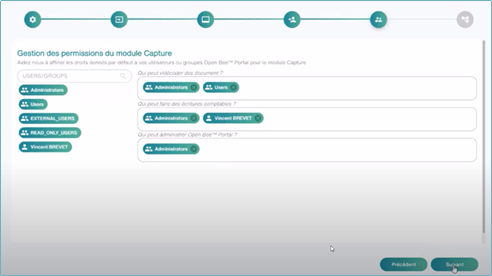
Managing Smart Capture Module Permissions
This interface allows you to fine-tune the default rights given to Open Bee™ Portal users or groups for the Smart Capture module
You can set the following rights:
- Videocode documents
- Making accounting entries
- Administrer Open Bee™ Portal
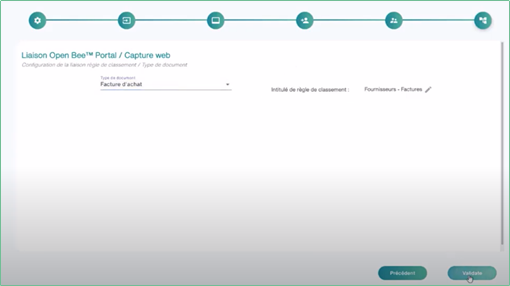
Open Bee™ Portal/Smart Capture Link
Once this setting is completed, all you have to do is select the type of document you want to process and associate it with a Portal filing rule, then click on ” Validate “
In this step, it is possible to link each document type with a Portal filing rule.
The user is not limited to ” one ” type of document as ” the type of document ” suggests
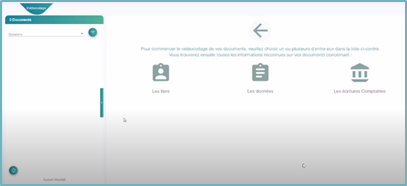
You can now start using Smart Capture