Smart Split Cutting
This feature allows you to split documents into parts and/or delete pages when interpreting documents.
To set up this feature
- Click the Document Type menu
- Choose the type of document
- Click the Templates section
- Select the folder
- Click the Edit Template button
- Click the Clipping tab

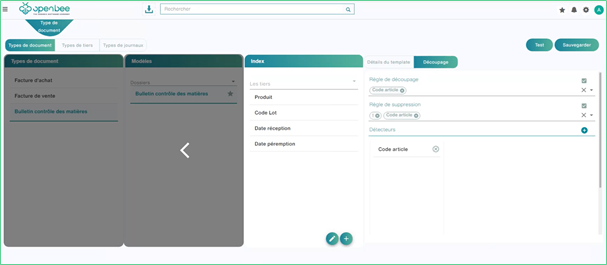
The Clipping tab appears:
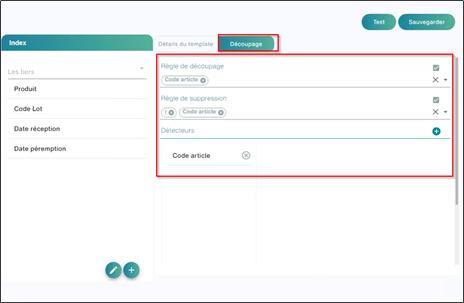
In this tab you have 3 parts:
Splitting rule: this rule works exactly like the index rules which allows you to check that one date is greater than another, the same principle except that you will find inside this rule the detectors that you have defined in the field “Detectors”

Deletion rule:

Slicing and deleting rules can contain multiple detectors as well as logical operators (“|”, “&”, “!”, “(“, “)”) to create more complex expressions to better handle exceptions.
Detectors: You can have several,
To add a detector/
- Click the
- Enter Name
- Select a Type

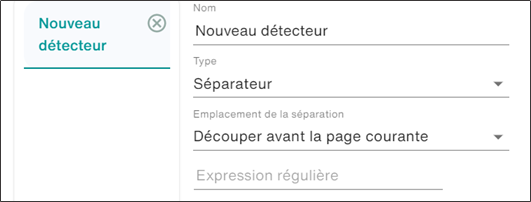
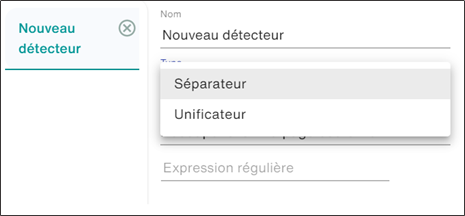
You have two types:
Separator: allows you to search for a value on a page, the document will be cut before or after the detected value.
Unifying: is based on a search and comparison of values: it will look for the values on the first page and then will look for the values on the second page to compare them:
- If the values are the same or if at least one value is identical, it will consider the document to belong to the same document so it will leave these pages together
- conversely, if it does not find any identical value, Smart capture considers that these two pages belong to two different documents and will cut it between these two pages.
- Select the location of the separation
- To retrieve your values, you must use regexes
Concerning detectors, and as with traditional indexes: it is possible to restrict their search to a specific area of the document. You can have an indication of the search box at the bottom of the detector configuration.

However, from the document type interface, it is only possible to delete this area. To draw a new area, it is necessary to draw the area on a document, and therefore to go through the videocoding interface, from the template edit menu, and go to the “cutting” tab.

To draw a new area, click on the “define a search box” button
