Create export profile
To create an export profile, simply go to the main menu: ” Accounting / export profile “.
- Click on the icon

- Select the import type: File or Other
Export file

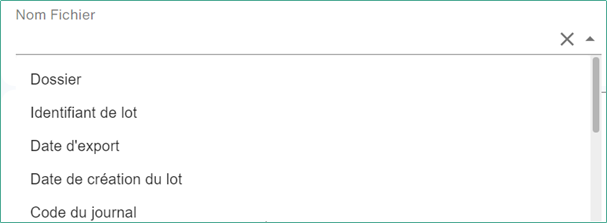
File Name
The file name is free, but it must be followed by the desired extension. If this is not the case, a file without an extension will be generated.
Encoding
Encoding is used in very special cases to improve the handling of special characters. If no encoding is selected, the system encoding will be applied.
Compression
The compression option allows you to zip the export file with the relevant PDF documents for it.
Working with Variables
Smart Capture-specific variables can be inserted into the file name or path. To view the list of available variables, simply click on the field and the variables appear. The variables available depend on the batch or folder concerned by the export, in fact several documents can be exported simultaneously so it is not possible to use a particular variable present on one of them for the name or path of the file.
Variable Management
The variable management part allows you to manage the values that will be formatted and then injected into the file structure. In the case of an existing model, this list already contains ready-to-use variables. It is possible to modify them or create new ones.
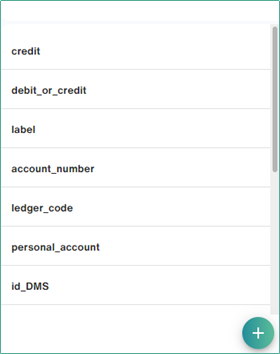
Add a new variable
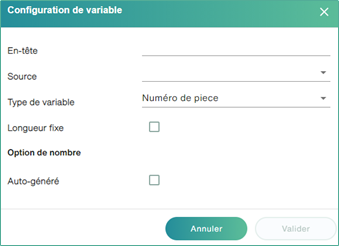
When clicking on “ “, the following window appears:
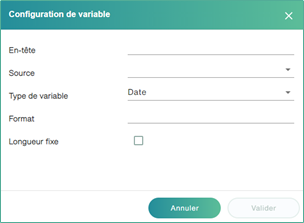
The information requested is:
- Header: The name that will be used to use the variable in the document structure. It is free, but limited to alphanumeric characters and “_”.
- Source: The Source of Value. The context displayed in parentheses is used to identify the source of the variable. Each variable can be used in a specific context.
- Variable Type: The type of variable used in the document structure. This is independent of the type of the source variable and allows further manipulation of the value to be exported.
Edit a variable
To modify a variable, double-clicking on the desired variable opens a new configuration window that allows you to format the value by offering a particular parameter according to the chosen type.
Types of variables
Number
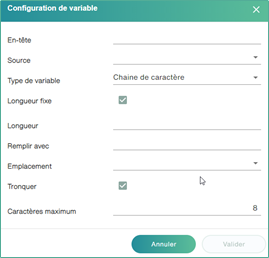
Strings have the fewest options. They can only be truncated, or of a fixed size.
If “fixed length” is chosen, the following fields appear:
Length: The final size of the text to be obtained. If the value is too small, it will be completed. If it is too large, it will be truncated.
Fill with: The character used to fill in the value if the value is too short (less than the set length).
Location: The position at which the padding character will be inserted (before or after the value) in order to obtain the desired size.
If “Truncate” is checked, the following field appears:
Maximum Characters: The number of characters to keep. If the value exceeds this size, characters beyond this limit will be lost.
Date
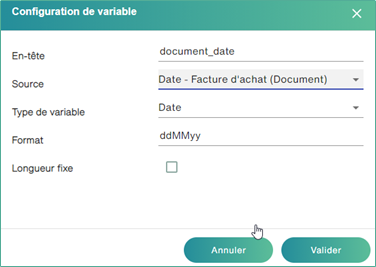
Format: In the case of a field of variable type “Date”, you may need to change the format of the field.
Some examples:
ddMMyyyy => 12112020
dd/MM/yyyy => 12/11/2020
Number
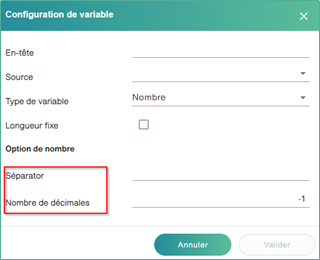
For numbers, the settings are simple:
The separator: allows you to differentiate between the integer and decimal part of the number.
Number of decimal places: Allows you to define the number of digits for the decimal part of the number. If the decimal part does not contain enough digits, it will be filled in.
Example: 14.1 => 14.10.
Transcoding
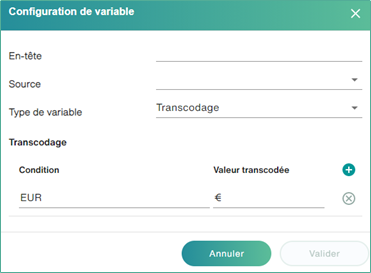
Transcoding allows you to transform values into a constant that is used for export.
Example: EUR = €> or Bank Transfer => 05.
The values to be transformed are often taken from choice lists.
Part Number
The “Part Number” type is a special type. It allows you to assign a unique number that is automatically incremented to each document. All entry lines in the same document will have the same number.
There is only one option for this type: self-generation.
Auto-generated: Numbering will start at 1 for the first document in each export.
If the “auto-generation” option is not checked, the user will be prompted to enter the increment start value for each entry export
Model Structure
The structure of the model uses the variables created earlier. It is possible to create a wide variety of structures: XML, CSV, Fixed-position format, etc.
Pre-set exports
Some formats are integrated as soon as Open Bee™ Scan Capture is installed and are almost ready to use. However, some templates contain tags enclosed in square brackets “[]”. This is the case for [MY_CODE_EXPERT] and in [MY_NUMERO_DOSSIER] the following example:
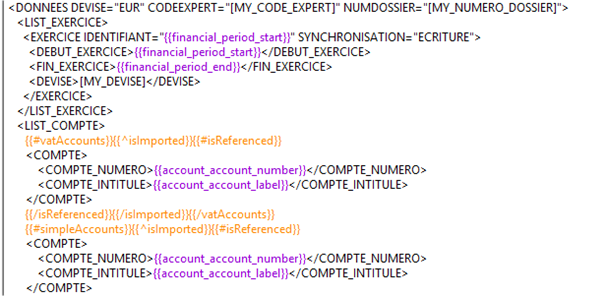
These variables indicate that a value is required at that location. These are elements to be replaced by variables, or fixed values, when setting Open Bee™ Scan Capture.
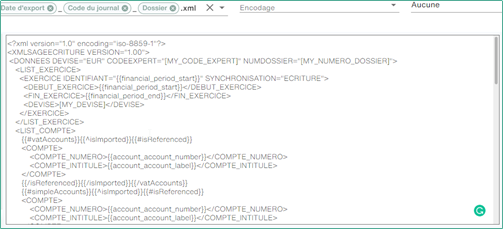
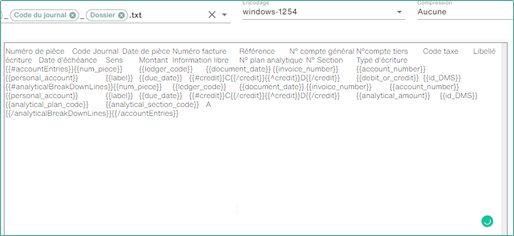
Here are two examples of very different formats:
.xml
.Txt
Actions
Delete an export profile
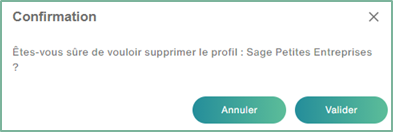
To delete a profile, simply click on the button  and then click on ” Submit “
Add a default export profile
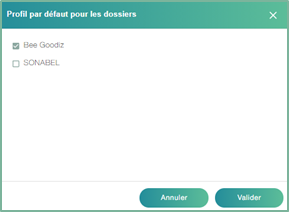
To save the default import profile for all new folders to be created, simply click ,  you can also specify a default Template for a specific folder by clicking
Choose the default profile for the folder, then click ” Submit “.