The interpretation process is automatic and runs after the document has been scanned. Interpretation works as a background task on the server. It supports images of documents to extract the text layer and information about a document template.
As soon as the documents are interpreted, they are available and awaiting validation in the Smart capture Console, in the “Videocoding” tab:
Filter: It is possible to filter the invoices belonging to a particular folder or document type, by clicking on this button in the following interface:
Research: It is also possible to use the Search feature. Please note that this does not search in the name of a document but in all the text of the document
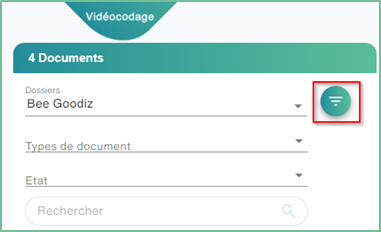
This list can be refreshed at any time, by pressing the ”  ” button
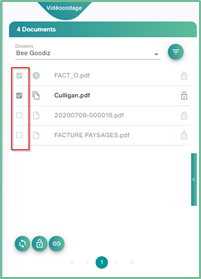
It is possible to select one or more documents to be processed using the checkbox to the left of each document.
Actions
Reinterpret
It is possible to manually reinterpret documents with the following button after selecting documents  .
.
Delete
It is possible to manually delete documents with the following button after selecting documents  .
.
Unlocking Documents
Unlocking documents is an action to be used exceptionally. Care should be taken to ensure that the session that holds the document lock will not continue its actions on the locked documents.
If documents have been locked by another user who has started videocoding them and you need to videocode them for them (Example: the collaborator has left their position), then it is possible to unlock these documents by selecting them using the checkboxes to the left of the document:
Unlocking is done by pressing the unlock button at the bottom of the screen:
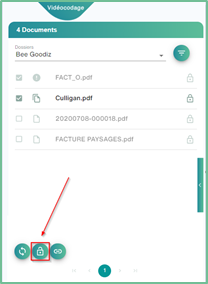
This action is subject to special rights: only users with the necessary rights can unlock documents used by other users.
Videocode documents
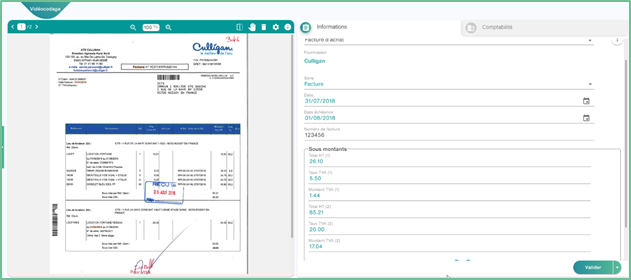
The videocoding interface is composed of the invoice display on the left, the display of the fields captured on the document on the right and an action bar located at the top of the document:
Zoom
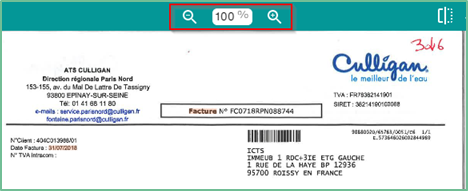
It is possible to zoom in or out of the invoice using the magnifying glass at the top of the page.
The zoom can also be operated using the mouse wheel by pressing the “CRTL” key at the same time.
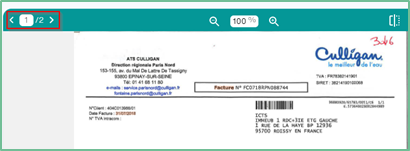
When a document contains multiple pages, arrows appear on the right side of the document to navigate between the different pages.
The arrows display the next or previous page.
Cutting
It is possible to trim a document that contains multiple pages directly from the document preview by clicking on the “Clipping” option
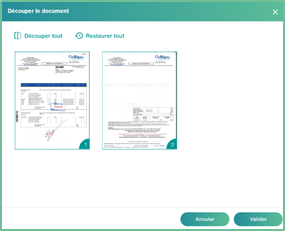
Merge
You can also merge two documents by clicking on the “Merge” icon 
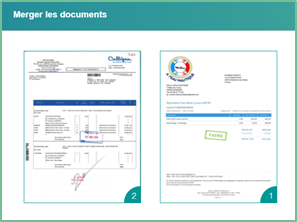
News
The information represents the fields available for the document. Smart Capture shows you the values it has detected on the current document.
The folder and template can be positioned using a drop-down list.
The provider is a free entry with a list of proposals that is displayed based on the first letters entered. To create a new provider, simply enter its name without taking into account the autocomplete proposals.
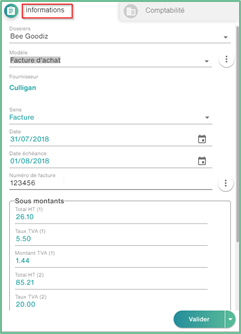
Some fields can be colored:
In red to indicate that the value does not conform to the expected data type or that a value must be entered.
In yellow to indicate that the value was not found, and could not be deduced. Smart Capture has proposed the default.
In Blue to indicate that Smart Capture has inferred or calculated this information
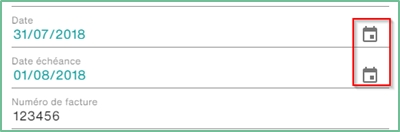
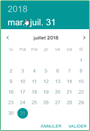
Date fields have a calendar icon on their right. They allow you to open a calendar in order to easily select a date.