Account Management
Account Lists
General
The account management present in Smart Capture will allow you to remove/add/modify the accounts present in the software.
For understanding, a third-party account refers to either a vendor account or a customer account.
All actions to delete, modify or add accounts carried out within Smart Capture will not impact your accounting within your accounting ERP. Only the addition of an account can be reflected on your Accounting ERP via an export, if it allows it.
Filters
On this part of the software, at the top of the page, filters are available to help you search for the desired account(s) more easily.
Account Type: This filter allows you to view only a portion of your accounts from the following:
- Accounts Payable
- Customer Account
- Expense account
- VAT account
Research: This filter allows you to view the search results typed in the field.
Display
Selection Column
Filtered accounts are displayed on the left side of your screen, ordered by account (so third-party accounts will be placed in relation to their central account)
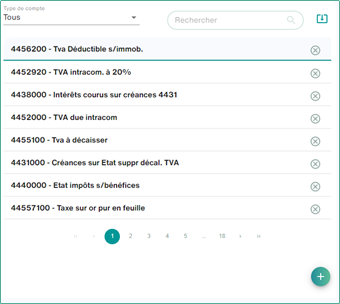
These are displayed in these formats:
For general ledger accounts: Account Number – Label
For third-party accounts: Third-Party Account Number – Label
To view the details of an account, simply select the account from the list.
Account details
Once the account has been selected, the poster of its details will appear on the right side of your screen.
The details will depend on the type of account selected:
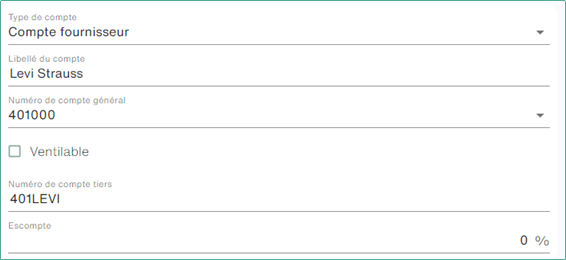
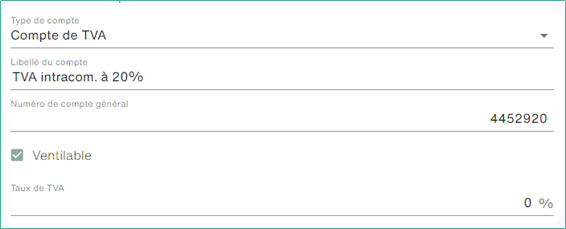
The account type and wording are common to all details.
G/L Account Number: Corresponds to the G/L account, except in the case of a third-party account where it corresponds to their centralizer.
Breakable: Lets you know if the selected account allows analytical breakdown.
Third-Party Account Number: (Only for third-party accounts) Refers to the third-party account
VAT Rate: (Only for VAT accounts) Refers to the rate linked to the selected account. This information is optional, Smart Capture does not base its account application on this indication. For expense accounts, there may also be the “Centralizer” box. This allows it to be defined as a centralizer for third-party accounts.
Additional Information
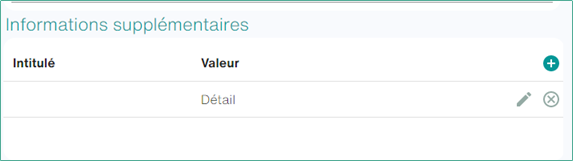
You can store additional information for your accounts on Smart Capture. Its information can be retrieved via an accounting database import or manually filled in on Smart Capture.
The purpose of storing its information is simply to be able to feed it into the accounting output carried out by the software.
Its information is recorded in the form of:
- A label (Used during export to bind a variable with this information). If possible, this heading should be capitalized and avoid spaces and special characters. This avoids unpleasant surprises when binding to a variable.
- Value
Actions
Adding an account
To add an account:
Click on the icon  at the bottom of the list of accounts.
Changing an account
To modify an account, simply select it from the list and modify the details(ies) of it that do not suit you, before validating.
Delete an account
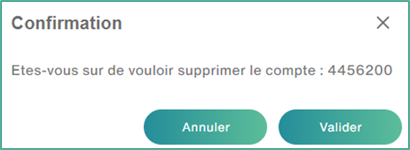
To delete an account, simply click on  who is to the right of the account and then click on Validate: