Document in error
The list of documents in error can be consulted in the ” Maintenance ” menu “Documents in error” sections
It allows the user to see documents that have been passed in error in Capture and therefore are not visible in their waitlist.
The different errors can be:
- Unknown error: The source of the problem cannot be cited
- File extension is not considered: The Capture engine cannot interpret this type of document
- Interpretation error on the file: Possibly due to a misconfiguration on the document
- OCR error on file: Capture failed to extract the text layer from the document
- File not in database: We no longer have the file for this document in Capture
Logs
Generality
In this part of Smart Capture, you can trace all the actions performed on the software by a user.
To access this page, go to the “Maintenance” menu / “Logs” section
Presentation
What is a log?
A log is an object made up of several fields that is used to represent an action that has been performed on the application. It is built like this:
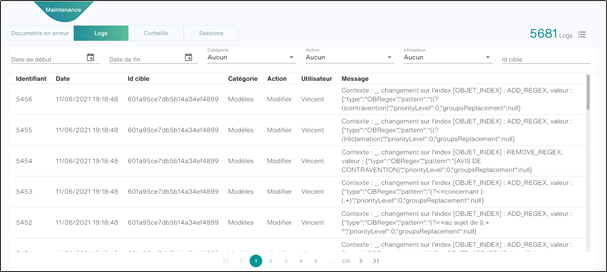
- Identifier: Unique number representing a log
- Date: The specific date on which the action was taken
- Target ID: Identifier of the object concerned by the log
- Category: Large category to which the log belongs (here accounting records)
- Action: Action concerned by the log (here an update)
- User: The user who performed this action
- Message: A message used to describe the action that was performed
Filters

- Start Date: Allows you to sort logs that are greater than or equal to a specific date
- End Date: Allows you to sort logs that are less than or equal to a specific date
- Category: Allows you to filter logs that belong to a particular category (Documents, Users, Groups, Templates, Accounts, …)
- Action: Allows you to filter logs related to a specific action (A deletion, An addition, A modification, …)
- User: Allows you to filter logs made by a specific user
- Target ID: Allows you to filter logs about a specific Smart Capture object

If the logs are too numerous to display, a pagination allows you to browse them: 
Basket
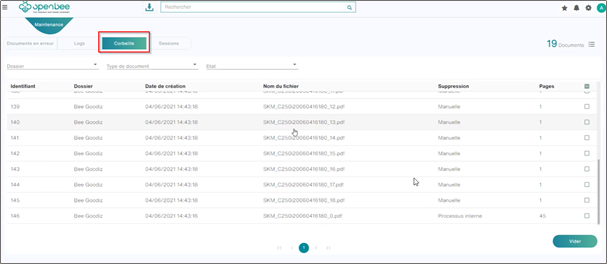
Documents are no longer permanently deleted from Capture. They are placed in a recycle bin until they are automatically deleted (30 days configurable) or manually.
To access the recycle bin
Click on the Maintenance menu
Click the Trash section
You will find in the recycle bin all documents deleted manually, by an internal process or all documents that have finished their processing cycles in Smart capture.
Sessions
Smart Capture allows you to manage the sessions of users connected to the solution. To view them, click on the ” Maintenance ” menu and then on the ” Sessions ” section

Create a session
Sessions are created automatically each time the user logs in to Smart Capture.
Sessions end after 10 minutes of inactivity
This means that if the user logs in at 9:00 and does not take any action at 9:10 a.m., their session is automatically deleted and they have to log in again
On the other hand, if he connects at 9:00 a.m. and he does an action on Smart Capture (page change or other) at 9:08 a.m., his session will be valid until at least 9:18 a.m.
So it is valid for 10 minutes after the last action performed

Composition
A session is composed of several pieces of information:
- Date: The date, time, second of the user’s last action
- Identifier: The identifier used by the user to log in
- Session: The machine on which the user logged in
Delete a session
You can delete a session at any time by clicking on the icon provided for this purpose  . This will directly release the desired session, if you had reached your maximum number of simultaneous consoles, a new user will then be able to log in.