Configuration
Open Bee™ Portal Configuration
- Enter the IP address (or URL) of your Open Bee™ Portal server, the username and the password.
- Fill in port 443 by default
You can also choose to sign in with an API key associated with a user. This key allows external software to securely log in to your account and perform transactions on your behalf.
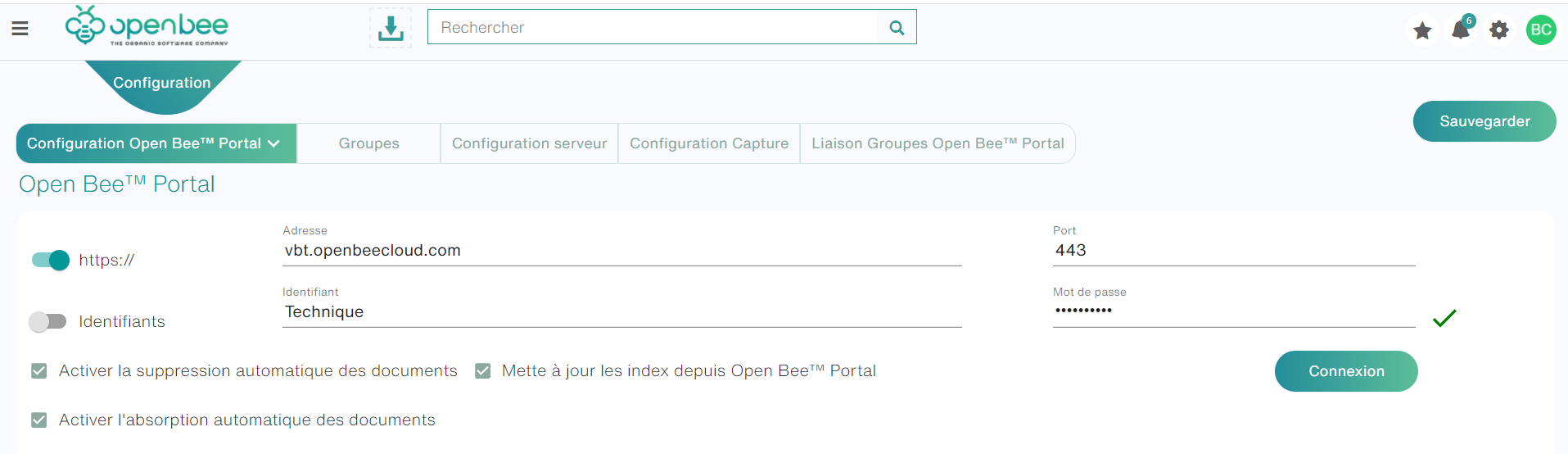
- Enable automatic deletion of documents: by checking this option, the document will be deleted on Open Bee™ Portal if it is deleted on Open Bee Smart Capture
- Update indexes from Open Open Bee™ Portal
- Enable automatic document absorption
Set Collation Settings – Open Bee™ Portal (Output Settings)
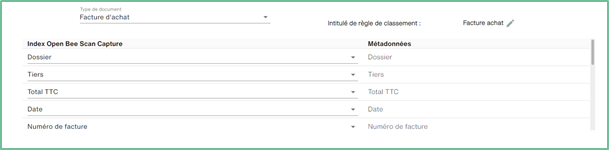
This feature allows you to perform the association between the Smart capture document type and an Open Bee™ Portal collation rule. The Smart capture document type will be used when filing the file in Open Bee™ Portal.
- Select the document type
- Choose the Open Bee™ Portal ranking rule you want to pair with.
Groups
Groups are used to manipulate the access rights assigned to a set of users.
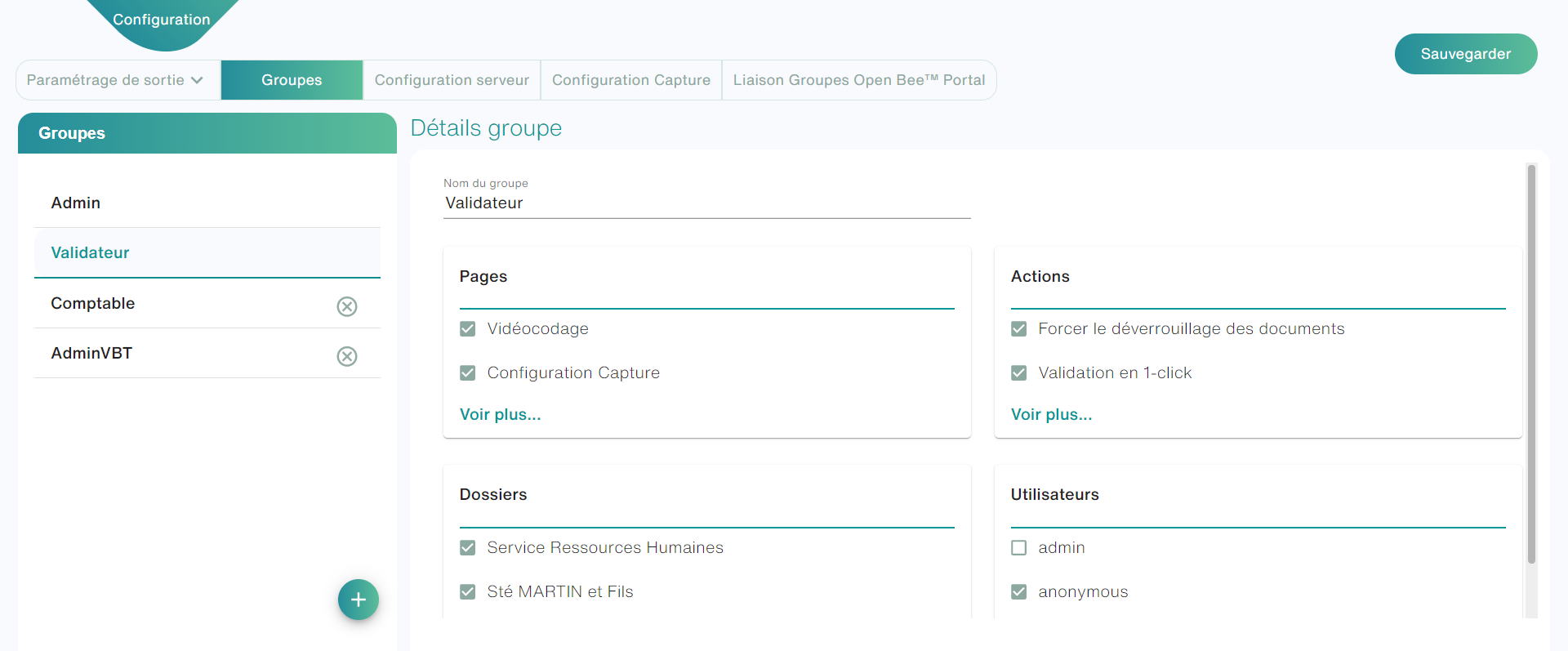
Go to “Configuration” tab ” Groupss”. From this interface, you can Add/Remove/Edit groups.
Add a group
To add a group, simply click on the “ ” icon. A new group will be created with all rights and no users by default.
To edit a group, several categories are available on the right side of the screen:
- General information: Change the group name
- Pages : Restrict the display of pages (e.g. the index settings page)
- Actions : Restrict the use of certain features (e.g. force unlocking documents)
- Folders : The different folders accessible to users in this group
- Users : The users contained in the group
Delete a group
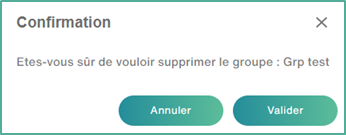
To delete a group, simply click on this icon 
A window will appear, click on “Validate”.
Server Configuration
This interface allows you to configure and customize the configuration of certain smart Capture features.
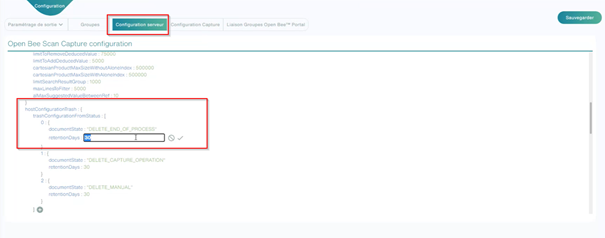
Trash Configuration:
To set the retention period for deleted documents, click on the “hostConfigurationTrash” section
You can change the period by clicking on the “retentionDays” line
You can also configure other features.
- Configuration OCR
- Configuration Gateway
- …
Configuration Capture
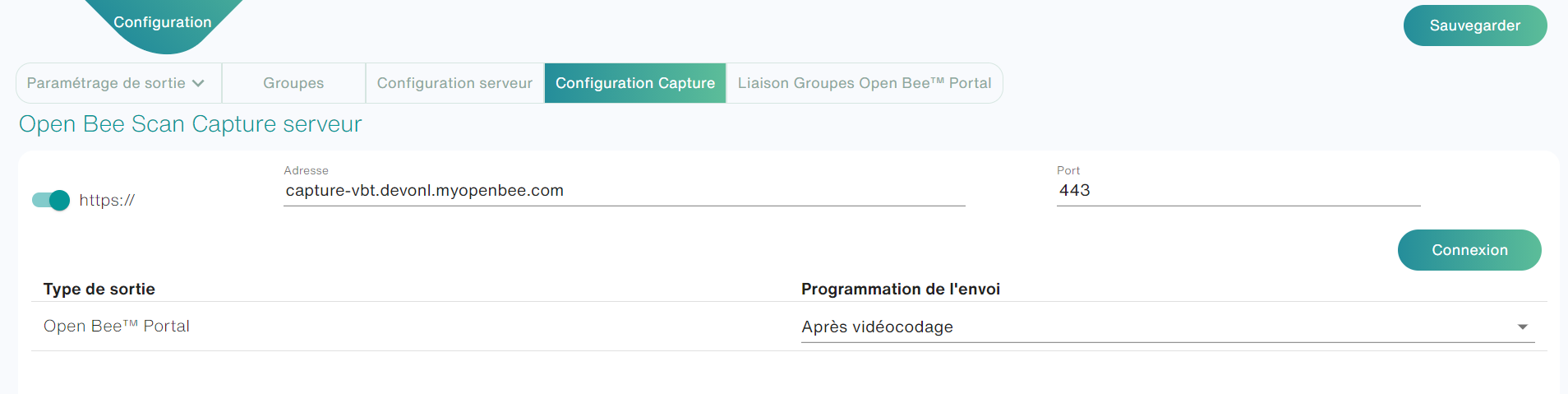
Enter the IP address or the name of the server on which Open Bee™ Scan Capture is installed, click on “Connect“.
By default, the connection port to Smart Capture is always 8090.
Output Setting
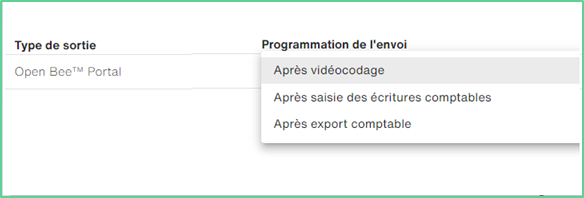
It is possible to configure the time of sending each export at the desired time. By default, this is triggered after the videocoding of a document has been validated. But in case compatibility is enabled, more options are available:
- After videocoding
- After entering the accounting entries
- After accounting export: once the batch of entries in which the document is located is sent to the accounting.
Example for DMS output:
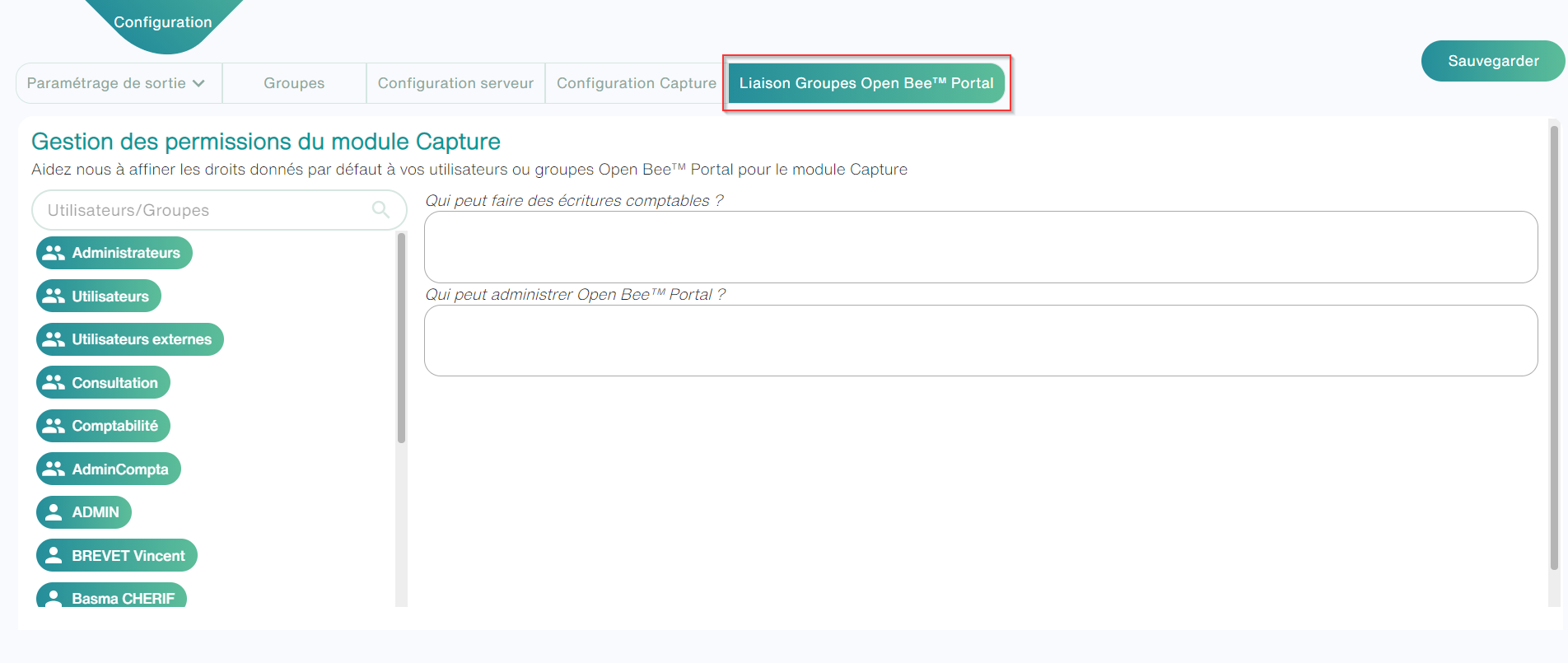
Open Bee portal group connections
The following interface allows you to manage the permissions of the Smart Capture module by a simple swipe and you can give permissions to the (Administrators, User…) to be able to make accounting entries and administer Open Bee™ Portal