Import Profile
To access this interface:
Click on the “Accounting” / “Import Profile” menu

Create a new import profile
To create a new import profile
Click the
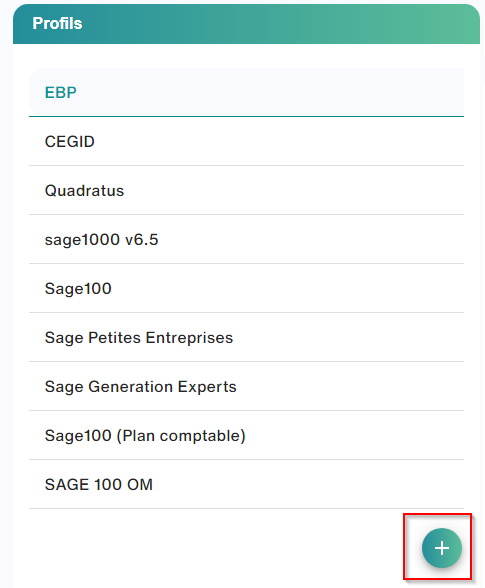
A profile, in the Smart Capture sense, is a specification of your import type.
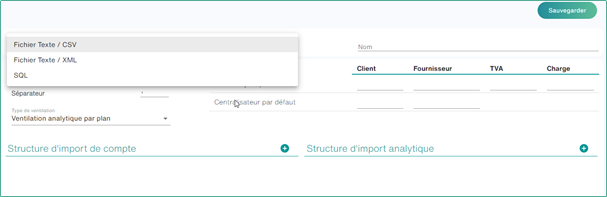
Import Type
Accounting Import Text, CSV
The text, CSV accounting import allows you to import the chart of accounts or the analytical plan of a file from a file.
General Setup
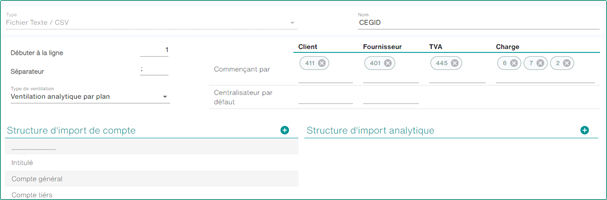
- Start by choosing the type of import e.g. Text File, CSV
- Choose Name
- Start at Line: Allows you to start at a specific line in the file and avoid header lines. By default the value is 1, no rows are skipped.
- Separator: The TAB value will represent the “Tab” separator.
Import Type
The Chart of Accounts import offers to filter the accounts to be imported to retrieve only those used when generating accounting entries. Each type of account (customer, supplier, VAT, charges), can be filtered by the first characters of the account number as in the following example:

It is possible to define multiple account starts
Special case: the filters applied on customer/supplier accounts apply on the master account, except in the case where the customer/supplier account number is filled in in the same column as the general accounts.
Often in this position, the centralizing accounts are not present in the source file. It is then possible to fill them in by default:
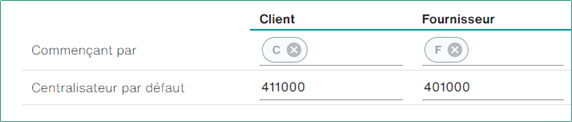
The import type allows you to choose between the Chart of Accounts import and the cost plan import. Depending on the type of plan to be imported, specific options are available.
Account Import Structure
Allows you to configure the columns added according to the structure of the file to be imported
- Third-party account
- General account
- Business party and general account number: When the business party number and account number are located in the same column.
- Entitled
- VAT Rate: Populates the decimal value associated with the VAT accounts (optional)
It is also possible to add an “Additional Information”, which will be used to:
- Fill in additional info in the account
- Fill in an index of the third-party record if the label of the additional information corresponds to the ID of an index of the third-party record, and of course the account being imported is a third-party account
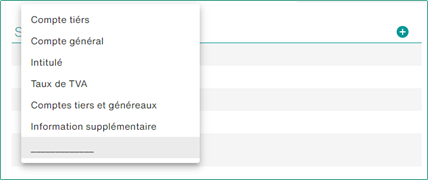
Analytical import structure
Allows you to make analytical breakdowns on a customer’s accounting
- Title of the plan (if broken down by plan)
- Plan code (if broken down by plan)
- Section Title
- Section Code
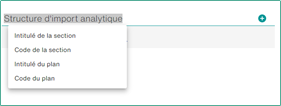
In the case of a breakdown by section, it is also possible to put the “Group” column, which allows you to group the different imported sections into several different groups. This will display multiple columns (one per group) when entering the cost breakdown
Actions
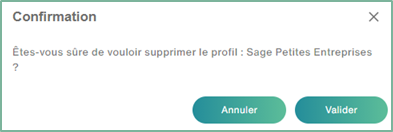
To delete a profile, simply click on the button  and then click on ” Submit “
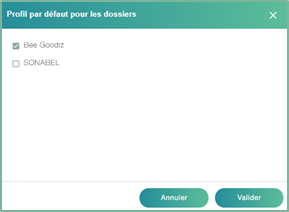
To save the default import profile for all new folders to be created, simply click ,  you can also specify a default Template for a specific folder by clicking
Choose the default profile for the folder, then click ” Submit “.
XML Accounting Import
The XML import configuration is done in the “Accounting / Import Profile” tab.
To create an XML import profile, simply choose the type and name in the appropriate fields
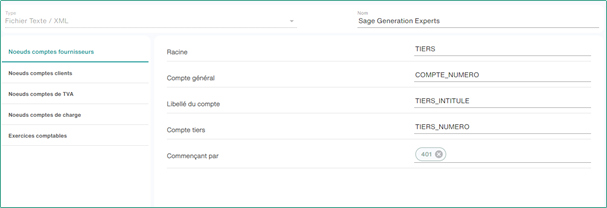
Setting up accounts
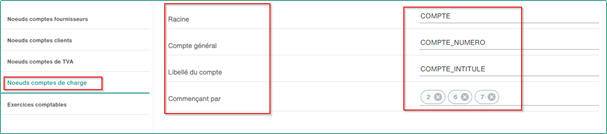
Each type of account has its own section that allows you to identify them
- Root: This is the tag that encompasses the account information.
- General account: The tag or attribute containing the account number
- Account label: The tag or attribute containing the account label
- Third-party account: (Accounts receivable/vendors only) the tag or attribute containing the third-party account number
- VAT Rate: (VAT account only) the decimal value associated with VAT accounts (optional).
- Accounts starting with: The filter that allows you to import only accounts that start with these characters. It is possible to define several of them by separating them with “;”.
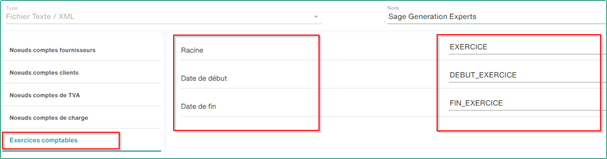
Setting Up Fiscal Years
In the same way, it is possible to import accounting years if they are available:
- Root: This is the tag that encompasses the account information.
- Start date: The tag or attribute that contains the start date of the fiscal year
- End Date: The tag or attribute that contains the end date of the fiscal year