The indexes present in Open Bee Smart Capture are completely free and configurable. It is possible to add, remove or modify them according to your needs.
Add a new Index
Adding an index is only possible on a generic template. This means that the changes applied to this model will be reflected in all the models present.
To add an Index, simply click on the button  :
:
Give this new index a name. This can then be modified, however the name is used when creating the index to generate a unique and definitive identifier.
You can then change the default configuration of the index before validating.
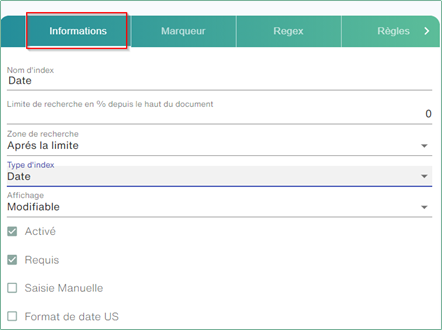
Each index has a general record that includes the following information in addition to the type:
Search limit (in %) from the top of the document: Allows you to roughly narrow the search box of index values. If the index has customization, this area will not be taken into account.
Search Box: Indicates whether the values are above or below the previously defined search limit.
On: Allows you to stop using an index without deleting it. The latter will no longer be visible in the video coding screen.
Required: If required, the index must be completed with a valid value so that the document can be validated.
Manual entry: the index will not be searched in the document by Smart Capture, it will be up to the user to fill it in manually at the time of video coding. Enabling manual input also allows the use of scripting.
Types of Indexes
To improve the detection of values in Smart Capture, to facilitate manual entry, and to apply special processing to them, indexes are assigned types to detect them.
There are two main families of indexes: primitive indexes that represent information related to documents, and therefore a value. And compound indexes , which are a collection of indexes.
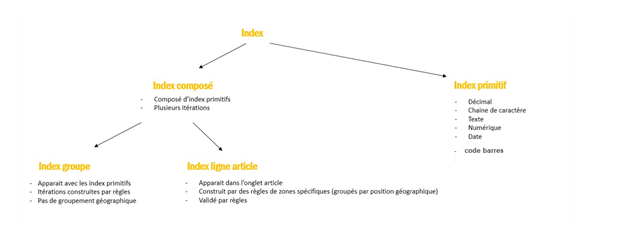
Primitive indexes are divided into several subtypes, each with its own specificities.
| Type | Markers | Regex | Transcoding | Zone Rule | Calculation rule | Type-specific |
| Text | Yes | Yes | No | Yes | No | |
| Digital | Yes | Yes | No | Yes | Yes | |
| Decimal | Yes | Yes | No | Yes | Yes | Separator Option |
| Date | Yes | No | No | Yes | Yes | Format US |
| String | Yes | Yes | Yes | Yes | No | Remove Spaces |
| Bar code | Output Type Option |
String
String indexes are ideal for processing short alphanumeric information such as references, product codes, identification numbers, etc.
There is a specific option to remove spaces. This option allows you to remove all the spaces present within the value, which is very useful for formalizing certain codes whose font would have led the OCR engine to add fictitious spaces, e.g. “457 – B 45” => “457-B45”
Text
A text index is very similar to a string index, but has a larger input space in the video encoding and can accept line breaks.
Date
In order to properly manage dates, a special type is dedicated to them. For example, it allows you to display a calendar in the videocoding window to quickly enter dates.
As a special option, it is possible to activate “US dates”. This means that the dates will be handled as being in the format: month/days/year as soon as it is ambiguous.
Decimal
The decimal type is optimized to find numeric values in the document. Example: the amounts of an invoice.
Digital
The decimal type is optimized to find numeric values in the document (integers).
Barcode
Barcode: it is capable of handling several different formats (Code 128, QRcode, etc.). This option requires an option to be enabled in the app’s configuration.
Smart capture is able to identify and retrieve the value that corresponds to the barcode.
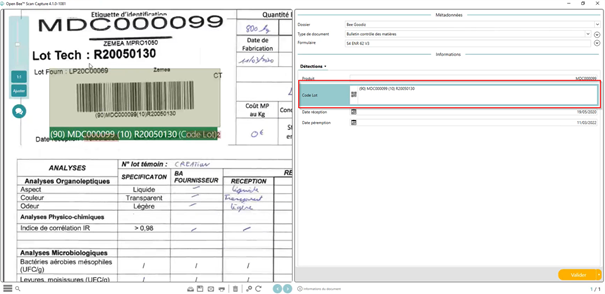
Barcode settings
Index Type Barcode
In order to improve the detection of values in Smart Capture, to facilitate manual entry and to apply special processing to them, a new type is assigned to the indexes to detect them.
In order to properly manage barcodes, a special type is dedicated to them. In particular, it allows you to retrieve the value that is in the barcode
To set up this index, it is necessary to add an index by clicking on the 
Fill in the different fields (Index name, search limit, search box…)
Select the “Barcode” index type as shown in the following interface:
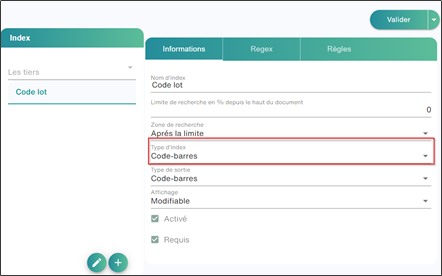
You can also view and change the index setting from the Videocoding section
Regexs
it is ultra generic because as soon as an index is of the barcode type, Scan capture will focus only on the barcode value.
Advanced parameterization
Marker
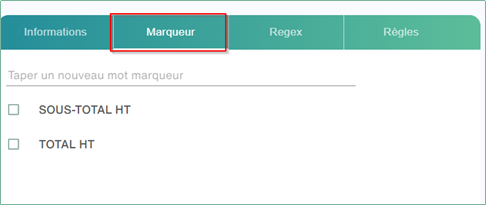
For indexes “captured” by Smart Capture, these are targeted to the document by analyzing the position of the value and that of its “marker”. A marker is a text element on the document that characterizes the value being searched. In the following example, the index is Total Tax-Exclusive. These markers are: number, invoice, N° etc …. It is possible to modify this list to best fit the needs of the model.
Regex
It is also possible to modify the regexs that define the values you are looking for, via the regex tab. The regex list also contains a star on the right. When this is completed, the regex takes precedence. Smart Capture will therefore search for values using these favorite regexes. If it doesn’t find any values, it will use the other regexes to perform its search. It is therefore advisable to bookmark specific regexes whose results should be treated as a priority.
Menstruation
It is possible to define rules for a date, decimal, or numeric index. These rules will be used to detect the best value for the index in question, to verify that this value is consistent with the others when the information is detected and/or validated by the user, or to set a default value for the index.
The rules are composed of:
Value of Other Indexes
Constant variables: For dates, a variable containing today’s date is available
Decimal value
Basic arithmetic operators: “/”, “*”, “-“, “+”, “%”, “(“, “)”
Default value
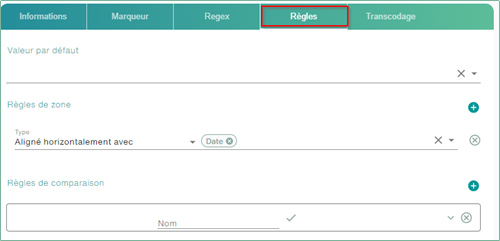
The default value is used to set a value to be applied in the event that no valid value could be found on the document, and this value could not be inferred by Smart Capture
Zone Rules
Zone rules allow you to narrow down the possible values for an index by setting a constraint related to the geographic position of the value relative to values in other indexes.
Comparison rules
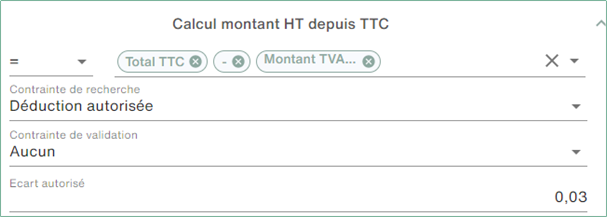
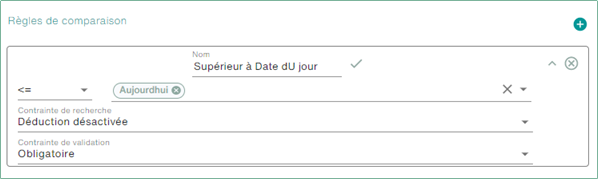
Comparison rules are important in Smart Capture because they are the way to provide the user with a consistent value deduction. But also to check that the values entered by the user are correct by prohibiting validation or by warning the user that the values entered are inconsistent.
E.g. The amount excluding VAT must be equal to the Total including VAT minus the amount of VAT.
E.g.: It is not possible to validate a document whose date is greater than today’s date
Transcoding
The use of transcoding makes it possible to transcribe values into constants known to the software, but also to limit the possible values and to define a default value.
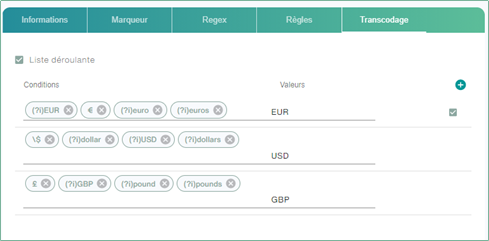
From this tab, you can choose whether the index will be a drop-down list or not using the checkbox provided.
The columns displayed are:
Conditions: This column is visible only when the index is captured (not manual). These are the different values detected on the document for which the transcoding value will be applied. Simply enter text and press “ENTER”
It is possible to use regexes in this column to target multiple values at once.
Value: The value that will be displayed in the drop-down list is the value that will actually be attached to the document.
Default Value: Allows you to define the default value that will be assigned to the document, if no value could be found on the document or the index is manual.