When a document is interpreted, Smart Capture tries to determine if the third party already exists in the folder’s “third-party repository.”
Third Party Detection
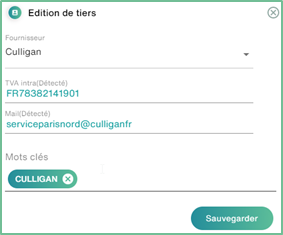
Third Party Detected
If one or more of this information matches that of a third party’s record in the “third-party repository”, then Smart Capture will automatically assign that third party to the document without opening its record (you can still access and edit the third party’s record with the pen button).

Third Party Not Detected
If none of this information matches a third party, the third party’s field will be red
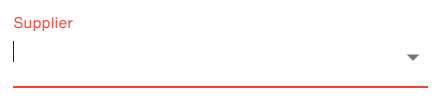
Open Bee Smart Capture will ask you to tell them the name of the third party to use for this document:
- If the party already exists: This will be displayed in a list as you enter its name and you can select it.
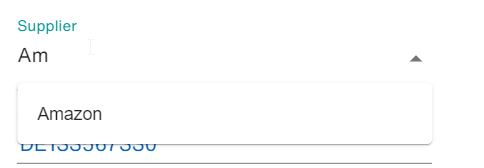
If the third party was not positioned when the document was opened, it means that the information contained in the third party’s record did not allow Open Bee Smart Capture to identify it. We therefore advise you to correct or complete the information entered in the third party’s file.
If the third party does not exist: Open Bee Smart Capture will create this new third party using the name entered and offer you the information it has detected on the document to directly enrich its third-party file.
Third-party listing details
When Open Bee Smart Capture offers a third party to the user, its sheet can be composed of several colors:
Blue: In the case of a new third party, if a value has been detected, it is pushed directly into the third party card
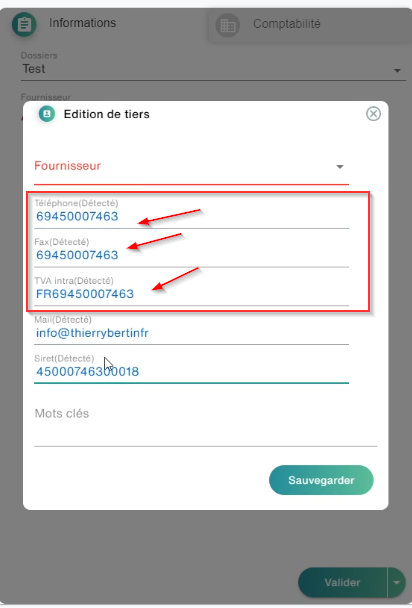
Green: The information detected corresponds to the third-party record and has made it possible to identify the third party on the current document
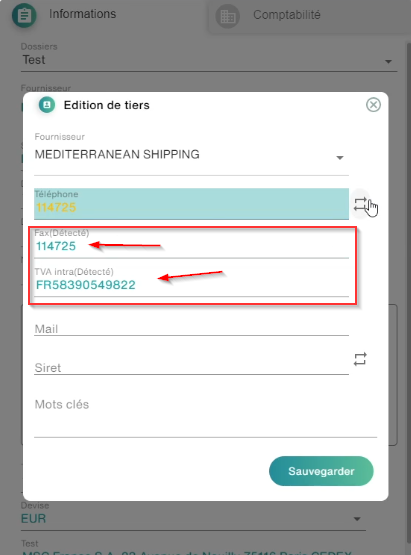
Yellow: The information detected is different from the third-party record, the icon  allows you to change between the detected value and that of the record
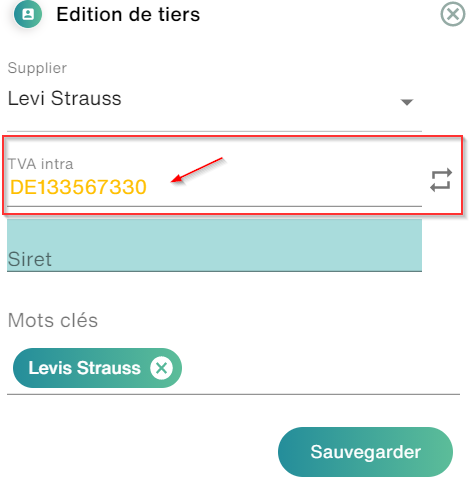
Keyword identifiers
Keyword identifiers allow for a simple third-party search by directly comparing the keywords entered by the user with the recognized text for the document.
You have two methods to create keywords
or you type manually in the field
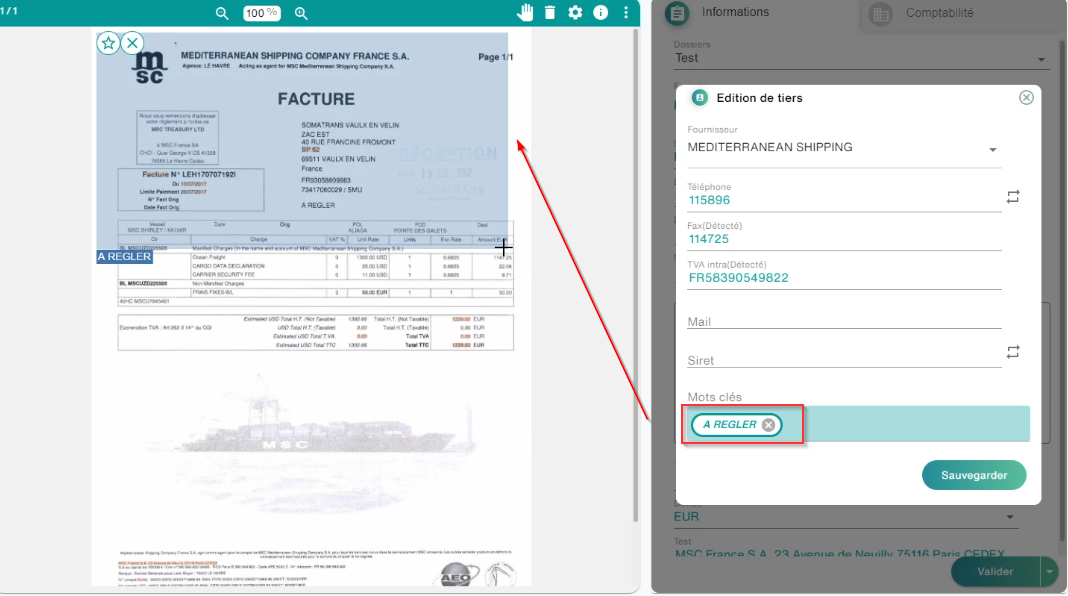
Either you circle the password directly in the document
You can specify the location of the key mount search by clicking on the keyword  and then selecting the search box.
You can add the keyword as a favorite by clicking on this icon  , Capture will only use that keyword there to find the provider.
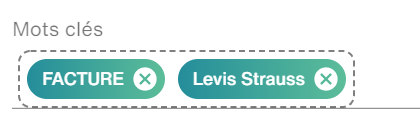
Keyword Groups: This option allows you to search for the vendor name based on a group of words:
If he does not find a word among this group, the result is zero
Finally, click Save
Document Validation
Once this verification step is complete, you can press the “Validate” button below the previously verified fields. The list of documents will refresh and you can process the other documents.