To use the templates: you can go to the videocoding part of the application. You will then be able to see at the top right of your screen the template used for the current invoice. If the folder contains only one document type and one template, these fields do not appear to save space
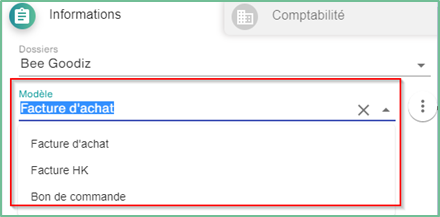
Usage
Editing a template
If the user wants to edit a template that has already been created, simply click on the icon  to display the options, and then click on Edit Template
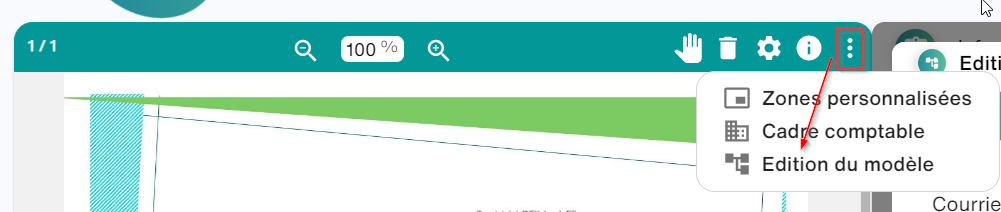
A window will then open, which contains the information of your model
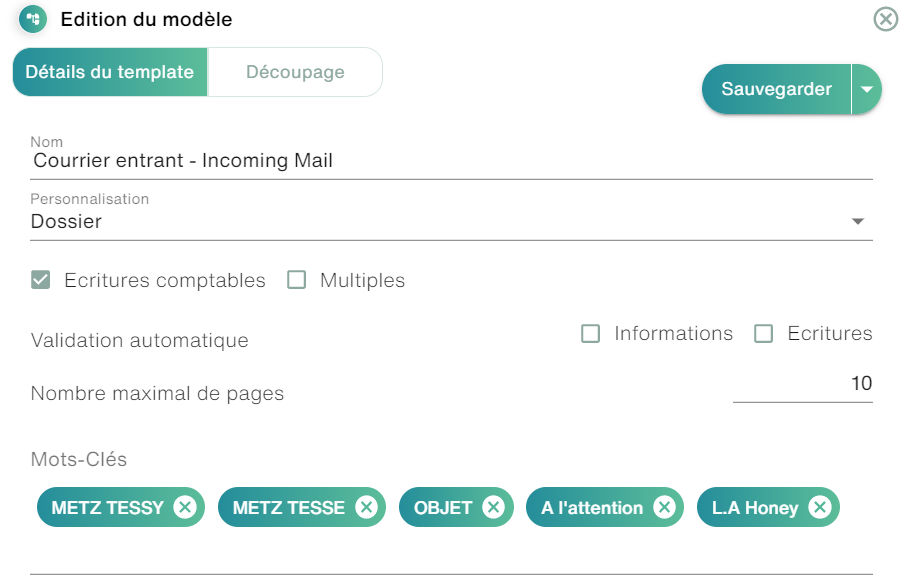
This information is as follows:
- Name: The name of the template displayed to users and in the various menus of the application
- Customization: Allows you to choose whether the customizations made on a document belonging to this template are different for each third party (By Tier) or common for all tiers in the folder (By Folder)
- Ledger Entries: Available only if the application is in Ledger mode, Allows you to choose whether your template will allow the user to fill in ledger entries for documents belonging to them
- Keywords: These are the keywords that will allow Open Bee Smart Capture to differentiate your different models, so you have to be very rigorous in the choice of these. (You can select your keywords directly with your mouse on the current document or type them on the keyboard. For more details on keywords, we invite you to consult the Keyword Use page.